Goodnotes started as an iPad app, but it now has official versions for Windows, Android and the web. If you take notes on your iPad in class or at work and want to review or edit them on a Windows laptop, you can keep your library in sync with Goodnotes Cloud. This guide explains how to set up syncing, what you need, what does and doesn’t carry over, and free alternatives if you don’t want a subscription.
Quick Answer
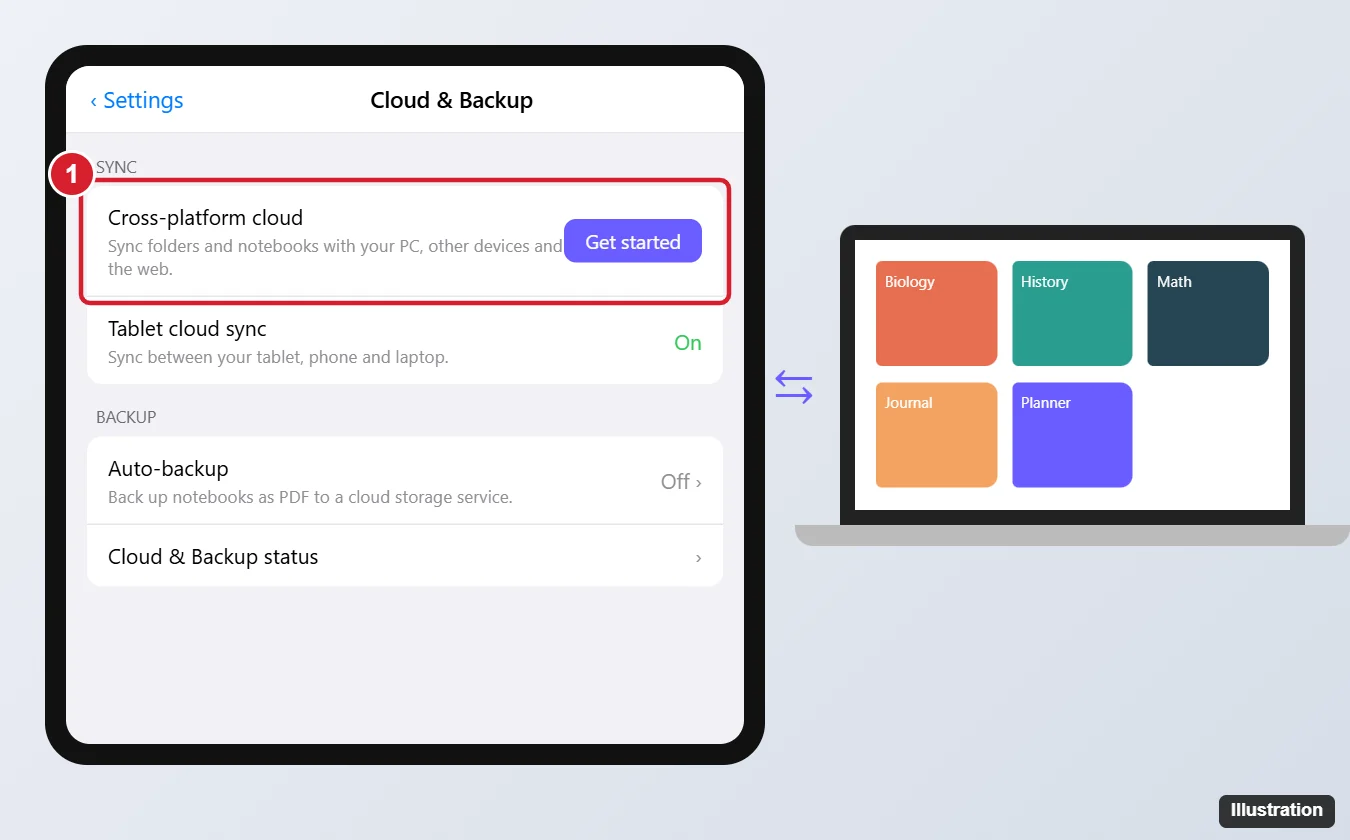
On your iPad, open Goodnotes and go to the Goodnotes menu > Cloud & Backup, then tap Get started under Goodnotes Cloud. Then install Goodnotes for Windows and sign in with the same Goodnotes account. Goodnotes Cloud requires a Goodnotes Pro subscription, according to Goodnotes’ support site.
What You Need
- Goodnotes 6 (or later) on your iPad, updated to the latest version.
- Goodnotes for Windows, available from the Goodnotes website or the Microsoft Store, or the Goodnotes web app in a browser.
- The same Goodnotes account on both devices.
- Goodnotes Pro. Goodnotes says Cloud sync isn’t included with the Essential plan or older one-time-purchase editions; check the current plans in the app.
Step 1: Make Sure iCloud Sync Is Up to Date
By default, Goodnotes on iPad syncs through iCloud, which only works on Apple devices. Before switching, tap the Cloud & Backup Status icon in the Library and tap Sync Now. Fix any sync errors so every notebook is fully uploaded.
Step 2: Turn On Goodnotes Cloud on the iPad
- Open Goodnotes and tap the Goodnotes menu (or Settings).
- Tap Cloud & Backup.
- Under Goodnotes Cloud, tap Get started and follow the prompts.
- Wait while your library moves to Goodnotes Cloud. Keep the app open and connected to Wi-Fi; large libraries can take a while.
Your iPhone and Mac should be switched to Goodnotes Cloud too, so every device uses the same library.
Step 3: Sign In on Windows
- Install Goodnotes for Windows and open it (or go to the Goodnotes web app).
- Sign in with the same account you use on the iPad.
- Your folders and notebooks appear and stay in sync. Edits on one device show up on the other after a short delay.
What Syncs and What Doesn’t
- Syncs: folders, notebooks, handwriting, typed text, images and PDFs.
- Limited or unavailable on Windows: according to Goodnotes, custom templates, custom elements, Time Keeper and Study Sets have limited or no support on Windows. Some iPad-only tools may show as read-only.
- Writing on Windows works best with a touchscreen and pen; you can also type and annotate with a mouse.
Free Alternatives Without Goodnotes Pro
- Share link: in Goodnotes on iPad, open a notebook, tap the share icon, and create a link. Open it on Windows to view (and, with permission, edit) that notebook.
- Auto-backup as PDF: in Cloud & Backup > Auto-backup, back up notebooks to Google Drive, OneDrive, Dropbox or Box as PDF files, then open them on your PC. This is one-way: changes on the PC don’t sync back.
- Export: export a notebook as PDF and send it to your PC by email, AirDrop to a Mac, or a cloud folder.
Troubleshooting
- Cloud & Backup doesn’t show Goodnotes Cloud: update the app, check your plan, and resolve any iCloud sync errors first.
- Notebooks missing on Windows: make sure you’re signed in with the same account and that the iPad finished migrating. Pull down to refresh the library.
- Switching back to iCloud: Goodnotes warns that switching back can temporarily prevent you from switching to Goodnotes Cloud again, so decide before you switch.
Frequently Asked Questions
Is Goodnotes for Windows free?
You can download it and use a limited free tier; syncing with your iPad library through Goodnotes Cloud needs Goodnotes Pro. Pricing and limits can change, so check the app.
Can I sync with iCloud on Windows?
No. iCloud sync in Goodnotes is for Apple devices. Use Goodnotes Cloud for Windows.
Can I use Goodnotes in a browser instead?
Yes. The web app works on Windows PCs and Chromebooks with the same account.
Summary
- Check that iCloud sync has no errors on the iPad.
- Open Goodnotes menu > Cloud & Backup and turn on Goodnotes Cloud.
- Install Goodnotes for Windows and sign in with the same account.
- Use share links or PDF backups if you don’t have Pro.

Kermit Matthews is a freelance writer based in Philadelphia, Pennsylvania with more than a decade of experience writing technology guides. He has a Bachelor’s and Master’s degree in Computer Science and has spent much of his professional career in IT management.
He specializes in writing content about iPhones, Android devices, Microsoft Office, and many other popular applications and devices.