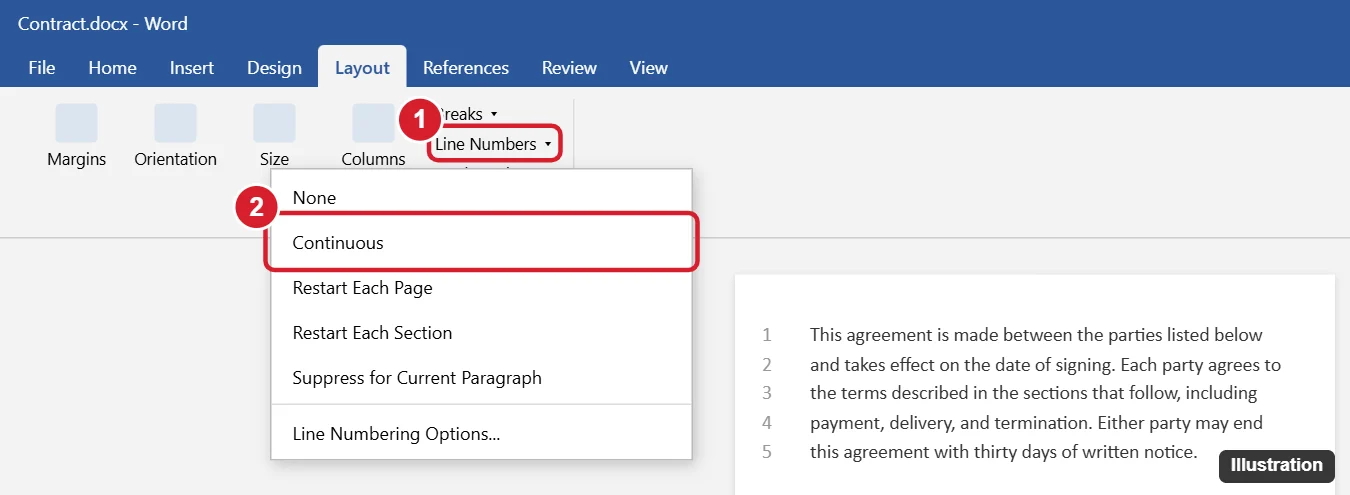
To insert line numbers in Word, click the Layout tab, click Line Numbers in the Page Setup group, and choose Continuous to number every line in the document. Choose Restart Each Page or Restart Each Section to start over at 1, or Line Numbering Options to change the starting number and how often numbers appear. To remove them, choose None.
Line numbers are common in legal documents, scripts, and drafts you share for review. Below you’ll learn every option, how to skip specific paragraphs, and how to number only part of a document.
How to add line numbers
- Open the Layout tab. (In Word 2013, it’s called Page Layout.)
- Click Line Numbers in the Page Setup group.
- Choose an option:
- Continuous: numbers every line from start to finish.
- Restart Each Page: starts at 1 on every page.
- Restart Each Section: starts at 1 after each section break.
Line numbers only appear in Print Layout view. If you don’t see them, click View > Print Layout.
How to customize line numbers
- Click Layout > Line Numbers > Line Numbering Options.
- On the Layout tab of the Page Setup box, click Line Numbers.
- Check Add line numbering and set:
- Start at: the first number, such as 1 or 100.
- From text: the distance between the numbers and the text.
- Count by: show every line number (1) or every fifth (5), for example.
- Click OK twice.
How to skip line numbers for certain paragraphs
Click in the paragraph (such as a title or heading) and choose Layout > Line Numbers > Suppress for Current Paragraph. Those lines aren’t numbered or counted.
How to number only part of a document
- Insert a section break before and after the part you want numbered: Layout > Breaks > Next Page or Continuous.
- Click inside the section you want numbered.
- Choose Line Numbers > Line Numbering Options, and in the Page Setup box, set Apply to to This section before turning on numbering.
Change the look of line numbers
Line numbers use the Line Number style. To change the font or color, open the Styles pane (Ctrl + Alt + Shift + S), click Options, set Select styles to show to All styles, then right-click Line Number and choose Modify.
Troubleshooting
- Tables, text boxes, headers, and footers aren’t numbered. That’s normal. Word only numbers lines in the main body text.
- Numbers skip lines. Check for paragraphs with Suppress turned on, or Count by set higher than 1.
- Line Numbers is grayed out. You may be in Web Layout, Read Mode, or a protected document.
Frequently asked questions
Do line numbers print?
Yes. They print and appear in PDFs you save from Word.
Can I add line numbers in Word for the web?
Word for the web can show existing line numbers but has limited options for adding them. Use the desktop app for full control.
How do I remove line numbers?
Choose Layout > Line Numbers > None.

Kermit Matthews is a freelance writer based in Philadelphia, Pennsylvania with more than a decade of experience writing technology guides. He has a Bachelor’s and Master’s degree in Computer Science and has spent much of his professional career in IT management.
He specializes in writing content about iPhones, Android devices, Microsoft Office, and many other popular applications and devices.