To hide a layer in Photoshop CS5, click the eye icon to the left of the layer’s thumbnail in the Layers panel. Click the empty box again to show it. Hold Alt (Option on Mac) and click an eye to hide every other layer and view just that one. Hidden layers stay in the file and don’t appear in flattened exports such as JPEGs. The same steps work in newer versions of Photoshop.
Quick Answer
Layers panel > click the eye icon next to the layer. Alt + click to show only that layer.
Steps to Hide a Layer
- Open Window > Layers if the panel isn’t showing.
- Find the layer in the list.
- Click the eye icon to the left of it to hide the layer.
- Click the same spot to show it again.
- Alt-click (Option-click) an eye to toggle all other layers.
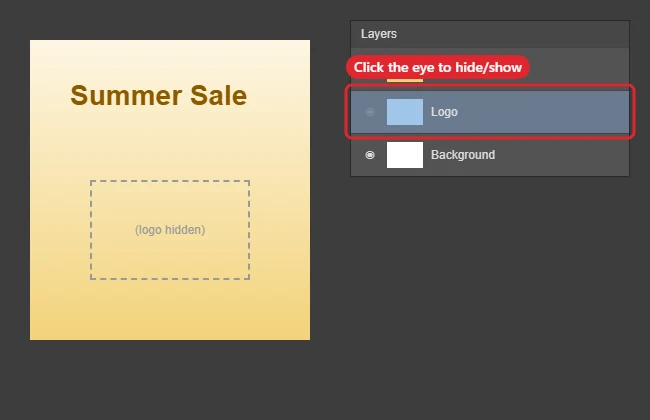
Layer Visibility Tips
| Task | How |
|---|---|
| Hide one layer | Click its eye icon |
| Show only one layer | Alt/Option + click its eye |
| Hide several layers | Drag down the eye column |
| Hide a group | Click the group’s eye |
| Delete instead of hide | Drag the layer to the trash icon |
Troubleshooting
- Can’t find the Layers panel: Press F7 or use Window > Layers.
- Rename layers: See renaming a layer in Photoshop CS5.
- Duplicate first: See duplicating a layer.
- Combine layers: See merging layers in Photoshop CS5.
Frequently Asked Questions
Do hidden layers print?
No. Only visible layers print or export.
Are hidden layers saved in PSD files?
Yes, with their hidden state.
Can I lock a layer instead?
Yes. Use the lock icons at the top of the Layers panel.
Summary
- Open the Layers panel.
- Click the eye icon.
- Alt-click to isolate a layer.
- Hidden layers stay in the PSD.

Kermit Matthews is a freelance writer based in Philadelphia, Pennsylvania with more than a decade of experience writing technology guides. He has a Bachelor’s and Master’s degree in Computer Science and has spent much of his professional career in IT management.
He specializes in writing content about iPhones, Android devices, Microsoft Office, and many other popular applications and devices.