Word doesn’t have a setting that turns off the expand/collapse arrows. They appear on every paragraph with an outline level, which includes the built-in Heading 1 through Heading 9 styles. The arrows only show when you hover over a heading, and they never print or appear in PDFs. If sections keep collapsing, right-click any heading and choose Expand/Collapse > Expand All Headings, and make sure Collapsed by default isn’t checked in the heading’s paragraph settings. To remove the arrows completely, change those paragraphs to a style whose outline level is Body Text.
Here’s what each option does, and the trade-offs of removing the arrows.
Why the arrows are there
Word adds the small triangle next to any paragraph that has an outline level, so you can fold long documents into their headings. The same outline levels power the Navigation Pane and automatic Table of Contents. That’s why Word doesn’t let you hide the arrows for heading styles: removing the outline level also removes the heading from those features.
Fix 1: Expand all collapsed sections
- Right-click any heading.
- Point to Expand/Collapse.
- Click Expand All Headings.
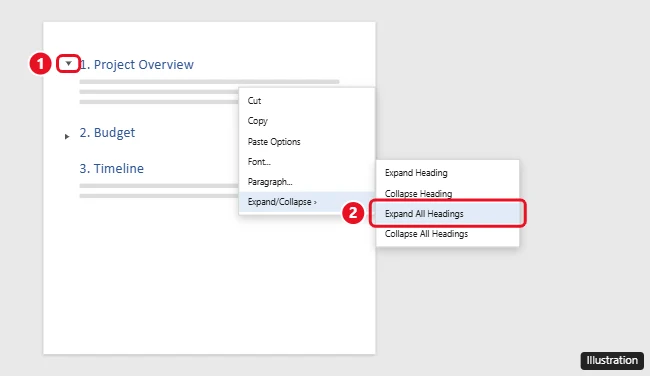
You can also click the arrow next to a single collapsed heading to open just that section.
Fix 2: Stop headings from opening collapsed
If a document opens with sections folded, the headings are probably set to be collapsed by default.
- On the Home tab, right-click the heading style (for example, Heading 1) in the Styles gallery and choose Modify.
- Click Format > Paragraph.
- On the Indents and Spacing tab, uncheck Collapsed by default next to Outline level.
- Click OK twice. Repeat for other heading styles if needed.
To fix a single heading instead, click in it, open the Paragraph dialog from the Home tab, and uncheck the same box.
Fix 3: Remove the arrows from specific paragraphs
If some text uses a heading style only for its look, switch it to a style with no outline level.
- Click in the heading.
- On the Home tab, open the Styles pane with Alt + Ctrl + Shift + S and click New Style.
- Name it (for example, Title Text), set Style based on to Normal, and choose the font, size, and color you want.
- Click Format > Paragraph and make sure Outline level is Body Text. Click OK twice.
- Apply your new style to the paragraphs where you don’t want arrows.
Those paragraphs won’t show arrows, but they also won’t appear in the Navigation Pane or an automatic table of contents.
If you apply direct outline levels to regular paragraphs (in the Paragraph dialog), setting them back to Body Text removes the arrows too.
What doesn’t work
- Show/Hide ¶ doesn’t hide the arrows.
- There’s no option in File > Options to turn them off.
- Changing the outline level of a built-in heading style isn’t possible. It’s grayed out.
Sharing the document without arrows
The arrows only appear on screen when someone hovers over a heading in Word. They don’t print, and they’re not included when you save as a PDF with File > Save As > PDF. If you’re sending a final version, a PDF avoids the issue entirely.
Frequently asked questions
Why did part of my Word document disappear?
A heading was probably collapsed, which hides everything under it until the next heading. Click the arrow next to the heading or use Expand All Headings.
Do the arrows appear in Word for the web?
Yes. Word for the web also shows expand/collapse arrows next to headings, and you can click them the same way.
Will collapsed sections print?
Yes. Word prints all content, including text under collapsed headings.
Does this work on a Mac?
Yes. The same options are in Word for Mac. Use Format > Paragraph to find Collapsed by default.

Kermit Matthews is a freelance writer based in Philadelphia, Pennsylvania with more than a decade of experience writing technology guides. He has a Bachelor’s and Master’s degree in Computer Science and has spent much of his professional career in IT management.
He specializes in writing content about iPhones, Android devices, Microsoft Office, and many other popular applications and devices.