Drawing a square or rectangle is one of the most basic tasks in Photoshop CS5, and there are two good ways to do it: the Rectangle Tool, which makes an editable vector shape, and the Rectangular Marquee Tool, which lets you fill or outline a selection with pixels. This guide covers both, how to get a perfect square, exact sizes, outlines, and rounded corners. The same steps work in later versions of Photoshop, with a few differences noted at the end.
Quick Answer
Press U (or click and hold the shape tool and choose Rectangle Tool), make sure Shape layers is selected in the options bar, choose a color, and drag on the canvas. Hold Shift while dragging to make a perfect square, or Alt (Option on Mac) to draw from the center.
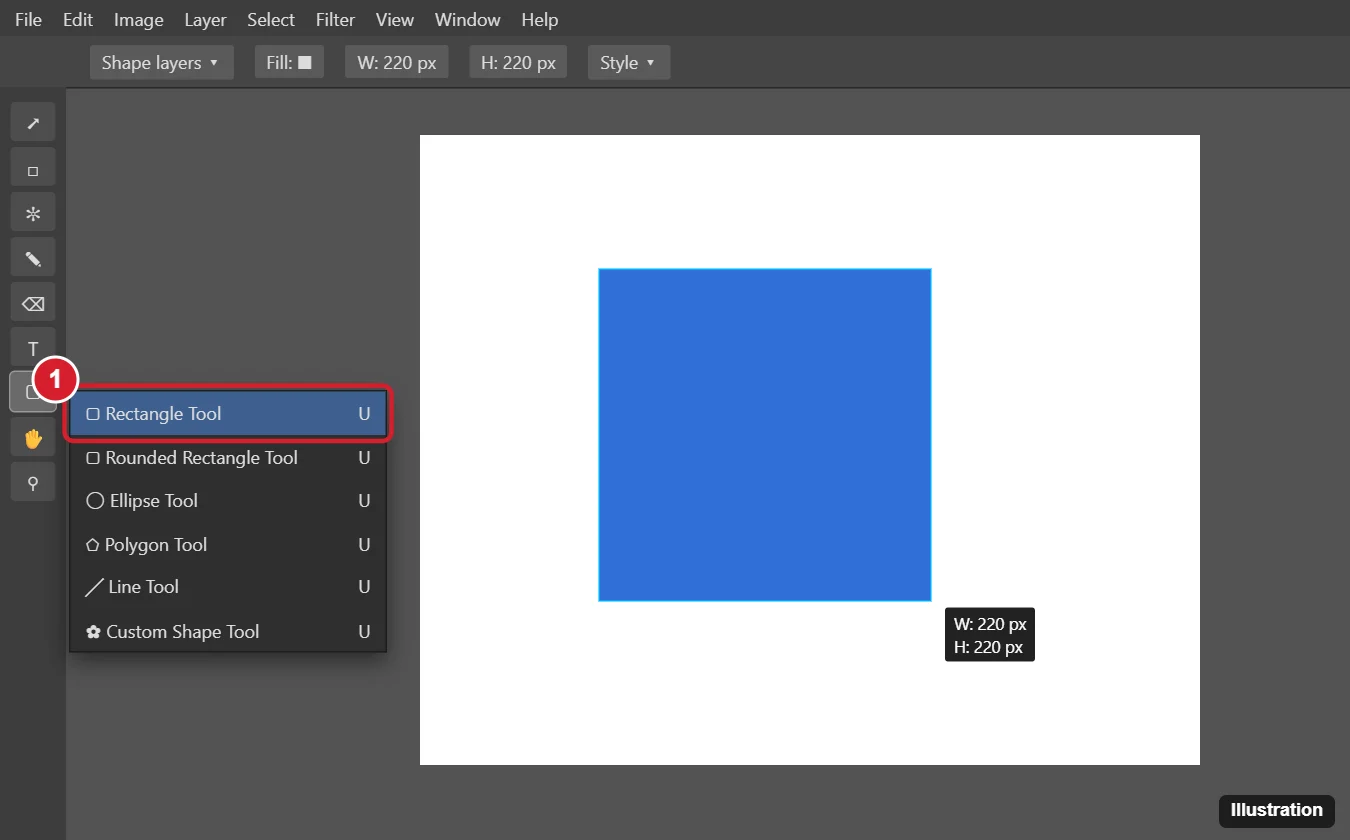
Method 1: Rectangle Tool (Editable Shape)
- Open or create a document (File > New).
- Click and hold the shape tool in the Tools panel (below the Type tool) and choose Rectangle Tool, or press U (press Shift + U to cycle through the shape tools).
- In the options bar at the top, click the Shape layers button (the first of the three mode icons).
- Click the Color swatch in the options bar to pick a fill color.
- Drag on the canvas to draw the rectangle.
- Hold Shift to constrain it to a square.
- Hold Alt (Option) to draw from the center outward.
- Hold the Spacebar while dragging to reposition it before letting go.
The shape appears on its own layer. Double-click the layer thumbnail to change its color at any time, and use Edit > Free Transform Path (Ctrl + T) to resize it without losing quality.
Draw an exact size
- With the Rectangle Tool selected, click the small down arrow next to the shape icons in the options bar (Geometry options).
- Choose Fixed Size and enter the width and height (for example, 300 px by 300 px), or choose Square.
- Click once on the canvas to place it.
Rounded corners
Choose the Rounded Rectangle Tool from the same flyout and set the Radius in the options bar before drawing.
Method 2: Rectangular Marquee (Filled or Outlined Pixels)
- Create a new layer (Layer > New > Layer, or Ctrl + Shift + N) so you don’t paint on your photo.
- Press M to choose the Rectangular Marquee Tool.
- Drag a selection. Hold Shift for a square. For an exact size, set Style to Fixed Size in the options bar.
- To fill it: Edit > Fill, choose Foreground Color or Color, and click OK (shortcut: Alt + Backspace fills with the foreground color).
- To make an outline instead: Edit > Stroke, set the width (for example, 4 px), color, and location (Inside, Center, Outside), and click OK.
- Press Ctrl + D to deselect.
Make a Rectangle Outline With the Rectangle Tool
In CS5, shape layers are filled, so for an outline: draw the shape, then add a Stroke layer style (Layer > Layer Style > Stroke) and set the layer’s Fill to 0% in the Layers panel. The stroke stays editable.
Newer Photoshop Versions
- The mode choice is a drop-down (Shape, Path, Pixels) instead of icons.
- You can set Fill and Stroke directly in the options bar, including no fill for an outline.
- The Rectangle Tool has live, adjustable corner radius handles, and the Properties panel lets you type exact width, height, and corner values after drawing.
Troubleshooting
- The rectangle has no color: you’re in Paths mode. Switch to Shape layers.
- It isn’t a perfect square: press Shift after you start dragging and release the mouse before Shift.
- Edit > Fill is grayed out on a shape layer: shape layers are vector; rasterize the layer first (Layer > Rasterize > Shape) or change color by double-clicking the thumbnail.
Frequently Asked Questions
Which method should I use?
Use the Rectangle Tool for graphics you may resize or recolor later. Use the Marquee method for quick pixel fills or outlines on a photo.
How do I center the rectangle on the canvas?
Select the shape layer and the background (Select > All), then use the Align buttons in the Move tool options bar.
How do I draw a square with a specific stroke color?
Draw with the Rectangle Tool, then add a Stroke layer style with the color you want.
Summary
- Press U, choose the Rectangle Tool, and select Shape layers.
- Drag to draw; hold Shift for a square.
- Use Fixed Size for exact dimensions.
- For pixel fills or outlines, use the Rectangular Marquee with Edit > Fill or Edit > Stroke.

Kermit Matthews is a freelance writer based in Philadelphia, Pennsylvania with more than a decade of experience writing technology guides. He has a Bachelor’s and Master’s degree in Computer Science and has spent much of his professional career in IT management.
He specializes in writing content about iPhones, Android devices, Microsoft Office, and many other popular applications and devices.