Every major browser lets you choose which search engine runs when you type in the address bar. If a browser or an app installer switched yours, you can set Google back as the default in a few steps. The setting lives in each browser’s own settings, so change it in every browser you use.
Quick Answer
Open your browser’s settings, find the Search or Search engine section, and choose Google as the search engine used in the address bar. On iPhone, go to Settings, Apps, Safari, Search Engine.
How to Change the Default Search Engine to Google
- Chrome: open Settings, select Search engine, and choose Google under Search engine used in the address bar.
- Edge: open Settings, go to Privacy, search, and services, then Address bar and search, and pick Google.
- Firefox: open Settings, select Search, and choose Google under Default Search Engine.
- Safari on Mac: open Safari, Settings, Search, and choose Google.
- Safari on iPhone or iPad: open Settings, Apps (on newer iOS), Safari, Search Engine, and choose Google.
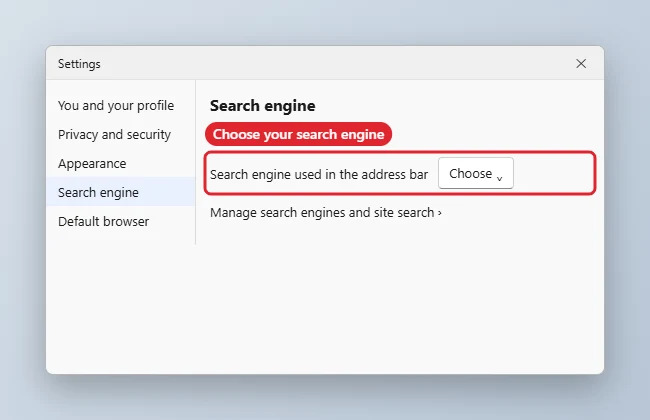
Where the Setting Lives
| Browser | Path |
|---|---|
| Chrome | Settings, Search engine |
| Edge | Settings, Privacy, search, and services, Address bar and search |
| Firefox | Settings, Search |
| Safari (Mac) | Settings, Search |
| Safari (iPhone) | Settings, Apps, Safari, Search Engine |
Troubleshooting
- The search engine keeps changing back: an extension or unwanted program may be resetting it. Remove unfamiliar extensions and run a security scan.
- Google is missing from the list: add it under Manage search engines, or reset browser settings.
- To remove Bing from Chrome, see how to remove Bing from Chrome.
- For Windows search and Edge, read how to make Google the default search engine on Windows 11.
Frequently Asked Questions
Does this change the Windows search box?
No. The taskbar search uses Bing in most regions; this setting only affects your browser.
Do I need to change it on every device?
Yes, unless browser sync is on, which may copy the setting to other devices.
Can I use Google without changing the default?
Yes. Go to google.com and search there, or bookmark it.
Summary
- Open browser settings.
- Find the Search engine section.
- Choose Google.
- Remove extensions that change it back.

Kermit Matthews runs Live2Tech from just outside Philadelphia. He started on a university help desk, spent years as the IT person for small businesses, and has been writing tech guides full time since 2020. Each guide is checked on a device he owns, and re-checked when a menu moves. More about Kermit.