The simplest way to change a HEIC photo to JPG on Windows is to open it in the Photos app or Paint, choose Save as, and pick JPG as the file type. For that to work, Windows needs Microsoft’s HEIF Image Extensions, and usually the HEVC Video Extensions too, from the Microsoft Store. To convert many photos at once, use a free batch converter, or stop the problem at the source by having your iPhone send JPGs to your PC in the first place.
This guide covers every option on Windows 11 and Windows 10, including batch conversion and iPhone settings, plus how to fix HEIC files that won’t open.
What is a HEIC file?
HEIC (High Efficiency Image Container) is the default photo format on iPhones and iPads. It keeps about the same quality as JPG at roughly half the file size. The catch is that many Windows programs, websites, and older devices can’t open it, which is why converting to JPG is so common.
Step 1: Make sure Windows can open HEIC files
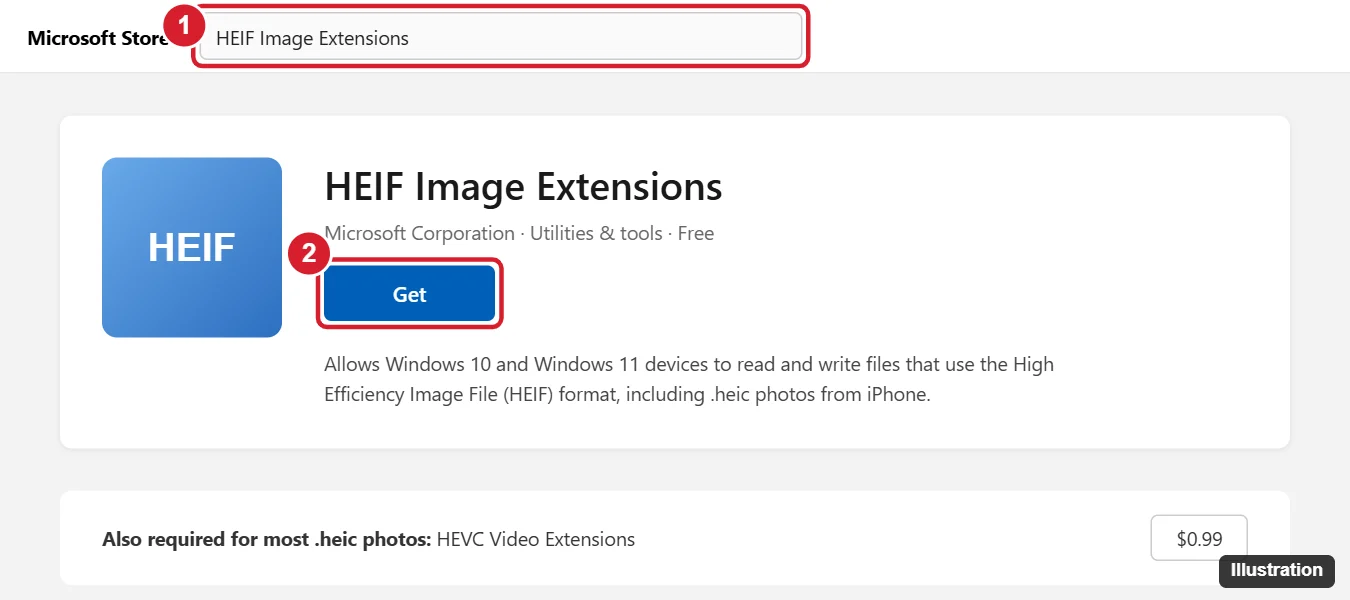
- Open the Microsoft Store and search for HEIF Image Extensions. Click Get or Install. It’s free.
- Search for HEVC Video Extensions and install it. Microsoft charges a small fee for this one (usually $0.99). Some PCs already include a free version called HEVC Video Extensions from Device Manufacturer.
- Restart the Photos app, then double-click a HEIC file. If it opens, you’re ready to convert.
Why both? HEIC photos are compressed with the HEVC codec, so on many PCs the HEIF extension alone isn’t enough to show the image. For more help, see how to open HEIC files on Windows.
Method 1: Convert HEIC to JPG with the Photos app
- Right-click the HEIC file and choose Open with > Photos.
- Click the three-dot See more menu at the top of the window and choose Save as. In some versions of Photos, this option is under the Edit menu, or you can press Ctrl + Shift + S.
- In the Save as type list, choose JPG (or .jpg).
- Choose a folder, rename the file if you want, and click Save.
Your original HEIC file stays where it was. The JPG is a new copy.
Method 2: Convert HEIC to JPG with Paint
- Right-click the HEIC file and choose Open with > Paint.
- Click File > Save as > JPEG picture.
- Pick a folder and click Save.
Paint uses the same HEIF and HEVC extensions, so if the image won’t open, go back to Step 1.
Method 3: Convert many HEIC files at once
Photos and Paint only convert one image at a time. For a folder full of photos, a batch tool is much faster.
- Free right-click converters. Tools such as CopyTrans HEIC for Windows add a Convert to JPEG option to File Explorer’s right-click menu. Select several photos, right-click, and convert them together. Download any tool only from the developer’s official website.
- ImageMagick (for advanced users). Recent Windows versions of this free command-line tool can read HEIC. Open a terminal in the folder with your photos and run
magick mogrify -format jpg *.heic. This writes a JPG copy of every HEIC file in the folder. - Online converters. They work without installing anything, but you upload your photos to someone else’s server. Avoid them for personal or sensitive pictures, since photos can include location data.
Method 4: Get JPGs from your iPhone instead
If you move photos from an iPhone to a PC regularly, these settings can save you from converting at all.
Convert automatically when you connect with a cable
- On your iPhone, open Settings > Apps > Photos. On older versions of iOS, go to Settings > Photos.
- Under Transfer to Mac or PC, choose Automatic.
Photos you import over a USB cable are then converted to JPG as they copy.
Take new photos as JPG
- Open Settings > Camera > Formats.
- Choose Most Compatible.
New photos are saved as JPG, but they take up more storage on your iPhone. Photos you’ve already taken stay as HEIC.
Download JPGs from iCloud
If you use iCloud Photos, iCloud for Windows may give you an option to keep the high-efficiency original. Turn that option off to download photos as JPG. On iCloud.com, the download options may let you choose Most Compatible, which also gives you JPG files. See how to download photos from iCloud to a Windows PC.
Which method should you use?
| Situation | Best method |
|---|---|
| One or two photos | Photos app or Paint |
| A folder of photos already on your PC | A batch converter or ImageMagick |
| You move photos from your iPhone often | Set Transfer to Mac or PC to Automatic |
| You never want HEIC files again | Set the iPhone camera to Most Compatible |
If Save as JPG doesn’t work
- The photo won’t open at all. Install both the HEIF and HEVC extensions, then restart your PC.
- You don’t see JPG as a choice. Update the Photos app from the Microsoft Store, or use Paint instead.
- The file is a Live Photo or video. HEIC video clips and Live Photo motion can’t be saved as JPG. Only the still image converts.
- The JPG looks slightly different. JPG uses different compression, so some color or detail can change a little. Keep the original HEIC if you want the best copy.
After converting to JPG, you can add captions to your photos in the file’s Details so they’re easy to search.
Related: How to open JPG files in Windows 11.
Frequently asked questions
Can I just rename a .heic file to .jpg?
No. Renaming only changes the name, not the format inside, so many programs still can’t open it. Use one of the methods above to actually convert it.
Does converting HEIC to JPG lower the quality?
A little, because JPG compresses images differently. For everyday sharing, most people won’t notice the difference.
Is there a built-in way to convert many HEIC files at once on Windows?
Not really. Windows’ built-in apps convert one photo at a time. For large batches, use a dedicated converter.
Does converting keep the photo’s date and location?
It depends on the tool. Photos and most converters keep the date the photo was taken, but some online tools strip this information.

Kermit Matthews is a freelance writer based in Philadelphia, Pennsylvania with more than a decade of experience writing technology guides. He has a Bachelor’s and Master’s degree in Computer Science and has spent much of his professional career in IT management.
He specializes in writing content about iPhones, Android devices, Microsoft Office, and many other popular applications and devices.