Word’s Page Color setting always colors every page, so to change the background color of just one page, you cover that page with a colored shape placed behind the text. Go to Insert > Shapes > Rectangle, draw it over the whole page, pick a color with Shape Fill, and set Wrap Text to Behind Text. Your text stays readable on top, and the other pages keep their normal background.
Here’s how to do it neatly, keep the shape from moving, and make sure the color prints.
How to color the background of one page
- Go to the page you want to color and click at the start of its text.
- Click Insert > Shapes and choose Rectangle.
- Drag to draw a rectangle anywhere on the page. You’ll size it exactly in a moment.
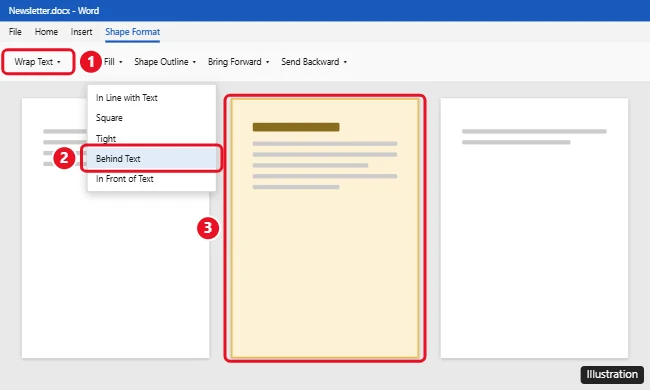
- On the Shape Format tab, click Wrap Text and choose Behind Text.
- Click Shape Fill and pick a color. Choose More Fill Colors for an exact shade, or Gradient, Picture, or Texture for other looks.
- Click Shape Outline > No Outline.
- Set the size to match the page. In the Size group, enter your paper size, like 11″ height and 8.5″ width for US Letter, or 29.7 cm by 21 cm for A4.
- Click Position > More Layout Options. Set Horizontal and Vertical to Absolute position 0″ relative to Page, then click OK.
Keep the colored shape from moving
Shapes are anchored to a paragraph, so they can jump to another page when you edit text above them.
- In Position > More Layout Options, uncheck Move object with text and check Lock anchor.
- Show anchors with Ctrl + Shift + 8. Make sure the anchor icon sits in a paragraph on the page you colored.
Alternative: Put the shape in that section’s header
For a colored page that won’t move at all, like a cover page, place the shape in the header of its own section.
- Put the page in its own section: click at the end of the previous page and choose Layout > Breaks > Next Page. Add another Next Page break at the end of the colored page.
- Double-click the header area of the colored page.
- On the Header & Footer tab, click Link to Previous to turn it off. Do the same in the next section’s header.
- With the header still open, insert the rectangle, size and color it as above, and set it to Behind Text.
- Double-click the page body to close the header.
If it’s the first page of your document, you can also check Different First Page in the Header & Footer tab and place the shape only in the first-page header.
How to color every page instead
Go to Design > Page Color and pick a color. This always applies to the whole document.
Make sure the color prints
- Shapes print by default. Most home printers can’t print to the edge of the paper, so you may see a thin white border.
- If you use Page Color, turn on printing for it: File > Options > Display > check Print background colors and images.
- Saving as PDF (File > Save As > PDF) keeps the colored page for sharing.
Frequently asked questions
Can I use Page Color for just one page?
No. Page Color always applies to every page in the document. Use a shape behind the text for a single page.
Why can’t I click on my text after adding the shape?
The shape is probably set to In Front of Text. Select it and change Wrap Text to Behind Text. If you can’t select it, use Home > Select > Selection Pane.
Does this work in Word for Mac and Word for the web?
Yes on Mac, with the same steps. Word for the web supports inserting shapes, but its layout options are more limited, so the desktop app gives the best results.
Can I use a picture instead of a color?
Yes. Choose Shape Fill > Picture and select an image. It fills the rectangle behind your text.

Kermit Matthews is a freelance writer based in Philadelphia, Pennsylvania with more than a decade of experience writing technology guides. He has a Bachelor’s and Master’s degree in Computer Science and has spent much of his professional career in IT management.
He specializes in writing content about iPhones, Android devices, Microsoft Office, and many other popular applications and devices.