Centering a text box in Word by dragging it rarely lands it exactly in the middle. Word’s Align tools center it precisely, either horizontally, vertically, or both, relative to the page or the margins. This guide covers centering the box on the page, centering text inside the box, and fixing a text box that won’t move.
Quick Answer
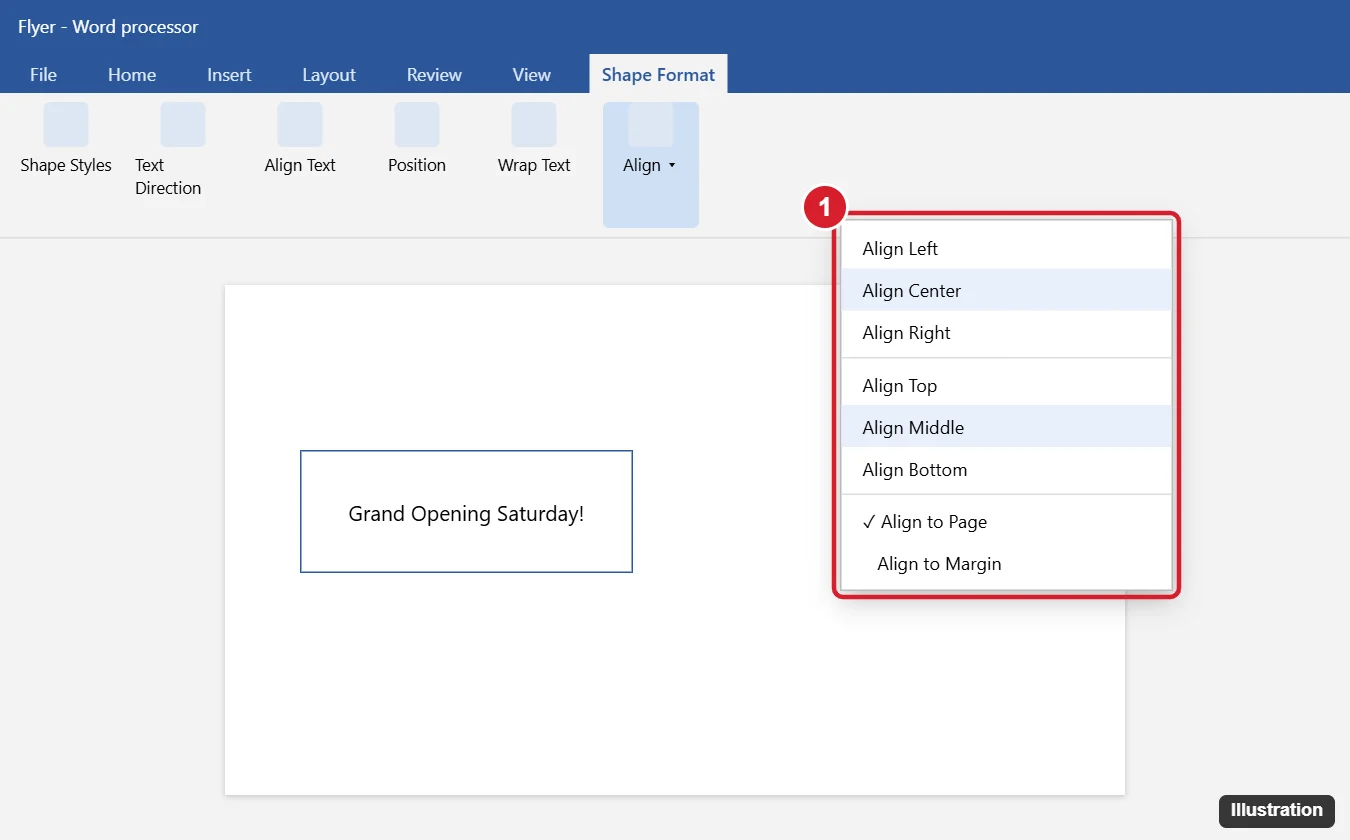
Click the edge of the text box to select it. On the Shape Format tab, click Align, choose Align to Page (or Align to Margin), then click Align Center for horizontal centering and Align Middle for vertical centering.
Center a Text Box on the Page
- Click the border of the text box so the box itself is selected (the border becomes solid, not dashed).
- Open the Shape Format tab (called Format under Drawing Tools in older versions).
- Click Align in the Arrange group.
- Choose Align to Page to center on the full page, or Align to Margin to center within the margins.
- Click Align again and choose Align Center (horizontal). For vertical centering, also choose Align Middle.
If the Align options are grayed out, set the text box’s Wrap Text to something other than In Line with Text, such as Square or In Front of Text.
Center With Exact Position Settings
- Select the text box and click Position > More Layout Options (or the Layout Options button > See more).
- On the Position tab, under Horizontal, choose Alignment: Centered relative to Page (or Margin).
- Under Vertical, do the same for vertical centering.
- Click OK.
This keeps the box centered even if you edit the text around it.
Center the Text Inside the Box
- Horizontally: click inside the box, select the text, and press Ctrl + E (or Home > Center).
- Vertically: select the box and choose Shape Format > Align Text > Middle.
Center Multiple Text Boxes
Hold Shift and click each box, then use Align > Align Selected Objects with Align Center to line them up with each other, or Distribute Vertically to space them evenly.
Troubleshooting
- Text box jumps when editing text: it’s anchored to a paragraph. In More Layout Options > Position, uncheck Move object with text and check Lock anchor.
- Can’t select the box: it may be behind text. Use Home > Select > Selection Pane to find and select it.
- Box isn’t centered on printed page: use Align to Page rather than dragging, and check printer margins.
Related: Align text boxes in Word.
Related: Copy a text box in Word.
Frequently Asked Questions
What’s the difference between Align to Page and Align to Margin?
Align to Page centers on the whole sheet of paper. Align to Margin centers within the text area between the margins, which only differs when left and right margins aren’t equal.
Can I center a picture the same way?
Yes. The same Align options appear on the Picture Format tab.
Does this work in Word for Mac?
Yes, using Shape Format > Arrange > Align.
Summary
- Select the text box border.
- Choose Shape Format > Align > Align to Page.
- Click Align Center and Align Middle.
- Center the text inside with Ctrl + E and Align Text > Middle.

Kermit Matthews is a freelance writer based in Philadelphia, Pennsylvania with more than a decade of experience writing technology guides. He has a Bachelor’s and Master’s degree in Computer Science and has spent much of his professional career in IT management.
He specializes in writing content about iPhones, Android devices, Microsoft Office, and many other popular applications and devices.