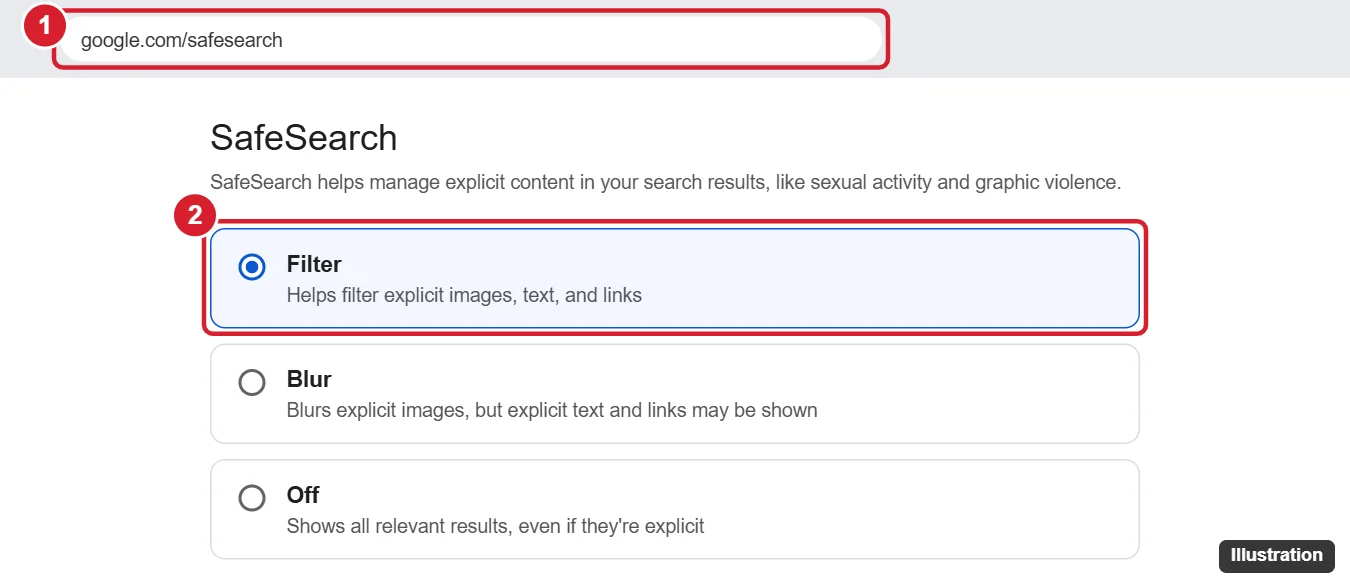
The main way to block unwanted searches on Google is SafeSearch. Go to google.com/safesearch and choose Filter to hide explicit images, text, and links. SafeSearch only filters results, though. It doesn’t stop someone from typing a search or visiting a site directly, and anyone can turn it off unless it’s locked. To lock it for a child, use Google Family Link. To enforce it for everyone on your home network, set it up on your router or DNS.
Here’s how to use each option, including how to block specific websites and stop search suggestions from showing up.
Which option do you need?
| Goal | Best tool | Can it be turned off easily? |
|---|---|---|
| Hide explicit results for yourself | SafeSearch Filter | Yes |
| Hide explicit results for a child | Family Link (SafeSearch locked) | No, only the parent can change it |
| Force SafeSearch on every device at home | Router or DNS setting | Not without router access |
| Block specific websites | Family Link, Screen Time, or a browser extension | Depends on the tool |
| Stop suggestions and saved searches | Google account settings | Yes |
How to turn on SafeSearch
- Go to google.com/safesearch in any browser, or open the Google app and tap your profile picture > Settings > SafeSearch.
- Choose Filter. Blur hides explicit images but may still show explicit text and links.
- If you’re signed in to a Google Account, the setting applies wherever you’re signed in. If you’re not signed in, it only applies to that browser.
Google may turn SafeSearch on automatically for signed-in users it believes are under 18, and schools or workplaces can lock it on managed accounts. If you see a lock icon, the setting is controlled by a parent, school, or administrator.
How to lock SafeSearch for a child
- Install the Google Family Link app on your phone and set up supervision for your child’s Google Account.
- SafeSearch is locked on for supervised accounts under 13 (or the age of consent in your country). Your child can’t turn it off.
- In Family Link, select your child, then open Controls > Content restrictions > Google Search to check the setting. For older teens, you can manage it here too.
SafeSearch only works while your child is signed in to their own account. Family Link can also restrict signing in to other accounts on Android and ChromeOS.
How to force SafeSearch for your whole network
This makes Google use SafeSearch on every device connected to your Wi-Fi, even if someone isn’t signed in.
- Use a family DNS service. Services such as Cloudflare for Families (1.1.1.3), CleanBrowsing, or OpenDNS FamilyShield can enforce SafeSearch and block adult sites. Enter their DNS addresses in your router’s settings.
- Use your router’s parental controls. Many routers, mesh systems, and internet provider apps have a “SafeSearch” or “Safe browsing” toggle.
- Advanced option: Point google.com to forcesafesearch.google.com in your DNS settings. Google documents this for schools and businesses, and it requires a DNS server that lets you add custom records.
Devices using mobile data, a VPN, or their own DNS settings can bypass network filters, so combine this with device-level controls for kids.
How to block specific websites from search results
Google no longer has a built-in way to hide a site from your results. You can:
- Exclude a site from one search: add -site: and the domain to your search, like best laptops -site:example.com.
- Block a site for a child: In Family Link, open Controls > Content restrictions > Google Chrome and add it under Blocked sites.
- Block a site on iPhone or iPad: Go to Settings > Screen Time > Content & Privacy Restrictions > App Store, Media, Web & Games > Web Content, choose Limit Adult Websites, and add the site under Never Allow.
- Block a site in Windows: Microsoft Family Safety can block sites in Microsoft Edge for child accounts.
- Hide sites in your own results: Browser extensions that hide chosen domains from search results are available for Chrome and Firefox. Check reviews and permissions before installing one.
How to stop search suggestions and saved searches
- Turn off trending searches: On google.com, click Settings > Search settings > Other settings, and turn off Autocomplete with trending searches. In the Google app, it’s under Settings > General.
- Stop saving your searches: Go to myactivity.google.com, click Web & App Activity, and turn it off. You can also delete past searches there.
- Search without history: Use an Incognito or private window. Your searches won’t be saved to the browser, though your network provider may still see the sites you visit.
To clean up the search box, see how to remove Google search suggestions.
Frequently asked questions
Can I block a specific word from being searched on Google?
Not with Google’s own settings. Some parental control apps and family DNS services can block keywords or categories of sites.
Does SafeSearch block every explicit result?
No. Google says SafeSearch isn’t 100% accurate, so use it alongside other parental controls.
Why can’t I turn off SafeSearch?
The setting is locked by a parent through Family Link, by your school or workplace, by your network’s DNS, or because Google estimates your account belongs to someone under 18. You may be able to verify your age in your Google Account settings.

Kermit Matthews is a freelance writer based in Philadelphia, Pennsylvania with more than a decade of experience writing technology guides. He has a Bachelor’s and Master’s degree in Computer Science and has spent much of his professional career in IT management.
He specializes in writing content about iPhones, Android devices, Microsoft Office, and many other popular applications and devices.