To add an account on Windows 10, open the Accounts section of Settings, go to the family and other users page, and use the option to add another person to the PC. Type their Microsoft account email, or pick the sign-in-information link and then the no-Microsoft-account option to set up a local user name and password. New accounts are Standard users; change them to Administrator with Change account type if needed. Windows 10 reached end of support on October 14, 2025. Consumer Extended Security Updates (ESU) now run until October 12, 2027.
Quick Answer
Accounts page in Settings > add another person > use an email, or create a local user with no Microsoft account.
Steps to Add a User
- Open Settings > Accounts.
- Select Family & other users in the left pane.
- In the Other users section, choose the button to add another person.
- Sign them in with their Microsoft email, or pick the link saying you lack their sign-in details and then the local-account option.
- For a local account, enter a user name, password and security questions, then click Next.
Account Types
| Type | Best for |
|---|---|
| Microsoft account | Syncing settings, OneDrive and Store apps |
| Local account | Offline use, shared or simple PCs |
| Family member | Child accounts with screen-time and content limits |
| Administrator vs Standard | Admins can install software and change settings |
Next, see how to limit user access in Windows 10.
Replacing an old admin? Here is how to delete an administrator account.
See also signing out of an administrator account.
Troubleshooting
- Option greyed out: You must be signed in as an administrator.
- Want a temporary guest: See adding a guest account.
- Switching between users: See enabling Switch user in Windows 10.
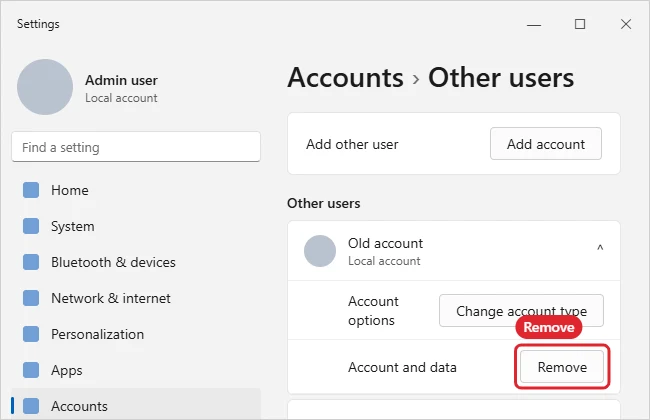
- Removing it later: See deleting accounts on Windows 10.
Frequently Asked Questions
How do I make the new account an administrator?
Select it under Other users, click Change account type and choose Administrator.
Can I add an email account for Mail instead?
That’s different: use Settings > Accounts > Email & accounts to add email to apps.
Do new accounts share my files?
No. Each account has its own profile and folders.
Summary
- Open Settings > Accounts > Family & other users.
- Add someone else to this PC.
- Use an email, or create a local account.
- Set the account type.

Kermit Matthews is a freelance writer based in Philadelphia, Pennsylvania with more than a decade of experience writing technology guides. He has a Bachelor’s and Master’s degree in Computer Science and has spent much of his professional career in IT management.
He specializes in writing content about iPhones, Android devices, Microsoft Office, and many other popular applications and devices.