On a Windows 10 PC that’s joined to a company or school domain, the sign-in screen assumes you’re signing in with a domain account. But there are good reasons to use a local account on that PC instead: troubleshooting when the domain controller can’t be reached, fixing a broken domain trust, or using a separate local admin account for maintenance. The trick is telling Windows that the account belongs to the computer, not the domain. This guide shows how, and what to do if no local account exists.
Quick Answer
At the sign-in screen, click Other user and type .\username (a period, a backslash, then the local account name) in the user name box, then the local password. The line under the boxes should change to Sign in to: [computer name]. You can also type COMPUTERNAME\username.
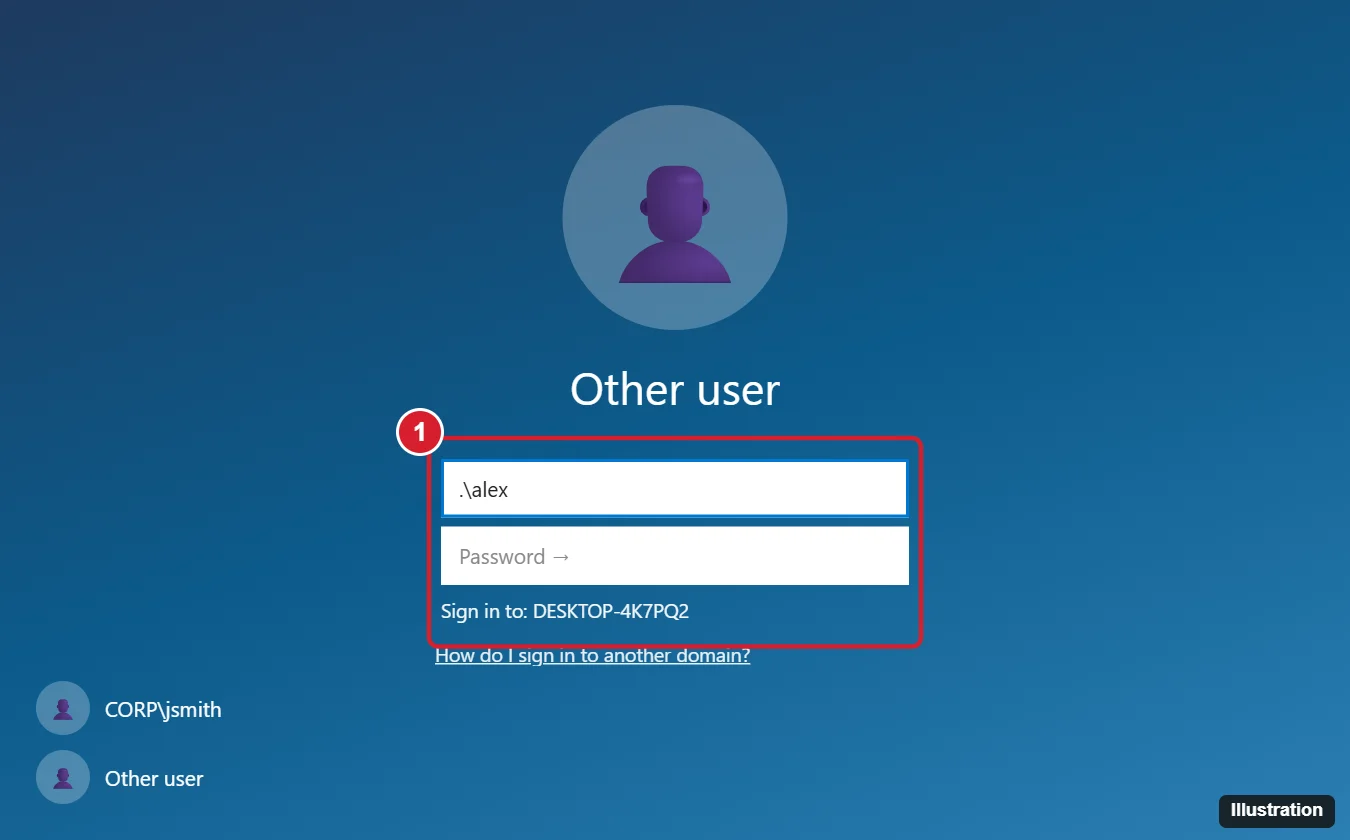
Sign In With a Local Account on a Domain PC
- On the sign-in screen, click Other user in the bottom-left corner. (Press Ctrl + Alt + Delete first if prompted.)
- In the user name box, type .\ followed by the local account name, for example .\alex.
- Check that the text below changes from Sign in to: [DOMAIN] to Sign in to: [your computer’s name].
- Type the local account’s password and press Enter.
The period is shorthand for “this computer.” Typing the computer’s actual name works the same way, for example DESKTOP-4K7PQ2\alex. To find the computer name, look at the Sign in to line after typing .\, or check Settings > System > About on another session.
If You Don’t Have a Local Account
Domain PCs don’t always have a usable local account. The built-in Administrator account is disabled by default, and many organizations manage local admin passwords with tools such as Windows LAPS. Options:
- Ask your IT department for the local admin credentials; on a managed PC they’re usually stored centrally.
- Create a local account while signed in with a domain account that has admin rights: open Computer Management (right-click Start), go to Local Users and Groups > Users, right-click and choose New User. Add it to the Administrators group if it needs admin rights. Local Users and Groups isn’t available on Windows 10 Home, but Home can’t join a domain anyway.
- Command line: in an administrator Command Prompt,
net user alex * /addcreates the account (the * makes Windows prompt you for a password) andnet localgroup administrators alex /addmakes it an admin. Use a strong password.
When a Local Account Helps
- “The trust relationship between this workstation and the primary domain failed”: sign in locally, then rejoin the domain or repair the trust (for example with PowerShell’s Test-ComputerSecureChannel -Repair, run as a domain admin).
- No network or VPN: domain accounts that have signed in before usually work offline with cached credentials, but a new domain user can’t sign in without reaching the domain. A local account always works.
- Leaving a domain: before removing a PC from the domain, make sure a local admin account works, or you may lock yourself out.
Switch Back to the Domain Account
Sign out, click Other user, and type your domain account as DOMAIN\username or your full work sign-in name (the user principal name your IT department gave you). The Sign in to line shows the domain again.
Frequently Asked Questions
Why doesn’t Windows accept my local password?
Make sure the Sign in to line shows the computer name, not the domain. Without the .\ prefix, Windows checks the password against the domain.
Can I make Windows default to the local account?
Windows remembers the last account that signed in. After you sign in locally once, it usually appears on the sign-in screen. Organization policies may hide the last user name.
Will signing in locally give me access to network drives?
Not automatically. Local accounts don’t have domain permissions; you’ll be asked for domain credentials when you open network resources.
Does this work on Windows 11?
Yes. The .\username method is the same on Windows 11 and Windows Server.
Summary
- Click Other user on the sign-in screen.
- Type .\username for the local account.
- Confirm Sign in to shows the computer name.
- Enter the local password.

Kermit Matthews is a freelance writer based in Philadelphia, Pennsylvania with more than a decade of experience writing technology guides. He has a Bachelor’s and Master’s degree in Computer Science and has spent much of his professional career in IT management.
He specializes in writing content about iPhones, Android devices, Microsoft Office, and many other popular applications and devices.