To hide the People icon on the Windows 10 taskbar, right-click an empty part of the taskbar and clear the check mark next to the People option. The item is usually labeled Show People on the taskbar, though some releases said Show People button. Microsoft lists My People as deprecated starting with Windows 10 version 1909, and the Windows 11 taskbar has no People item, so some PCs won’t show the icon or the option at all.
What the People icon is
The People icon (Microsoft calls the feature My People, or People in the Shell) is a small contacts button that sat near the notification area at the right end of the Windows 10 taskbar. It let you pin a few contacts to the taskbar and reach them quickly through apps such as Mail. If you never pinned anyone, it is just one more icon taking up taskbar space.
Hiding the icon only removes the button from view. It doesn’t uninstall the People app or delete your contacts.
This is the fastest route and doesn’t require opening Settings.
- Right-click an empty area of the taskbar. Avoid right-clicking an app icon, which opens that app’s own menu instead.
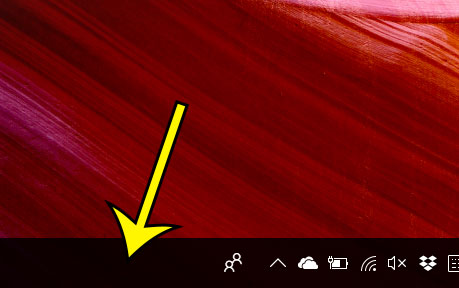
Older Windows 10 version shown; your menu may look different.
- In the menu, find the People item and click it to clear the check mark. Depending on your Windows 10 release, the item is usually labeled Show People on the taskbar or Show People button. A check mark next to it means the icon is showing; no check mark means it is hidden.
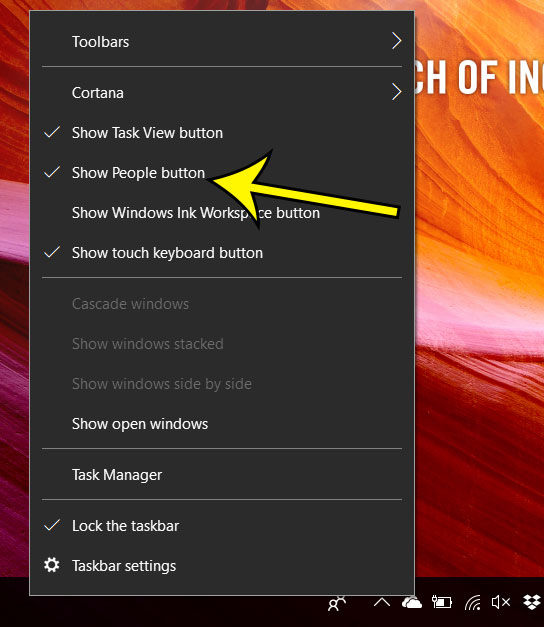
Older Windows 10 version shown, with the Show People button label.
The icon disappears from the right side of the taskbar right away. There is nothing to save or restart.
Hide it from Taskbar settings instead
If you prefer working in Settings, or the menu item is hard to spot among the other options, try this route:
- Right-click an empty part of the taskbar and choose Taskbar settings, or open Settings > Personalization > Taskbar.
- Scroll down and look for a People section. On Windows 10 releases that include it, the switch is usually labeled Show contacts on the taskbar.
- Turn that switch off.
If there is no People section on this page, the feature isn’t present on your PC, and there is nothing to hide.
If you don’t see the People option
A missing People item isn’t a sign that something is broken. Microsoft’s list of deprecated Windows features says that My People is no longer being developed and may be removed in a future update, with version 1909 listed. Microsoft hasn’t published a removal date, so whether you still see the option depends on your Windows 10 build and how your PC was set up.
- No People item in the right-click menu and no People section in Taskbar settings: the feature isn’t available on your PC. The icon won’t appear, so you’re done.
- Windows 11: Microsoft’s taskbar customization page covers taskbar items such as Widgets but has no People or contacts option. There is no People icon to hide.
Also, Windows 10 has reached end of support, so it no longer gets security updates. If you’re still using it, plan a move to Windows 11, where this particular icon isn’t an issue.
People icon questions
How do I bring the People icon back?
Repeat the same steps and check the People item in the taskbar menu again, or turn the People switch back on in Taskbar settings. That only works if your Windows 10 build still includes the feature.
Why does the People icon still show after I cleared it?
Look again at the right end of the taskbar: the icon you see may belong to a different app. Hover over it to see its name before you change anything else.
Other taskbar cleanups
If you are trimming the taskbar, you can also remove the Mail icon from the Windows 10 taskbar or make the Windows 10 taskbar transparent for a cleaner look. Freed-up space is a good spot for the apps you open most, such as when you add Google Chrome to the taskbar in Windows 10. A related setting for desktop icons rather than the taskbar: here’s how to turn off icon pop-up descriptions that appear when you hover over files and folders.

Kermit Matthews runs Live2Tech from just outside Philadelphia. He is an IT specialist with over 20 years of experience, from a university help desk to small-business IT, IT management and his own consulting practice, and has written tech guides full time since 2020. Steps are checked against the current software on a real device or the maker’s official documentation. More about Kermit.