To format a SanDisk Extreme Portable SSD on Windows 10, plug it in, open File Explorer, and click This PC. Right-click the SSD and choose Format. Pick exFAT if you’ll use the drive with both Windows and Mac, or NTFS if you’ll only use it with Windows. Keep Quick Format checked, click Start, then OK.
Formatting erases everything on the drive. Copy any files you want to keep first. Here’s how to choose a file system, format with Disk Management if the drive doesn’t show up, and fix common errors.
Which file system should you choose?
| File system | Works with | Best for |
|---|---|---|
| exFAT | Windows, Mac, many TVs and cameras | Sharing between computers (the drive ships in exFAT) |
| NTFS | Windows (read-only on Mac by default) | Windows-only use, backups with File History |
| FAT32 | Almost everything | Not recommended: 4 GB file size limit |
How to format the SSD in File Explorer
- Connect the SSD to a USB port with the included cable.
- Open File Explorer (Windows key + E) and click This PC.
- Right-click the SSD (often labeled SanDisk or Extreme SSD) and choose Format.
- Choose exFAT or NTFS under File system.
- Keep Allocation unit size at Default, type a Volume label if you like, and leave Quick Format checked.
- Click Start, then OK to confirm.
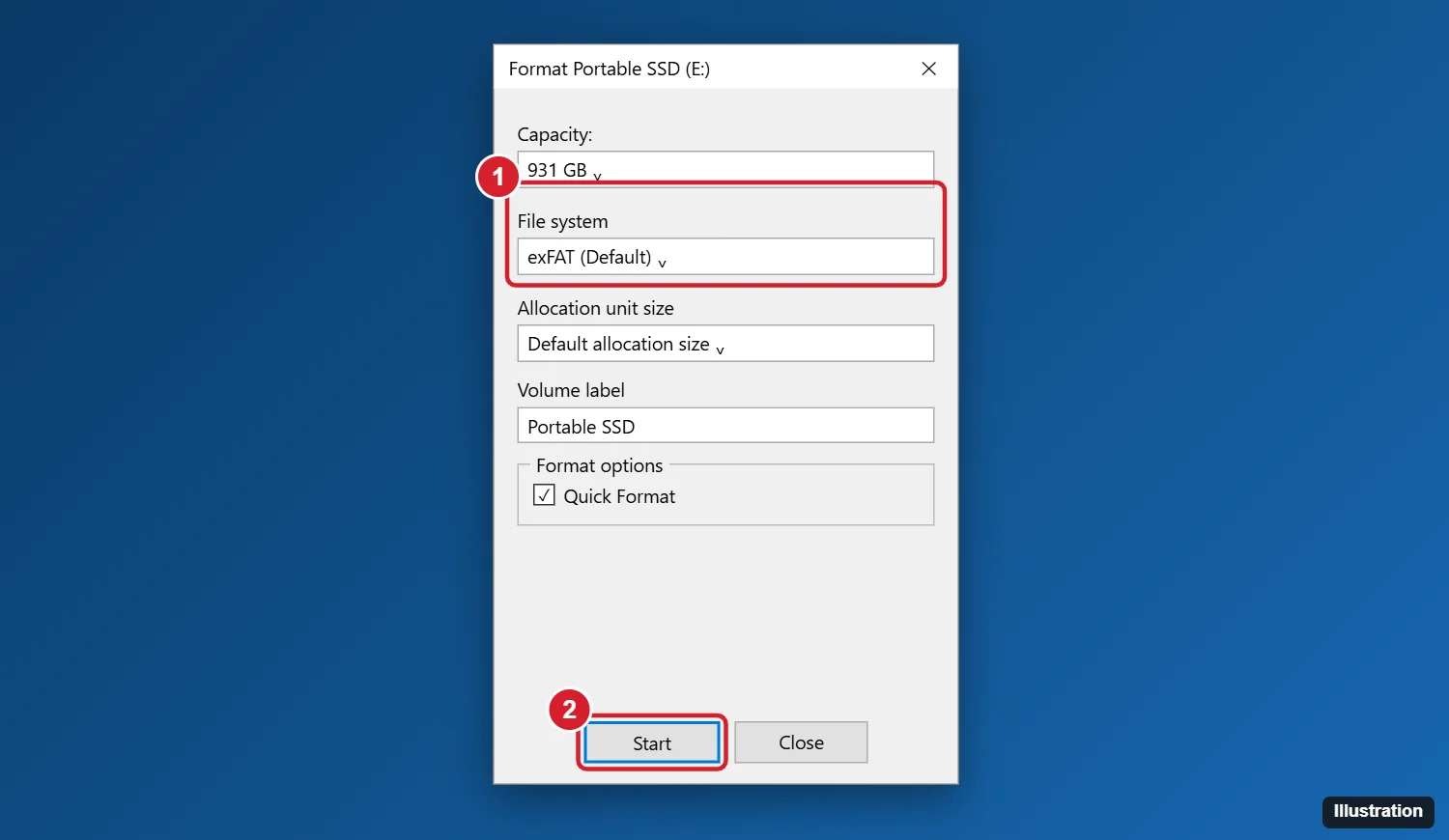
Make sure you right-click the correct drive. Check the size and name before you click Start.
How to format it with Disk Management
Use Disk Management if the SSD doesn’t appear in File Explorer or shows as unallocated.
- Right-click the Start button and choose Disk Management.
- Find the SSD by its size, such as 931 GB for a 1 TB drive.
- If it has a partition, right-click it and choose Format. If it shows Unallocated, right-click and choose New Simple Volume, then follow the wizard.
- Choose exFAT or NTFS and finish the steps.
When Windows can’t format the SSD
- Drive doesn’t show up: Try another USB port and the cable that came with the drive. Use a USB-C or USB 3 port for full speed.
- “Windows was unable to complete the format”: Use Disk Management to delete the volume and create a new one.
- Write protected error: Some SanDisk models include password protection software. Unlock the drive with it first, or check SanDisk’s support site for your model.
- Slow speeds: Make sure you’re connected to a USB 3.2 port, not a USB 2.0 port or hub.
More questions about formatting a SanDisk SSD
Should I uncheck Quick Format?
No. A full format on an SSD takes much longer and adds unnecessary wear. Quick Format is fine.
Can I use the SSD for Time Machine and Windows at once?
Not easily. Time Machine needs APFS or Mac OS Extended, which Windows can’t read. Consider separate drives or partitions.
Can I recover files after formatting?
Often not on SSDs, because TRIM clears deleted data quickly. Back up before formatting.

Kermit Matthews runs Live2Tech from just outside Philadelphia. He is an IT specialist with over 20 years of experience, from a university help desk to small-business IT, IT management and his own consulting practice, and has written tech guides full time since 2020. Steps are checked against the current software on a real device or the maker’s official documentation. More about Kermit.