When Windows 10 keeps trying an old password after the router was changed, refuses to join a network every other device uses, or hops onto a look-alike hotspot, the usual fix is to make it forget that saved network. Open Settings, choose Network & Internet, then Wi-Fi, click Manage known networks, pick the entry and click Forget. Before you do, check the table below: a lighter fix sometimes keeps the password.
Forget it, stop auto-joining, or reset?
Forgetting deletes the saved profile for one network: its name, password and the setting that makes Windows join it automatically. In most cases the entry disappears from the saved list as soon as you click Forget, without a confirmation prompt. It doesn’t touch anything else on the PC, such as your files or browser data. Pick the fix that matches what you’re seeing:
| What’s happening | Best fix | Password kept? |
|---|---|---|
| The router’s password changed and Windows keeps failing with the old one | Forget the network, then connect again with the new password | No |
| The PC keeps joining a café, neighbor or guest network instead of yours | Turn off automatic connection for that network (below), or forget it | Yes, if you only turn off auto-connect |
| Two networks have nearly identical names and you saved the wrong one | Forget the wrong entry | No |
| Wi-Fi fails on every network, not just one | Reset the network adapter in Windows 10 instead | A full network reset removes all saved networks |
| You’re passing the PC on or clearing years of old hotspots | Delete every saved network with one command | No |
| No Wi-Fi list or Wi-Fi page appears at all | Turn the Wi-Fi adapter back on first | Not affected |
To stop auto-joining without forgetting, open Manage known networks, click the network, choose Properties, and turn off the automatic-connection switch (labeled Connect automatically when in range on most Windows 10 builds). The command-line equivalent is netsh wlan set profileparameter name="Office-WiFi" connectionmode=manual, which Microsoft documents as switching a profile’s connection mode from automatic to manual.
Lenovo’s support note on removing a saved Wi-Fi network makes the same trade-off clear: once a network is removed, Windows no longer connects to it automatically.
Save the password first if you’ll need it
If the password hasn’t changed and you only want a clean reconnect, write it down before you forget anything, because Windows won’t show it afterward. For the network you’re on, or any network saved on this PC, the steps to find a saved Wi-Fi password on Windows 10 walk through both the Settings route and the command below:
netsh wlan show profile name="Office-WiFi" key=clearThe password is normally shown on the Key Content line of the output. This option isn’t listed on Microsoft’s netsh reference page, so if no password appears, run the command from an administrator Command Prompt or use the Settings route in the linked steps. The name has to match the saved profile exactly, including capital letters and spaces; if you’re not sure what it is, see how to find your network and profile name in Windows 10.
Forget a network that’s in range, from the taskbar
This is the quickest route when the problem network is nearby and showing in the list.
- Click the Wi-Fi icon at the right end of the taskbar. The list of available networks opens.
- Right-click the network you want gone. If you’re connected to it, that’s fine.
- Choose Forget (it’s offered for networks the PC has saved). The PC disconnects if it was using that network, and the saved password is deleted.
The list normally shows only networks within range, so a hotel network from last year won’t be there. Use the Settings route for those.
Remove a saved network you’re not near
Settings keeps every network the PC has saved, in range or not.
- Press Windows + I to open Settings, then click Network & Internet. (You can also right-click the taskbar network icon and choose Network & Internet settings.)
- Click Wi-Fi in the left pane, then Manage known networks.
- If the list is long, use the search box above it (Search this list) to filter by name.
- Click the network, then click Forget.
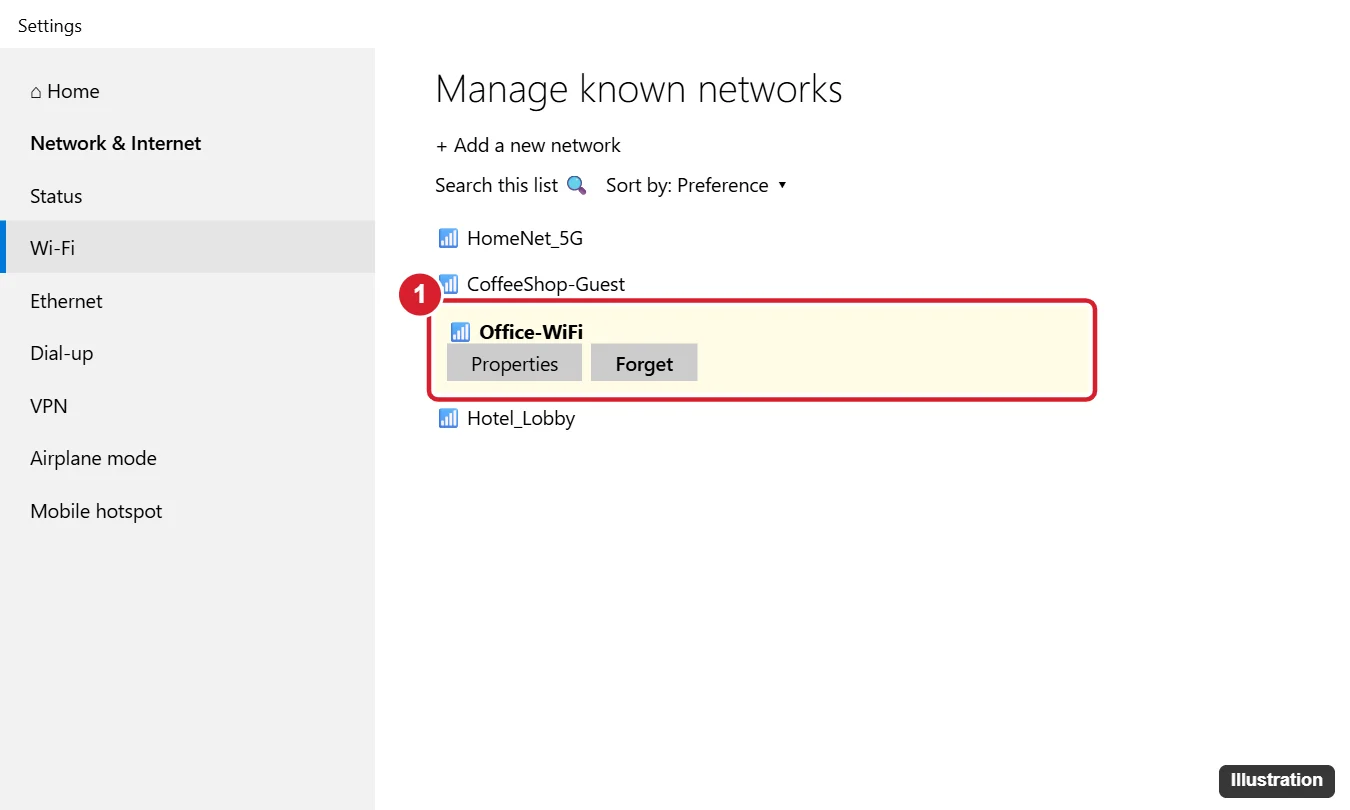
Repeat for any duplicates. A common pattern is two entries for one router, such as “HomeNet” and “HomeNet 5G”; if both carry the old password, forget both.
Clear every saved network at once
Warning: this removes all saved Wi-Fi networks, including the one you’re using, so you’ll go offline until you reconnect. Have your home password ready.
- Type cmd in the Start search box, right-click Command Prompt, and choose Run as administrator. Deleting profiles can fail from a standard window.
- List what’s saved:
netsh wlan show profiles - Delete one profile by name:
netsh wlan delete profile name="Office-WiFi" - Or delete them all with a wildcard:
netsh wlan delete profile name=*
Microsoft’s netsh wlan command reference says the profile name can include wildcard characters and every matching profile is removed. If you don’t add interface=, the profile is removed from all wireless adapters on the PC, which is usually what you want on a laptop with one Wi-Fi card.
Work or school PCs and networks that come back
On a PC your employer or school manages, Wi-Fi profiles can be installed by the IT department. Those profiles may not offer a Forget option, may refuse to delete without administrator rights, or may reappear after the PC next checks in with its management service. If that happens, don’t fight it: ask IT whether the profile is pushed to your device and whether they can update the password on their side. On your own home PC this doesn’t apply.
Reconnect and check the fix took
- Click the Wi-Fi icon on the taskbar. Forgetting a network doesn’t stop it from being listed when it’s in range.
- Click the network, tick the automatic-connection box (Connect automatically) if you want Windows to save it again, and click Connect.
- Enter the current password. If Windows accepts it, the old profile is gone and a fresh one has been saved.
- Open Manage known networks again: the network should be listed once.
If the same error returns with the correct password on a network that works for your phone, the problem is probably the adapter or its driver. Try to reinstall the Wi-Fi driver on Windows 10 before resetting all networking.
One note on the system itself: Windows 10 reached end of support on October 14, 2025, and PCs enrolled in Extended Security Updates keep receiving security fixes through October 12, 2027, as Microsoft’s end-of-support page explains. The steps above are unchanged by that. Windows 11 keeps the same idea under Settings, Network & internet, Wi-Fi, Manage known networks.
Saved network questions
Why don’t I see a Forget button?
In Settings, the button only appears after you click a network to select it. In the taskbar list, only networks in range show up, so an absent network can’t be right-clicked. If the button is missing on a work PC, the profile is likely managed by IT.
Do I need administrator rights?
The Settings and taskbar routes generally work on a home PC from your own account. The netsh delete commands should be run from an administrator Command Prompt, and managed PCs may block deletion entirely.
How do I reconnect to a hidden network after forgetting it?
A hidden network doesn’t broadcast its name, so it won’t appear as a normal entry. You’ll need the exact network name and password, then add it by hand; the steps to find the SSID of a hidden network and connect to it cover both.
Can I undo a Forget?
Windows doesn’t offer a way to bring a forgotten profile back, so plan on connecting again with the password. That’s why saving the password first matters when it hasn’t changed.
Next step: if you forgot a network because of repeated drops rather than a password change, watch whether the fresh connection holds for a day before moving on to a driver reinstall or a network reset.

Kermit Matthews runs Live2Tech from just outside Philadelphia. He is an IT specialist with over 20 years of experience, from a university help desk to small-business IT, IT management and his own consulting practice, and has written tech guides full time since 2020. Steps are checked against the current software on a real device or the maker’s official documentation. More about Kermit.