Google Docs doesn’t have a built-in two-page (side-by-side) view. Zooming out just shows more pages stacked vertically. The easiest workaround is to open the document in two browser windows and snap them side by side: on Windows, press Windows + Left arrow in one window and Windows + Right arrow in the other, then scroll each to a different page. For a true book-style spread, download the file as a PDF (File > Download > PDF) and turn on two-page view in a PDF reader.
Here’s every way to see two pages at once in Google Docs, and which one fits what you’re doing.
Options at a glance
| Method | Can you edit? | Best for |
|---|---|---|
| Two windows side by side | Yes, in both | Comparing or editing two sections |
| Split view in the same tab (with tabs or outline) | Yes | Jumping between sections quickly |
| PDF in two-page view | No | Checking layout, like a book or booklet |
| Print preview | No | A quick look at page breaks |
| Zoom out | Yes | Seeing more pages at once, stacked vertically |
Method 1: Open the document in two windows
- Open your document in Chrome, Edge, or another browser.
- Copy the URL from the address bar.
- Press Ctrl + N (Command + N on a Mac) to open a new window and paste the URL.
- Snap the windows side by side. On Windows, press Windows + Left arrow in one and Windows + Right arrow in the other. On a Mac, hover over the green button in the top-left corner and choose Tile Window to Left of Screen, then pick the other window.
- Scroll each window to the page you want.
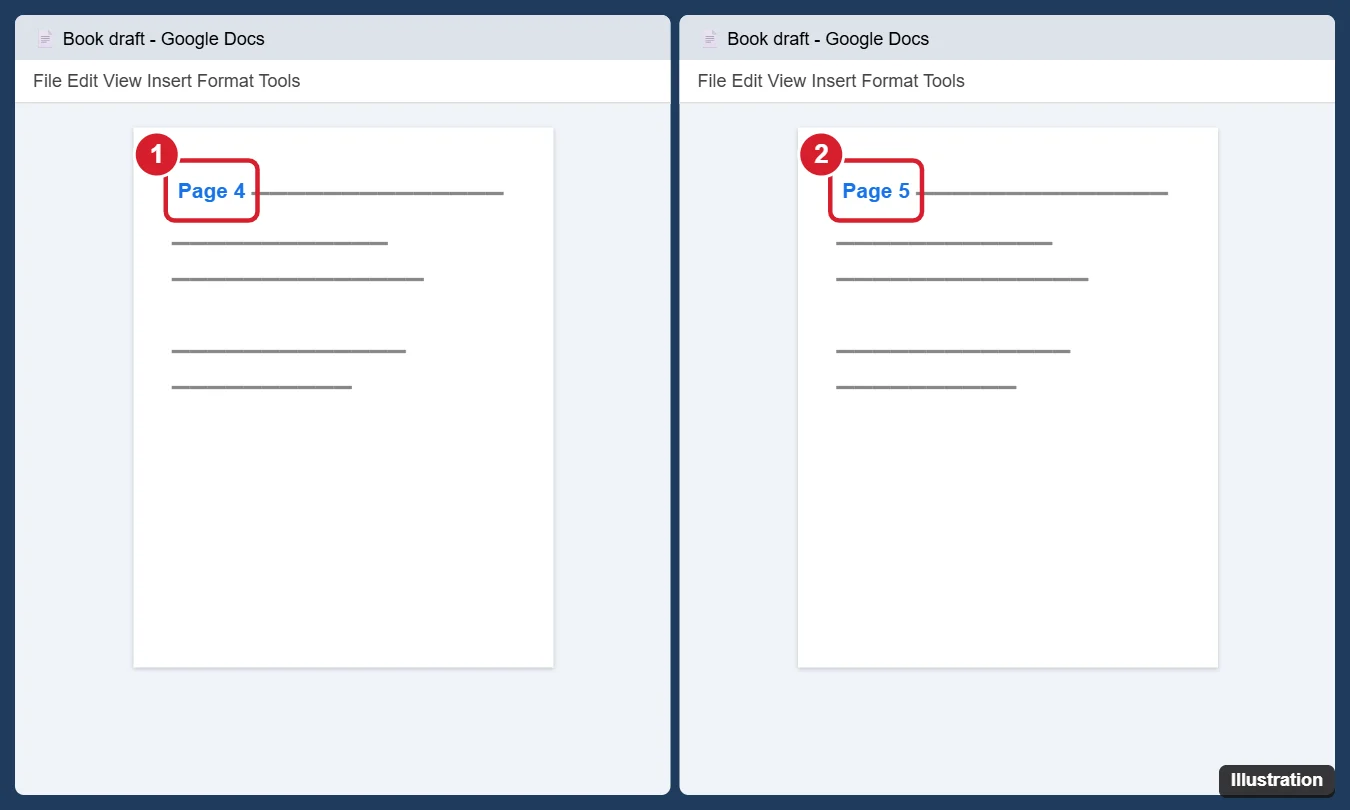
Edits in one window appear in the other within seconds, because they’re the same document. To use more space, hide the menus in each window with View > Full screen or press Ctrl + Shift + F to collapse the toolbar.
For more on snapping windows, see how to split screen on Windows.
Method 2: View as a PDF in two-page mode
- In Google Docs, click File > Download > PDF Document (.pdf).
- Open the PDF in your browser, Adobe Acrobat Reader, or Preview on a Mac.
- Turn on two-page view:
- Chrome: Click the three-dot menu in the PDF toolbar and choose Two page view.
- Microsoft Edge: Click Page view and choose Two pages. Check Show cover page separately for a book-style spread.
- Acrobat Reader: Click View > Page Display > Two Page View.
- Mac Preview: Click View > Two Pages.
This is the best way to check how a book, booklet, or newsletter will look when printed. Make your edits in Google Docs, then download a fresh PDF. See how to format a book in Google Docs.
Method 3: Zoom out
Click the zoom box in the toolbar (usually 100%) and choose 50%, or press Ctrl + minus to zoom your browser. You’ll see more pages on screen, but they stay in a single column.
Method 4: Use print preview
Press Ctrl + P (Command + P) to open the print preview. You can scroll through the pages to check page breaks, then click Cancel. Some browsers let you choose a layout with multiple pages per sheet under More settings > Pages per sheet, which shows two pages next to each other in the preview.
Method 5: Use document tabs or the outline
If you need to jump between two sections instead of seeing them at once, open the outline with View > Show outline, or split a long document into tabs. See how to move content between tabs in Google Docs.
Frequently asked questions
Why doesn’t Google Docs show pages side by side like Word?
Google Docs is designed around a single scrolling column. Microsoft Word has a View > Side to Side mode, but Docs doesn’t offer an equivalent.
Can I print two pages on one sheet?
Yes. In the print dialog, open More settings and set Pages per sheet to 2, if your browser supports it.
Does Pageless format affect this?
Yes. Pageless documents have no page breaks. Switch to Pages in File > Page setup to see individual pages.
Can I view two different documents side by side?
Yes. Use Method 1, but open a different document in each window.

Kermit Matthews is a freelance writer based in Philadelphia, Pennsylvania with more than a decade of experience writing technology guides. He has a Bachelor’s and Master’s degree in Computer Science and has spent much of his professional career in IT management.
He specializes in writing content about iPhones, Android devices, Microsoft Office, and many other popular applications and devices.