A view-only Google Drive file can be downloaded only when its owner lets viewers download it, and when that option is off, the right move is to ask the owner. Open the link, and if Google shows “You need access,” click Request access, add a short note and click Send request; if you can already view the file, email the owner and ask them to allow downloads. Here’s how to tell which case you’re in and what each side can do.
Check whether the owner allows downloads
“View only” describes your role: you can open and read the file but not edit it. It doesn’t by itself stop you from downloading. Google lets viewers and commenters download by default, and the owner can turn that off. Its download help page puts it this way: if you can’t download a file, the owner may have disabled options to print, download or copy for people with only comment or view access.
| What you see | What it means | What to do |
|---|---|---|
| A Download icon in the preview, or File > Download works | You’re a viewer and the owner allows downloads | Download it with the steps below |
| No download, print or copy options anywhere | The owner turned those options off for your role | Ask the owner to allow downloads or send you a copy |
| “You need access” instead of the file | The file isn’t shared with your Google Account | Click Request access |
| A message that too many users have viewed or downloaded the file recently | A temporary limit on a busy file, not an owner setting | Wait, or save a copy to your Drive first (see below) |
Before assuming you’re blocked, check which Google Account you’re signed in with: a file shared with one account shows “You need access” to another.
Download it when downloading is allowed
From the file preview on a computer
- Open the shared link, or go to drive.google.com and click Shared with me.
- Open the file to see its preview.
- Click the Download icon (a down arrow) at the top of the preview. The file saves to your browser’s usual download folder.
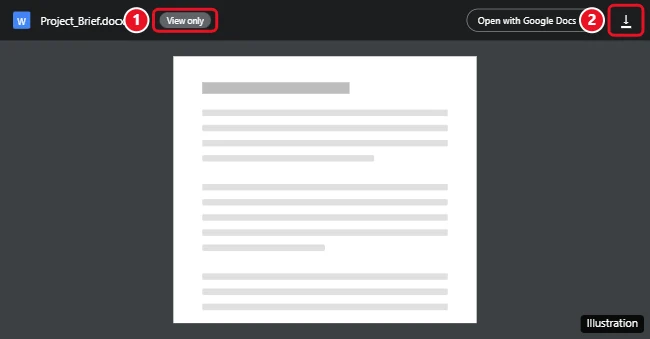
From the file list, Google’s steps also work: click the file (hold Ctrl on Windows or Command on a Mac to pick several), right-click and choose Download. Dragging a file from Drive to your desktop doesn’t download it.
From Google Docs, Sheets or Slides
Google’s own file types are exported in a format you pick:
- Open the document, spreadsheet or presentation.
- Click File > Download.
- Choose a format from the list, such as PDF, a Microsoft Word file for Docs, a Microsoft Excel file for Sheets, or a PowerPoint file for Slides.
For spreadsheets, the walkthrough on downloading an Excel version of a Google Sheets file shows the Sheets menu in detail.
On an Android phone or tablet
- Open the Google Drive app.
- Next to the file’s name, tap More (three dots).
- Tap Download.
If the option is missing even though the owner allows downloads, check whether Data Saver is on in your network settings. Google notes that the download option isn’t available while it is.
On an iPhone or iPad
- Open the Google Drive app.
- Next to the file, tap More.
- Tap Download to save it to your device. To pick the folder yourself, tap Open in > Save to Files, choose a location and tap Save.
When the owner has turned downloading off
If the options are gone, no setting on your side brings them back; the owner’s choice applies to your role on every device. What you can do is ask:
- Ask them to allow downloads for your role. It’s one setting, shown in the owner section below.
- Ask them to send you the file. An email attachment or a PDF they export themselves gives you a copy without changing anything for other viewers.
- Ask for a different role only if you need it. Editor access is a bigger request than a download. The owner’s setting can also block editors from downloading, so a new role doesn’t guarantee a download.
A short message works best: who you are, which file, and why you need a copy.
Browser extensions, scripts and websites that promise to get around a disabled download work around a decision the owner made on purpose. They can also ask for broad access to your Google Account. Asking is the route that respects the owner and keeps your account safe.
Request access to a file you can’t open
Google’s page on access to Google files describes the request steps:
- Open the link. When the “You need access” message appears, click Request access.
- Optionally, add an explanation of why you need access.
- Click Send request.
The owner gets an email with your name, your Google Account email address and the file link, and decides what access to give you.
Save a copy when a busy file is temporarily blocked
Popular files sometimes show a message that too many users have viewed or downloaded the file recently. That limit isn’t the owner’s setting, and Google says it resets within about 24 hours. If you have view access and can’t wait:
- Go to Shared with me in Google Drive.
- Right-click the file and choose Make a copy.
- Open My Drive, right-click the copy and choose Download.
This only works where the owner allows copying. The owner’s setting covers downloading and copying together, so if downloads are blocked, a copy is not the way around it.
Other download failures have different causes. In Chrome, blocked third-party cookies can stop Drive downloads, according to Google’s download page. For very big files or folders, see downloading large files from Google Drive, and to copy a whole folder you have access to, see duplicating a folder in Google Drive.
For owners: allow or block downloads
Steps from Google’s sharing settings page:
- Open the file in Google Drive, Docs, Sheets or Slides, or select it in Drive.
- Click Share.
- Click Settings (the gear icon) at the top right of the sharing box.
- Under the option Google labels People who can download, copy, print, and access, check the roles that should be able to download (for example, commenters and viewers). Uncheck a role to block it.
- Go back to the sharing box and close it.
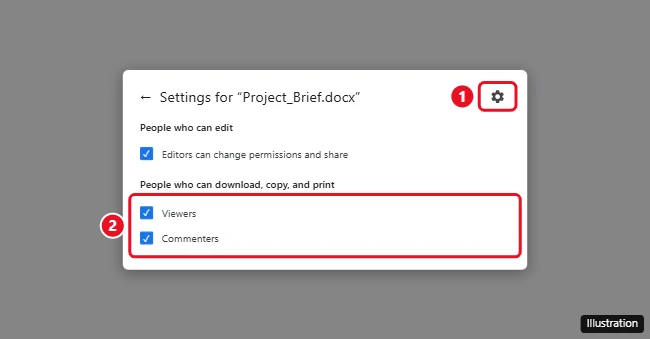
The wording in the illustration may differ from the label you see. Two limits are worth knowing. Turning downloads off removes the buttons, but Google says it can’t stop how others share the file content in other ways, so don’t treat it as protection for truly confidential material. And for spreadsheets, turning it off also stops new IMPORTRANGE formulas in other files from pulling data out of yours. To control who can open a file or folder at all, see locking a folder in Google Drive.
Work and school accounts
On a Google Workspace account, the file owner isn’t the only one setting rules. Google notes that administrators can create data loss prevention (DLP) rules for Drive, which can restrict what people do with certain files. If a file from your own organization won’t download and the owner says they allowed it, ask your IT administrator rather than the owner. Shared drives have their own membership rules too; accessing a shared Google Drive covers how those work.
View-only file answers
Why does a restricted file appear as a shortcut in Drive for desktop?
Google’s sharing page notes that Drive for desktop shows files with download restrictions as .gdrive shortcuts rather than full local files. Open the shortcut to view the file online; the restriction still applies.
What about Meet recordings and shared photo albums?
For a recording someone shared with you after a call, see finding and accessing Google Meet recordings. Shared Google Photos albums follow their own rules, explained in downloading shared Google Photos.
If the download icon is missing right now, send the owner a one-line request naming the file and why you need it; that’s usually the fastest way to get a copy.

Kermit Matthews runs Live2Tech from just outside Philadelphia. He is an IT specialist with over 20 years of experience, from a university help desk to small-business IT, IT management and his own consulting practice, and has written tech guides full time since 2020. Steps are checked against the current software on a real device or the maker’s official documentation. More about Kermit.