An HP laptop running Windows 10 installs apps the same way as any Windows PC: open the Microsoft Store, search for the app, and select Get or Install. For apps that aren’t in the Store, download the installer from the developer’s official website and run it. HP doesn’t have its own app store, though its HP Support Assistant or myHP app handles drivers and HP software.
If the laptop is in S mode, it can only install Store apps until you switch out of S mode.
Windows 10 reached end of support on October 14, 2025. Consumer Extended Security Updates (ESU) now run until October 12, 2027.
Method 1: Download Apps From the Microsoft Store
- Select Start and open Microsoft Store. You can also type “Store” in the search box.
- Sign in if asked. Free apps can often be installed without signing in, but paid apps and some free ones need a Microsoft account.
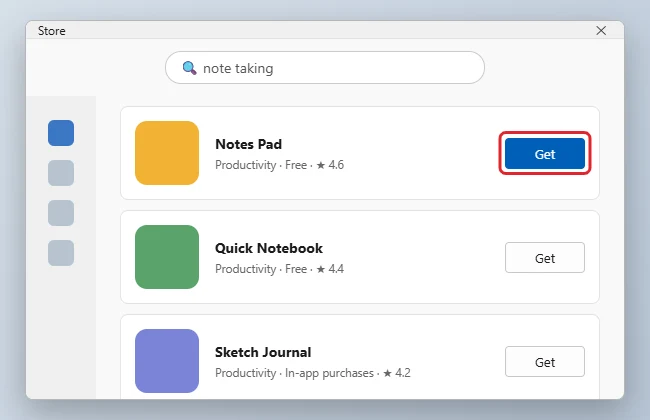
- Type the app name in the search box at the top and press Enter.
- Select the right result. Check the publisher name so you don’t install a look-alike.
- Select Get (free) or the price button (paid). The button changes to a progress bar, then to Open.
Where do installed apps go?
They appear in the Start menu under All apps. Right-click one and choose Pin to Start or Pin to taskbar for quick access.
Method 2: Install Apps From a Website
- Go to the app maker’s official website. Avoid third-party download sites, which often bundle adware.
- Download the Windows version. Most installers end in .exe or .msi.
- Open your Downloads folder and double-click the installer.
- Select Yes on the User Account Control prompt if you trust the publisher shown.
- Follow the setup screens. Watch for pre-checked boxes that add extra software, and clear them.
Some apps come as .msix packages. See installing MSIX files on Windows 10 for those.
Method 3: Use winget (for Advanced Users)
Windows Package Manager (winget) installs apps with a single command. It comes with the App Installer app on current Windows 10 versions.
- Right-click Start and choose Windows PowerShell.
- Type
winget search appnameto find the app’s ID. - Type
winget install --id AppIDand press Enter.
Microsoft’s winget documentation lists the full set of commands.
Get HP Apps and Drivers
- Open HP Support Assistant or myHP from the Start menu. If neither is installed, get it from the Microsoft Store or HP’s support website.
- Select Updates (or Check for updates).
- Install the drivers and HP apps it recommends.
If the Laptop Is in S Mode
To check, open Settings > System > About and look for “in S mode” next to the edition. To install apps from outside the Store:
- Open Settings > Update & Security > Activation.
- Under Switch to Windows 10 Home (or Pro), select Go to the Store.
- Select Get on the “Switch out of S mode” page.
Switching is free and one-way: you can’t go back to S mode afterward.
Is this different on Windows 11?
The steps are almost the same. The Store looks different, and the S mode switch is in Settings > System > Activation.
Store vs. Website Installs
| Microsoft Store | Official website | |
|---|---|---|
| Safety checks | Apps are reviewed before listing | Depends on the source |
| Updates | Automatic | Varies; some apps update themselves |
| Works in S mode | Yes | No |
| App selection | Large, but not everything | Nearly everything for Windows |
When an App Won’t Install
- The Store won’t download: Check that the date and time are correct, sign out and back in to the Store, or press Windows + R, type
wsreset.exe, and press Enter to clear the Store cache. - “This app can’t run on your PC”: You downloaded a version for another system (such as Mac or ARM), or the app needs a newer Windows version.
- Not enough space: Remove apps you don’t use. Here’s how to delete apps on Windows.
- Want to test an unknown app safely? On Pro editions, Windows Sandbox lets you try it in an isolated space.

Kermit Matthews runs Live2Tech from just outside Philadelphia. He is an IT specialist with over 20 years of experience, from a university help desk to small-business IT, IT management and his own consulting practice, and has written tech guides full time since 2020. Steps are checked against the current software on a real device or the maker’s official documentation. More about Kermit.