Accidentally hitting the Windows key in the middle of a game or while typing opens the Start menu and knocks you out of what you were doing. Many gaming keyboards and laptops have a Win Lock key or Fn + F-key combination (often marked with a Windows logo and a lock) that disables the key instantly. Otherwise, install Microsoft PowerToys, open Keyboard Manager > Remap a key, and map Win (Left) and Win (Right) to Disable. A registry change or a shortcuts-only policy also works.
Method 1: Keyboard Win Lock
Check your keyboard for a key or combination labeled Win Lock, a lock icon, or a Windows logo with a line through it. Common combinations are Fn + F6, Fn + Windows key, or a dedicated gaming-mode switch. Keyboard software (from the keyboard maker) may also have a “Disable Windows key in Game Mode” option.
Method 2: PowerToys Keyboard Manager (Easy and Reversible)
- Install PowerToys from the Microsoft Store or Microsoft’s GitHub page.
- Open PowerToys and select Keyboard Manager. Make sure it’s enabled.
- Click Remap a key.
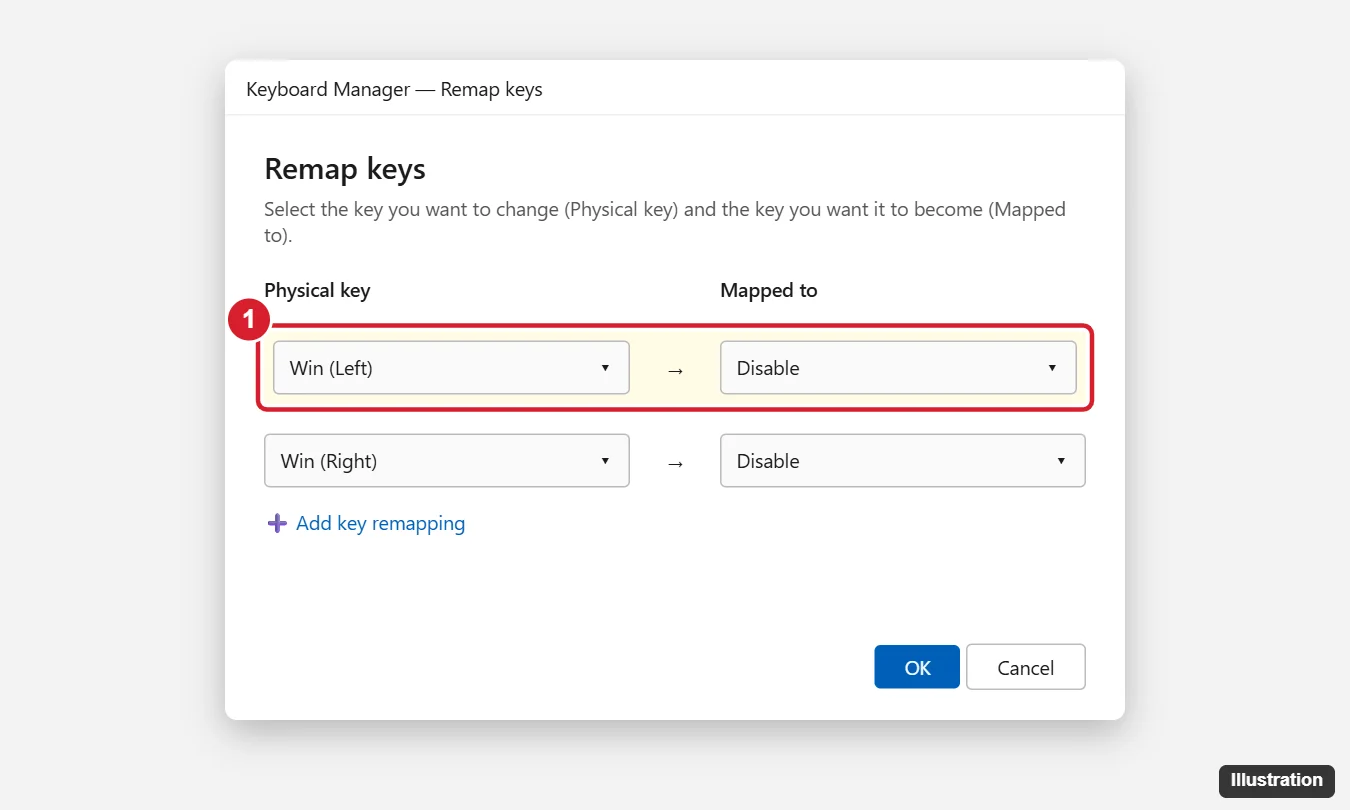
- Click + (Add key remapping). Under Physical key, choose Win (Left); under Mapped to, choose Disable.
- Repeat for Win (Right) if your keyboard has one.
- Click OK and confirm.
The remap works while PowerToys is running. To undo, delete the mapping or turn off Keyboard Manager. PowerToys can also restrict remaps to specific apps with Remap a shortcut.
Method 3: Registry (Permanent, No Extra Software)
This disables both Windows keys for all users after a restart. Back up the registry first.
- Press Windows + R, type regedit and press Enter.
- Go to HKEY_LOCAL_MACHINE\SYSTEM\CurrentControlSet\Control\Keyboard Layout (not “Keyboard Layouts”).
- Right-click in the right pane > New > Binary Value, and name it Scancode Map.
- Double-click it and enter: 00 00 00 00 00 00 00 00 03 00 00 00 00 00 5B E0 00 00 5C E0 00 00 00 00
- Click OK and restart the PC.
To turn the key back on, delete the Scancode Map value and restart.
Method 4: Disable Only Windows Key Shortcuts
If you want the Start menu to work but block combinations like Windows + D or Windows + L:
- Pro/Enterprise: run gpedit.msc, go to User Configuration > Administrative Templates > Windows Components > File Explorer, and enable Turn off Windows Key hotkeys. Sign out and back in.
- Home: create a DWORD NoWinKeys = 1 under HKEY_CURRENT_USER\Software\Microsoft\Windows\CurrentVersion\Policies\Explorer, then sign out.
Windows Key Not Working When You Want It?
If the key stopped working unexpectedly, check for a Win Lock toggle, gaming mode, PowerToys remaps or a Scancode Map value. See unlocking the Windows key.
Living Without the Windows Key
Can I still open Start without the Windows key?
Yes. Click the Start button or press Ctrl + Esc.
Will this affect games?
That’s the point: games won’t be interrupted by the Start menu. Some games also have their own option to disable the key.
Does this work on Windows 11?
Yes. All methods work on Windows 11. Windows 10 reached end of support on October 14, 2025.

Kermit Matthews runs Live2Tech from just outside Philadelphia. He is an IT specialist with over 20 years of experience, from a university help desk to small-business IT, IT management and his own consulting practice, and has written tech guides full time since 2020. Steps are checked against the current software on a real device or the maker’s official documentation. More about Kermit.