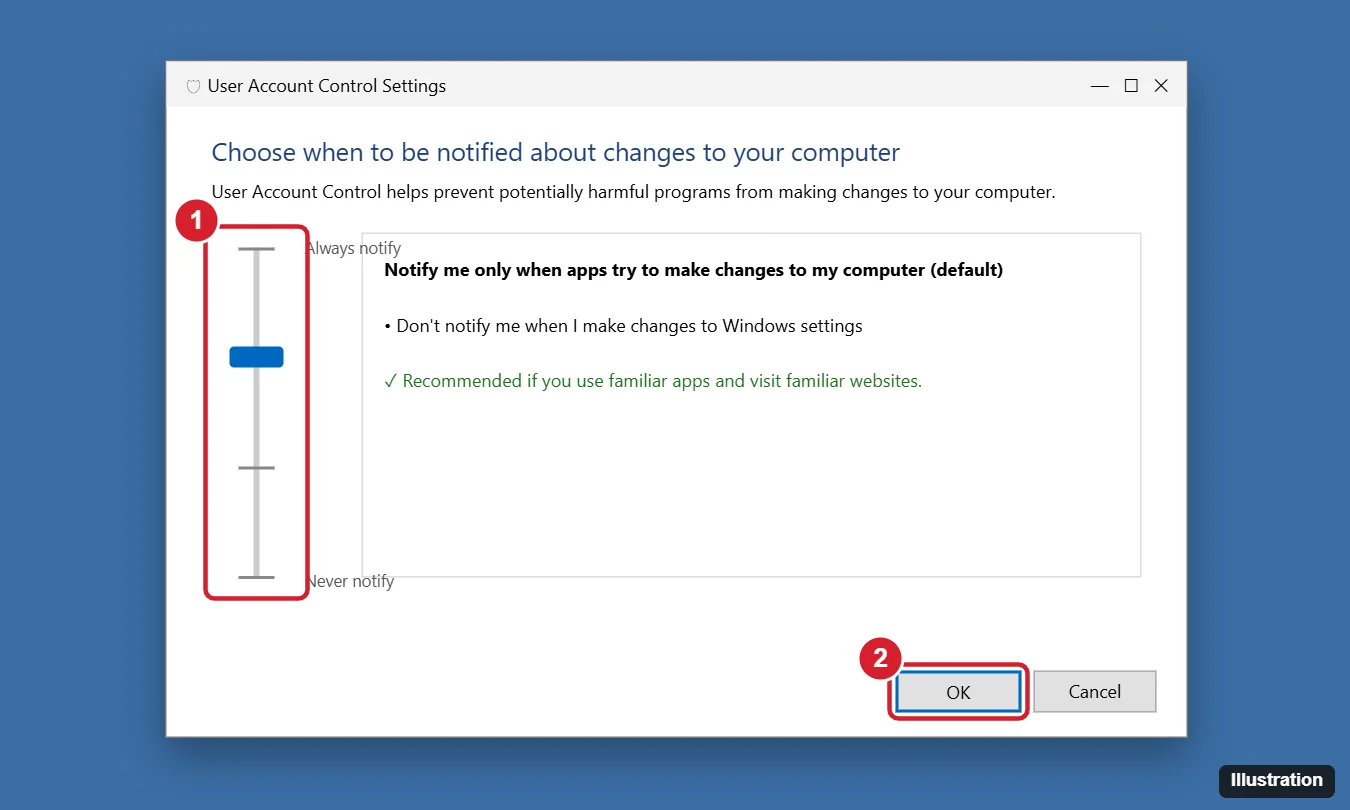
User Account Control (UAC) is the prompt that dims the screen and asks “Do you want to allow this app to make changes to your device?” It stops malware and scripts from silently getting administrator rights. To reduce or turn off the notifications in Windows 11, press Windows key + R, type UserAccountControlSettings, and press Enter. Drag the slider to Never notify and click OK, then Yes. Most people should use the level just above it, or keep the default instead of turning prompts off entirely.
Before You Change UAC
- Security risk: with prompts off, any program running as an administrator can change system settings without asking, including malware.
- Admin rights needed: you must be signed in as an administrator to change the setting.
- Consider the default level: it doesn’t prompt when you change Windows settings yourself, only when apps try to.
The Four UAC Levels
| Level | Prompts when | Recommended for |
|---|---|---|
| Always notify | Apps or you change settings or install software. The desktop dims. | Shared PCs and maximum security |
| Notify only when apps try to make changes (default) | Apps try to change the computer. The desktop dims. | Most people |
| Notify only when apps try to make changes (do not dim) | Same, without the secure desktop dimming | Only if dimming causes problems, such as with some remote tools |
| Never notify | Never. Admin requests are approved automatically for admin accounts. Standard users are denied. | Not recommended |
Method 1: Control Panel Slider
- Open Control Panel > User Accounts > User Accounts. Or search Start for Change User Account Control settings.
- Click Change User Account Control settings.
- Drag the slider to the level you want, such as Never notify.
- Click OK and confirm the final prompt.
Changes take effect immediately. Some changes ask you to restart.
Method 2: Local Security Policy (Pro, Enterprise, Education)
- Press Windows + R, type
secpol.msc, and press Enter. - Go to Local Policies > Security Options.
- Find the policies starting with User Account Control:. For example, set Behavior of the elevation prompt for administrators in Admin Approval Mode to Elevate without prompting.
These policies offer finer control than the slider, but the same security trade-offs apply.
Is this the same in Windows 10?
Yes. The slider and policies are the same in Windows 10.
Why Not Fully Disable UAC (EnableLUA = 0)?
Some guides suggest setting the registry value EnableLUA to 0. That turns off UAC completely, and every program runs with full admin rights. On Windows 11 it can also stop Microsoft Store apps and some built-in features from opening, and Windows Security flags it as a risk. Use the slider instead.
Does Never notify completely disable UAC?
No. It turns off prompts for administrators, but the protection model is still partly active. Only EnableLUA = 0 removes it completely, which isn’t recommended.
Safer Alternatives
- Stop prompts for one app: create a scheduled task set to Run with highest privileges in Task Scheduler, then launch the app through a shortcut to that task (
schtasks /run /tn "TaskName"). This avoids the prompt for that app only. - Check whether the app really needs admin: some apps are set to Run as administrator in their shortcut’s Properties > Compatibility. Uncheck it if it isn’t required.
- Use a standard account day to day and enter admin credentials only when needed. It’s more secure and the prompts are infrequent.
How to Turn UAC Back On
Open UserAccountControlSettings again and move the slider back to the default (second from the top). If EnableLUA was set to 0, set it back to 1 in HKEY_LOCAL_MACHINE\SOFTWARE\Microsoft\Windows\CurrentVersion\Policies\System and restart.
If the Slider Is Locked or Apps Stop Opening
The slider is greyed out
You aren’t an administrator, or Group Policy controls it (common on work PCs).
I still get prompts after choosing Never notify
Standard accounts still need admin credentials. With Never notify, those requests are denied automatically instead of prompting. Sign in with an admin account, or change the account type.
Apps won’t open after changing UAC
If you disabled EnableLUA, turn it back on as described above.

Kermit Matthews runs Live2Tech from just outside Philadelphia. He is an IT specialist with over 20 years of experience, from a university help desk to small-business IT, IT management and his own consulting practice, and has written tech guides full time since 2020. Steps are checked against the current software on a real device or the maker’s official documentation. More about Kermit.