To delete a page in Google Docs, select everything on that page and press Delete or Backspace. For a blank page, click at the very start of the empty page (or the very end of the page before it) and press Backspace or Delete until it disappears. If the blank page won’t go away, it’s usually caused by a page break, a section break, extra empty lines, or space after a table, and the fixes are below.
Google Docs doesn’t have a “delete page” button, because pages are created automatically by the content. Here’s how to remove whatever is creating the extra page.
How to delete a page with content
- Click at the beginning of the text on the page you want to delete.
- Hold Shift and click at the end of the text on that page, or drag to select it.
- Press Delete or Backspace.
How to delete a blank page
- Click on the blank page, then press Ctrl + End (Command + Down arrow on a Mac) to jump to the end of the document.
- Press Backspace repeatedly until the blank page disappears.
- If it’s in the middle of the document, click at the start of the page after the blank one and press Backspace.
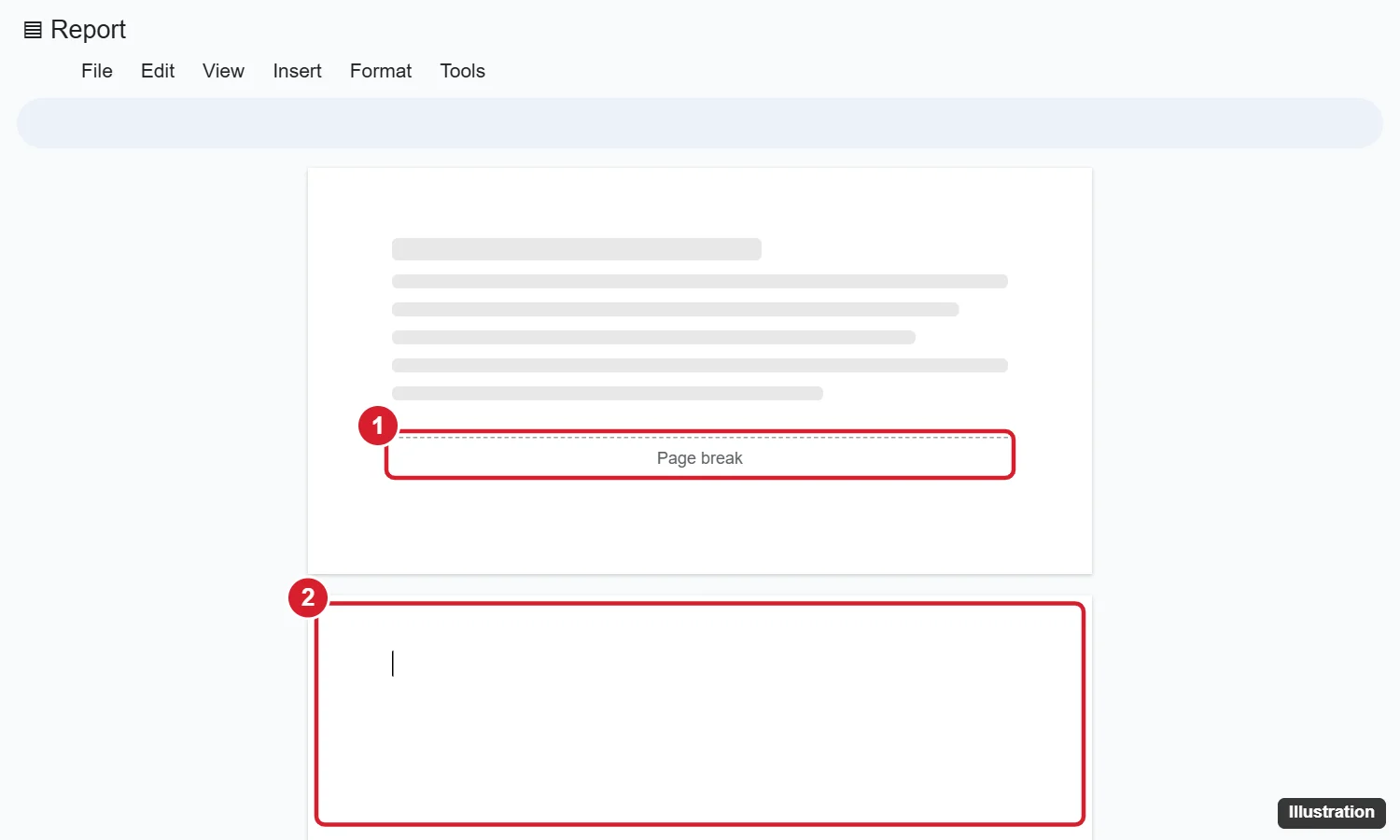
Fix a blank page that won’t delete
Remove a page break or section break
- Click View > Show non-printing characters (or press Ctrl + Shift + P) so breaks are visible.
- Click just before the break, or just after it, and press Delete or Backspace.
Page breaks are added with Ctrl + Enter, which is easy to press by accident.
Reduce space after the last paragraph
- Click the last line on the blank page.
- Go to Format > Line & paragraph spacing > Custom spacing.
- Set After to 0 and click Apply.
Fix a blank page after a table
Google Docs always keeps a line after a table. If the table fills the page, that line spills onto a new page. Select the empty line, then set its font size to 1 and its spacing to 0, or make the table slightly shorter. You can also reduce the bottom margin in File > Page setup.
Adjust margins
Go to File > Page setup and reduce the top or bottom margin a little, like from 1 inch to 0.8 inches, so the content fits on fewer pages.
Switch to Pageless format
If you don’t need to print, choose File > Page setup > Pageless > OK. The document becomes one continuous page with no page breaks at all.
How to delete a page in the Google Docs app
- Open the document and tap the Edit (pencil) icon.
- Tap at the end of the content before the blank page, or at the start of the blank page.
- Tap Backspace on the keyboard until the page is gone.
To select a page of text, double-tap a word and drag the blue handles, then tap Backspace.
Related: Convert a Google Doc to pageless format.
More questions about removing Google Docs pages
Why does Google Docs add a blank page when I print?
The print preview may show extra lines or a table spilling over. Remove empty lines at the end, reduce margins, or check the paper size in File > Page setup.
How do I undo deleting a page?
Press Ctrl + Z (Command + Z), or restore an earlier version from File > Version history.
How do I delete a page in Microsoft Word?
The steps are similar. See how to delete a page in Word.

Kermit Matthews runs Live2Tech from just outside Philadelphia. He is an IT specialist with over 20 years of experience, from a university help desk to small-business IT, IT management and his own consulting practice, and has written tech guides full time since 2020. Steps are checked against the current software on a real device or the maker’s official documentation. More about Kermit.