The safest way to clear temporary files in Windows 11 is Settings > System > Storage > Temporary files. Check the categories you want to delete, then select Remove files. You can also empty your user temp folder by opening %temp%, or turn on Storage Sense so Windows cleans up for you.
Temporary files are leftovers from updates, installers, and apps. Deleting them is safe, but read each category first: some lists include your Downloads folder or the Recycle Bin, which hold files you may still want.
Method 1: Delete Temp Files in Settings
- Press Windows + I to open Settings.
- Select System, then Storage. If a User Account Control prompt appears, select Yes. Some 2026 builds ask for admin approval here.
- Select Temporary files and wait for Windows to scan.
- Check the categories you want to remove. Good choices are Temporary files, Windows Update Cleanup, Delivery Optimization Files, and Thumbnails.
- Select Remove files at the top and confirm with Continue.
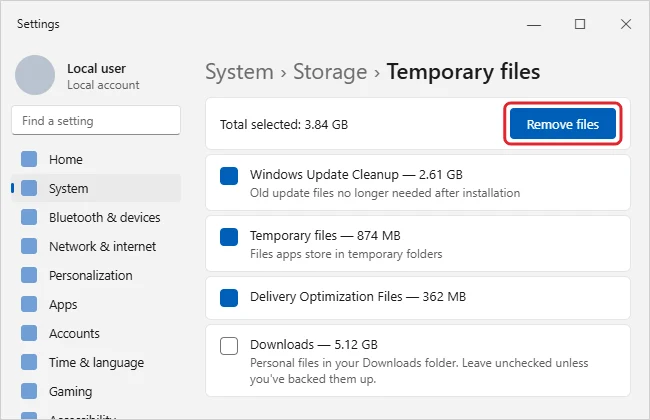
What Each Category Holds
| Category | Safe to delete? | Notes |
|---|---|---|
| Temporary files | Yes | Files apps no longer need. Anything in use is skipped. |
| Windows Update Cleanup | Yes | Old update files. After removal, you can’t uninstall some older updates. |
| Delivery Optimization Files | Yes | Update pieces shared with other PCs. |
| Thumbnails | Yes | Picture previews that rebuild when needed. |
| Recycle Bin | Only if you’ve checked it | Permanently deletes what’s in it. |
| Downloads | Only if you’ve backed it up | Your own downloaded files. Not shown on every build. |
| Previous Windows installation(s) | Only if you won’t roll back | Removes the option to go back to your previous version. |
Method 2: Empty the Temp Folders Manually
- Close any open apps.
- Press Windows + R, type
%temp%, and press Enter. This opens your user temp folder (C:\Users\YourName\AppData\Local\Temp). - Press Ctrl + A to select everything, then press Delete.
- If Windows says a file is in use, check Do this for all current items and select Skip.
- Optional: repeat with
tempin the Run box to open C:\Windows\Temp. You’ll need to approve an admin prompt. - Empty the Recycle Bin to free the space.
Method 3: Turn On Storage Sense
- Go to Settings > System > Storage.
- Turn on Storage Sense.
- Select Storage Sense to set how often it runs and whether it clears the Recycle Bin and Downloads.
How often should I clear temp files?
Once a month is plenty, or let Storage Sense handle it automatically.
Method 4: Use Disk Cleanup for System Files
The classic Disk Cleanup tool is still included in Windows 11. It’s useful if Windows Update Cleanup doesn’t appear in Settings.
- Search for Disk Cleanup in Start and open it.
- Select Clean up system files and choose drive C:.
- Check the items to remove and select OK.
After cleaning up, you can also defrag or optimize your drives in Windows 11.
When temp files won’t go away
- Some files won’t delete: An app is using them. Restart the PC and try again.
- Windows Update Cleanup is missing: Use Disk Cleanup with Clean up system files, which runs with admin rights.
- The space came back quickly: That’s normal. Apps and updates create new temp files. Storage Sense keeps it in check.
Will clearing temp files speed up my PC?
It frees disk space, which helps if the drive is nearly full. It won’t make a big difference if you already have plenty of free space.
Still short on space? See our tips to get more storage on Windows. On an older PC, the steps for removing temp files in Windows 10 are slightly different.
Temp files are only one Windows cache; to work out whether the browser, DNS or Store cache is the one to clear, see clearing your computer’s cache in Windows 11.
Related: Delete Windows setup files in Windows 10.

Kermit Matthews runs Live2Tech from just outside Philadelphia. He is an IT specialist with over 20 years of experience, from a university help desk to small-business IT, IT management and his own consulting practice, and has written tech guides full time since 2020. Steps are checked against the current software on a real device or the maker’s official documentation. More about Kermit.