Test the largest packet that gets through before you change anything: a ping sent with the Don’t Fragment flag (ping /f /l) shows whether your connection can carry a given size. Then set the new MTU in an administrator PowerShell window with Set-NetIPInterface -InterfaceAlias "Wi-Fi" -NlMtuBytes 1492, using your own adapter name and the number your test produced. These steps work in current versions of Windows 11 and in Windows 10.
When an MTU change is worth trying
MTU (maximum transmission unit) is the largest packet, in bytes, that an IP interface on your PC will send. Microsoft describes the -NlMtuBytes value exactly that way: the interface will not transmit packets larger than it. Most connections never need it touched. A change is a fix for specific problems, and Microsoft documents no speed gain from lowering it, so treat claims of “faster internet” with suspicion.
| What you notice | Possible cause | What to try |
|---|---|---|
| Some sites half-load or hang while others work, often only over a VPN | Packets too large for the VPN tunnel | Run the ping test below, then check the VPN app’s own MTU setting first |
| Your ISP, VPN provider or IT department gave you a specific MTU | Their connection type needs a smaller packet | Use their number; you can skip straight to setting it |
| Everything is slow on every site | Usually not MTU | Restart the router, check drivers or DNS before touching MTU |
| Nothing is wrong, you read that a lower MTU helps games | No documented benefit | Leave the setting alone |
If the trouble is only on one network, other adapter settings are more likely suspects; changing network adapter settings in Windows 11 covers IP, DNS and driver options in Settings, where there is no MTU control.
Run the do-not-fragment ping test
Microsoft’s ping command reference says the /f switch sets the Do not Fragment flag (IPv4 only) and is useful for troubleshooting path MTU problems, while /l sets the size of the data field in bytes.
- Open Terminal, PowerShell or Command Prompt. The test itself does not need administrator rights.
- Run
ping /f /l 1472 example.com, replacingexample.comwith a site you have trouble reaching. Some servers ignore ping, so if every size times out, try another host. - If Windows replies that the packet needs to be fragmented, lower the size, for example to
1452, and run it again. - When you get normal replies, raise the number in small steps until you find the largest size that still passes.
- Add 28 to that number. The
/lvalue counts only the data, and each test packet also carries a 20-byte IPv4 header and an 8-byte ICMP header.
Worked example: a laptop on a home office VPN passes at 1464 but fails at 1465. 1464 + 28 = 1492, so 1492 is the MTU to set on that connection. If 1472 passes, 1472 + 28 = 1500 and the current path already carries that size, so a change is unlikely to help.
Find the interface and the value it uses now
Each adapter (Wi-Fi, Ethernet, a VPN adapter) has its own MTU, and IPv4 and IPv6 keep separate values. Write down what you see now so you can put it back later.
- Right-click Start and open Terminal as administrator (choose the Admin entry, then select Yes in the User Account Control prompt).
- Run
Get-NetIPInterface -AddressFamily IPv4. The Get-NetIPInterface page describes it as getting the IP interface configuration. - Find your adapter in the InterfaceAlias column and note the number in the NlMtu column beside it.
If a VPN is connected, its adapter usually appears as a separate entry. Change only the one carrying the traffic that fails.
Set the new value in PowerShell
Microsoft’s netsh overview recommends PowerShell over netsh for managing networking, so start here.
- In the same administrator window, run
Set-NetIPInterface -InterfaceAlias "Wi-Fi" -AddressFamily IPv4 -NlMtuBytes 1492. Keep the quotation marks and type the alias exactly as listed, including spaces (for example “Ethernet 2”). - For IPv6, repeat with
-AddressFamily IPv6. - Run
Get-NetIPInterface -AddressFamily IPv4again and confirm the new number. - Restart the PC and run the check command once more to confirm the value stuck.
The Set-NetIPInterface reference gives the minimums: 576 bytes for IPv4 and 1280 bytes for IPv6.
The netsh alternative
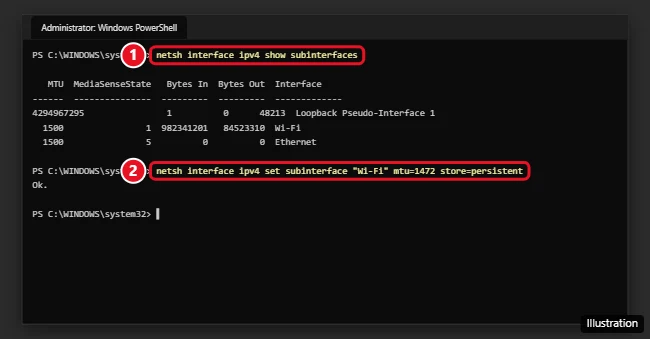
netsh still works and lets you choose whether the change lasts. Microsoft’s netsh interface reference gives the syntax as netsh interface ipv4 set subinterface [interface=]<string> [mtu=]<integer> [subinterface=]<string> [store=]active|persistent.
- Run
netsh interface ipv4 show subinterfacesto list interfaces with their MTU. - Run
netsh interface ipv4 set subinterface "Wi-Fi" mtu=1492 store=persistent. The persistent store keeps the value after a restart; active lasts only until the next restart, which is handy for a trial. - Run the show command again to confirm.
Put the original value back
Run the same PowerShell or netsh command with the number you wrote down earlier. If you did not note it, Network reset is the broader option. Microsoft’s path is Settings > Network & internet > Advanced network settings > Network reset > Reset now > Yes. According to Microsoft’s Ethernet troubleshooting page, it removes your network adapters and their settings, and after the restart they come back with default settings. You may need to reinstall VPN software afterward. More detail is in resetting a network adapter.
Why the new value does not seem to work
- An error about elevation or access. The window is not running as administrator. Close it and reopen Terminal with the Admin option.
- The adapter is not found. The alias or interface name has a typo. Copy it from the list, spaces included.
- The VPN still drops. Many VPN apps set the MTU on their own adapter. Check the app’s settings, and see how the built-in Windows VPN works if you use that instead.
- Nothing changed at all. The limit may be on the router or the ISP’s side. Routers often have their own MTU field in the WAN or internet settings.
- Sites still fail to resolve. That points to DNS rather than packet size; try flushing the DNS cache or switching to a different DNS server.
Windows 10 differences
The ping, PowerShell and netsh commands are the same. On Windows 10, right-click Start and choose the Windows PowerShell (Admin) or Command Prompt (Admin) entry if Terminal is not listed. Microsoft says Windows 10 reached the end of support on October 14, 2025, so security updates are no longer provided for it.
MTU setting answers
Do I need to restart after changing the MTU?
The new value applies as soon as the command succeeds. Restarting is still a good check that a netsh change made with store=persistent, or a PowerShell change, is still in place.
Is the Jumbo Packet option the same thing?
Not quite. Some network drivers show a Jumbo Packet setting on the adapter’s Advanced tab in Device Manager. It is a driver feature for local networks whose switches support it, not the IP setting this article changes.
Will updating the network driver undo my MTU change?
Microsoft does not document that it will. If the value changes after you update network drivers in Windows 11 or update a network adapter driver in Windows 10, run the check command again and reapply it.
Does the ping test work for IPv6?
No. Microsoft lists /f as IPv4 only. For IPv6, use the value your VPN or ISP provides, and remember Windows will not go below 1280 bytes.
Next step: run the ping test against the site that fails, and only change the MTU if the numbers say the path needs it.

Kermit Matthews runs Live2Tech from just outside Philadelphia. He is an IT specialist with over 20 years of experience, from a university help desk to small-business IT, IT management and his own consulting practice, and has written tech guides full time since 2020. Steps are checked against the current software on a real device or the maker’s official documentation. More about Kermit.