On most Windows 10 laptops, you turn off the keyboard light with a keyboard shortcut, not a Windows setting. Look for a key with a small keyboard or light icon, often F5, F9, F10, or the Spacebar, and press it together with Fn. Each press usually cycles through brightness levels and then off. On some laptops, especially Dell, you can also use the Keyboard Brightness tile in Windows Mobility Center (press Windows + X and choose Mobility Center). HP laptops running Windows 11 use the same key to switch the light back on, as covered in how to turn on the keyboard light on an HP laptop.
Here are the shortcuts for common brands, plus how to set the backlight to turn off automatically and what to do if the key doesn’t work.
Keyboard backlight shortcuts by brand
| Brand | Common shortcut | Settings app |
|---|---|---|
| Dell | Fn + F10, Fn + F5, or Fn + Right arrow | Windows Mobility Center, BIOS |
| HP | F5, Fn + F5, F4, or Fn + Spacebar | BIOS (backlight timeout) |
| Lenovo | Fn + Spacebar | Lenovo Vantage |
| ASUS | Fn + F7 (brighter) and Fn + F6 or F3 (dimmer) | MyASUS or Armoury Crate |
| Acer | Fn + F9 or Fn + I | Acer Care Center or NitroSense |
| MSI | Fn + Plus/Minus on the number pad, or a dedicated key | MSI Center |
| Microsoft Surface | F1 and F2 (or Fn + F1/F2) on Type Covers | None needed |
Shortcuts vary by model. If you’re not sure, look for the key with a backlight icon, or check your laptop’s manual on the manufacturer’s support site.
Method 1: Use the keyboard shortcut
- Find the key with the backlight icon, usually a keyboard with rays or a small light.
- Press it. If nothing happens, hold Fn and press it.
- Keep pressing until the light turns off. Most laptops cycle through levels like Low, High, and Off.
If your function keys control media by default, you may need Fn. Some laptops let you swap this with Fn + Esc (Fn Lock).
Method 2: Use Windows Mobility Center
- Press Windows + X and choose Mobility Center. Or search for it in Start.
- If you see a Keyboard Brightness or Keyboard Backlighting tile, drag its slider to the left, or click Keyboard Settings to turn it off.
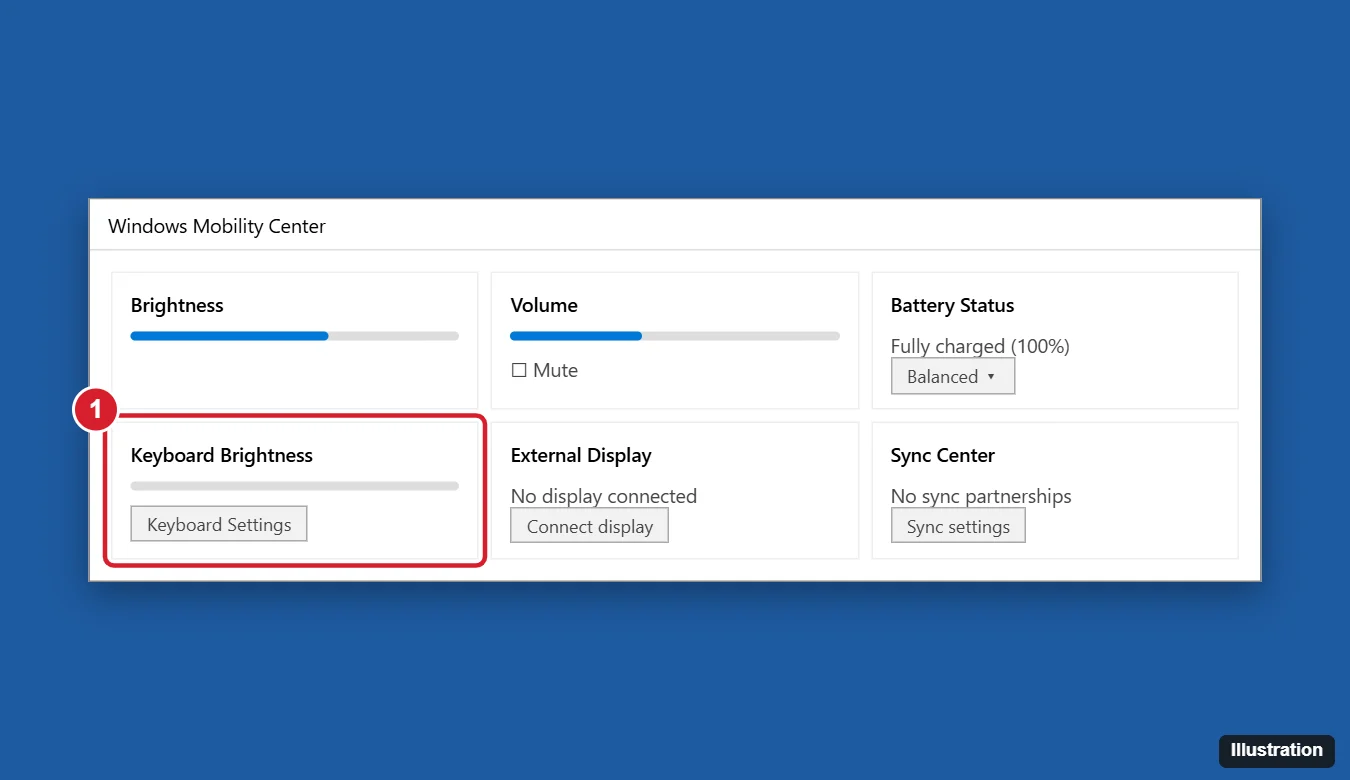
This tile only appears when the manufacturer’s driver supports it, most often on Dell laptops.
Method 3: Use your laptop maker’s app
- Lenovo Vantage: Open Device > Input & Accessories and set Keyboard backlight to Off.
- MyASUS / Armoury Crate: Look for keyboard lighting or Aura settings.
- Gaming laptops with RGB keyboards (Alienware, ROG, Legion, Predator, and others) control lighting in their own app, where you can also turn off effects.
Method 4: Set the backlight to turn off automatically
Many laptops can turn off the backlight after a few seconds of inactivity.
- Dell: In Mobility Center, click Keyboard Settings and choose a timeout. Or enter the BIOS (press F2 at startup) and look for Keyboard Illumination or Keyboard Backlight Timeout.
- HP: Enter BIOS (press F10 at startup), go to Advanced > Built-in Device Options, and set Backlit keyboard timeout.
- Lenovo: Some models offer an auto-off option in Lenovo Vantage.
Be careful in the BIOS, and only change the setting you’re looking for.
Shortcut doesn’t work?
- Your laptop may not have a backlight. Check the specs for “backlit keyboard.”
- Install the right drivers. Hotkey drivers from the manufacturer, such as HP System Event Utility, Lenovo’s hotkey driver, or ASUS ATK package, are often needed for Fn keys.
- Update the BIOS through your manufacturer’s support app.
- External keyboards have their own lighting button or software.
Related: Turn on the keyboard light on a Dell laptop.
Frequently asked questions
Can I turn off the keyboard light in Windows 10 Settings?
Windows 10 doesn’t have a built-in keyboard backlight setting. It’s controlled by your laptop’s firmware and drivers.
Why does my keyboard light turn on by itself?
Many laptops turn the backlight on when you type or touch the touchpad, then off after a timeout. Set the timeout or turn it fully off using the methods above.
Does turning off the keyboard light save battery?
Yes, a little. It’s one of the easy ways to stretch battery life on a laptop.
Does this work on Windows 11?
Yes. The shortcuts and manufacturer apps work the same. Windows 11 also has Settings > Personalization > Dynamic Lighting for supported RGB keyboards.

Kermit Matthews runs Live2Tech from just outside Philadelphia. He is an IT specialist with over 20 years of experience, from a university help desk to small-business IT, IT management and his own consulting practice, and has written tech guides full time since 2020. Steps are checked against the current software on a real device or the maker’s official documentation. More about Kermit.