Google began replacing Google Assistant with Gemini on Android phones from September 4, 2026, and the change is rolling out gradually. On most phones, turning off “the assistant” now means stopping Gemini from opening by voice or button press, switching back to Google Assistant where that option is still offered, or choosing no digital assistant at all.
Quick Answer
Open Settings, Apps, Default apps, Digital assistant app and set Default digital assistant app to None. To stop only the voice trigger, turn off Hey Google in the assistant app’s settings.
How to Turn Off the Assistant on Android
- Open the Settings app.
- Tap Apps, then Default apps (on some phones, search Settings for Digital assistant).
- Tap Digital assistant app.
- Tap Default digital assistant app and choose None.
- To keep the assistant but stop voice activation, open the Gemini app, tap your profile picture, Settings, then Hey Google and Voice Match, and turn it off.
- Restart the phone if the power button still launches the assistant, and check the side button settings.
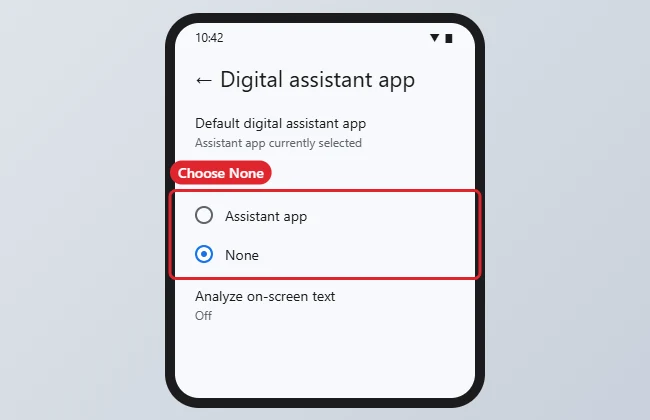
Options
| Goal | Setting |
|---|---|
| No assistant at all | Digital assistant app, None |
| No voice activation | Hey Google and Voice Match off |
| Stop power-button launch | Settings, System, Gestures, Press and hold power button |
| Remove from lock screen | Assistant settings, lock screen options |
Stop Gemini Without Removing It
Google’s Gemini Apps Help lists several ways to keep the Gemini app for typing questions while stopping it from popping up on its own:
Turn off “Hey Google”
- Open the Gemini app.
- Tap Menu or your profile picture, then Settings.
- Tap Talk to Gemini hands-free and turn off “Hey Google”.
Remove it from the power button
- Open Settings > System > Gestures > Press & hold power button.
- Choose the power menu instead of the digital assistant.
The path varies by brand; if you can’t find it, search Settings for “power,” “side button” or “gesture.”
Keep it off the lock screen
In the Gemini app, open Settings > Gemini on lock screen and turn off Use Gemini without unlocking.
Switch From Gemini Back to Google Assistant
If your phone still offers it, open the Gemini app, tap Menu or your profile picture, choose Switch to Google Assistant, and tap Switch in the dialog. Google notes that your Gemini Apps Activity isn’t deleted automatically when you switch; you can review and delete it in your Google Account. Because Assistant is being phased out, this option may disappear from your phone over time.
Remove the Assistant Completely
Setting the default digital assistant app to None (Settings > Apps > Default apps > Digital assistant app) stops any assistant from opening by gesture or voice. Google’s help page also explains how to delete the Gemini mobile app if you don’t want it at all.
Related: how to replace Bixby with Google Assistant on Samsung phones.
Troubleshooting
- Menus differ: Samsung and other brands name these settings differently. Use the search bar in Settings.
- Assistant still opens: a home-screen widget or button shortcut may call it directly; remove it.
- Older phones: some devices without Gemini support may keep the older assistant for a time.
- Related: using Google Lens and moving Nest accounts to Google.
Related: switch from Google Dialer to the Xiaomi dialer.
Frequently Asked Questions
Is Google Assistant gone?
It’s being phased out. Google began replacing it with Gemini on Android from September 4, 2026, so on many phones Gemini is now the default. Where your phone still offers it, the Gemini app has a Switch to Google Assistant option.
Does turning it off delete my data?
No. Manage activity separately in your Google Account.
Can I turn it back on?
Yes. Choose the assistant again in Default apps.
What about Google Home speakers?
Speakers and displays follow a separate schedule and settings.
Summary
- Open Settings, Apps.
- Open Default apps.
- Tap Digital assistant app.
- Choose None.
- Or turn off Hey Google only.

Kermit Matthews runs Live2Tech from just outside Philadelphia. He is an IT specialist with over 20 years of experience, from a university help desk to small-business IT, IT management and his own consulting practice, and has written tech guides full time since 2020. Steps are checked against the current software on a real device or the maker’s official documentation. More about Kermit.