If an external hard drive or USB drive shows errors, won’t open certain files, asks to be scanned and fixed, or disconnects unexpectedly, Windows’ CHKDSK (Check Disk) tool can find and repair file system problems and mark bad sectors. This guide shows how to run CHKDSK on an external drive in Windows 10 (and 11) from File Explorer and from Command Prompt. It explains the main switches and what the results mean, and what to do if CHKDSK can’t run or the drive shows as RAW.
Quick Answer
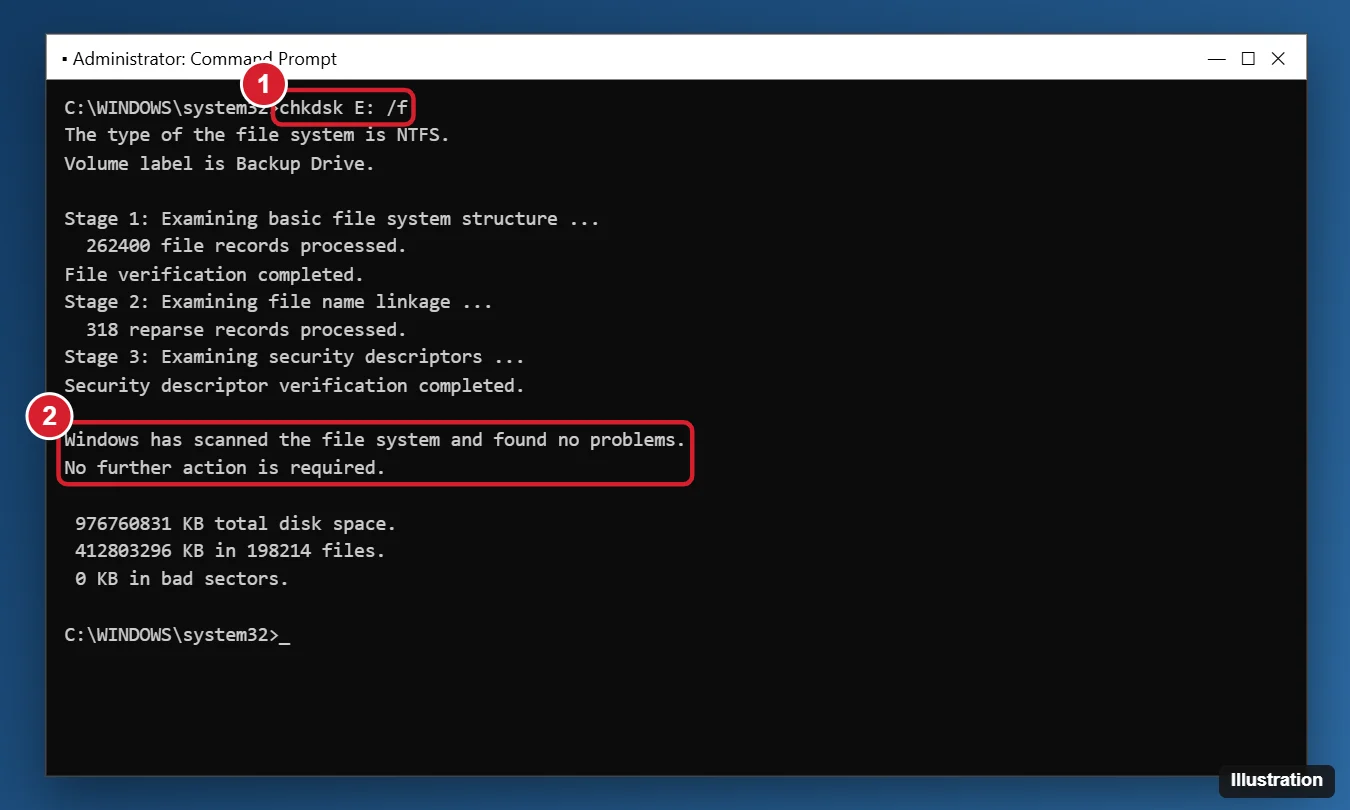
Open Command Prompt as administrator and run chkdsk E: /f, replacing E: with your external drive’s letter. Use chkdsk E: /r to also scan for bad sectors, which takes much longer. Without the command line, open This PC, right-click the drive, and choose Properties > Tools > Check.
Before You Run CHKDSK
- Back up important files first if you can still open them. CHKDSK repairs the file system, and on a failing drive, heavy scanning can cause more damage.
- Note the drive letter in File Explorer under This PC.
- Close files and apps using the drive. CHKDSK needs exclusive access to fix errors.
- Clicking or grinding noises mean mechanical failure. Stop and copy data off, or consult a data recovery service, instead of running long scans.
Method 1: Error Checking in File Explorer
- Open File Explorer and click This PC.
- Right-click the external drive and choose Properties.
- Open the Tools tab and click Check under Error checking.
- Click Scan drive, or Repair drive if Windows already found problems.
This is the same as chkdsk /f. It doesn’t do the deeper bad-sector scan.
Method 2: CHKDSK in Command Prompt
- Click Start, type cmd, right-click Command Prompt, and choose Run as administrator.
- Type
chkdsk E: /f(with your drive letter) and press Enter. - If you see “Chkdsk cannot run because the volume is in use by another process. Would you like to force a dismount on this volume?”, type Y and press Enter. Any open files on the drive will close.
- Wait for all stages to finish and read the summary.
CHKDSK Switches
| Command | What it does | Time |
|---|---|---|
chkdsk E: |
Read-only check, reports problems but doesn’t fix them | Minutes |
chkdsk E: /scan |
Online scan (NTFS only) while the drive stays in use | Minutes |
chkdsk E: /f |
Fixes file system errors | Minutes to an hour |
chkdsk E: /r |
Everything /f does, plus finds bad sectors and recovers readable data | Hours on large hard drives |
chkdsk E: /x |
Forces the drive to dismount first (includes /f) | Same as /f |
For SSDs and flash drives, /f is usually enough. /r is mainly useful for spinning hard drives.
Understanding the Results
- “Windows has scanned the file system and found no problems”: the file system is healthy.
- “Windows has made corrections to the file system”: errors were found and fixed. Check your files.
- “X KB in bad sectors”: any number above 0 on a hard drive is a warning sign. Back up and plan to replace the drive.
- Found.000 folder: recovered file fragments may appear in a hidden folder on the drive, with .chk files that are often only partly usable.
Run a Check with PowerShell
In an admin PowerShell window:
Repair-Volume -DriveLetter E -Scanscans only.Repair-Volume -DriveLetter E -OfflineScanAndFixfixes errors, likechkdsk /f.
Troubleshooting
“The type of the file system is RAW. CHKDSK is not available for RAW drives.”
Windows can’t read the file system at all. Don’t format the drive if you need the data. Use data recovery software, such as Microsoft’s free Windows File Recovery or a reputable third-party tool, to copy files to another drive first. Then format the drive.
“Access Denied as you do not have sufficient privileges”
Run Command Prompt as administrator.
The drive has no letter or doesn’t appear
Open Disk Management. If the drive is listed, right-click its partition, choose Change Drive Letter and Paths, and add a letter. If it isn’t listed at all, try another cable, USB port, or PC.
CHKDSK seems stuck at a percentage
/r scans can pause for a long time on damaged areas. Give it several hours before stopping. Repeated hangs point to a failing drive.
Errors come back after every scan
Check the drive’s health with the manufacturer’s diagnostic tool or a SMART utility. Also always use Safely Remove Hardware before unplugging, because sudden removal is a common cause of file system errors.
Frequently Asked Questions
Does CHKDSK work on exFAT and FAT32 drives?
Yes. /f works on FAT32 and exFAT. /scan and some advanced options are NTFS only.
Will CHKDSK delete my files?
It doesn’t intentionally delete files, but repairing a damaged file system can remove corrupted entries. That’s why backing up first matters.
Is it the same on Windows 11?
Yes. The commands and File Explorer steps are identical.
Summary
- Back up what you can and find the drive letter.
- Run
chkdsk E: /fin an admin Command Prompt, or use Properties > Tools > Check. - Use
/rfor a bad-sector scan on hard drives. - Read the summary, and replace drives with growing bad sectors.
- Recover data before formatting a RAW drive.

Kermit Matthews runs Live2Tech from just outside Philadelphia. He is an IT specialist with over 20 years of experience, from a university help desk to small-business IT, IT management and his own consulting practice, and has written tech guides full time since 2020. Steps are checked against the current software on a real device or the maker’s official documentation. More about Kermit.