Redacting means permanently removing sensitive information, such as account numbers, names or addresses, before you share a document. Word doesn’t have a dedicated redaction tool, and black highlighting or a black box doesn’t remove anything. Instead, delete or replace the sensitive text itself, for example with ████ or [REDACTED], using Ctrl + H (Find and Replace). Then run File > Info > Check for Issues > Inspect Document to remove comments, tracked changes and metadata, and save a copy as PDF to share.
Why Black Highlighting Isn’t Redaction
- Black highlight or black font color only changes appearance; the text can be selected, copied, or revealed by changing the color.
- Black shapes over text can be moved or deleted, and the text underneath remains in the file.
- Converting to PDF keeps the hidden text searchable and copyable.
These mistakes have caused real data leaks, so always remove the underlying text.
Step 1: Work on a Copy
Use File > Save As to create a copy named something like “Contract REDACTED.” Keep the original private.
Step 2: Replace Sensitive Text
Replace a specific word or phrase
- Press Ctrl + H.
- Type the text in Find what (for example a person’s name).
- Type [REDACTED] or block characters (█; insert with 2588 then Alt + X) in Replace with.
- Click Replace All.
Replace patterns such as account or phone numbers
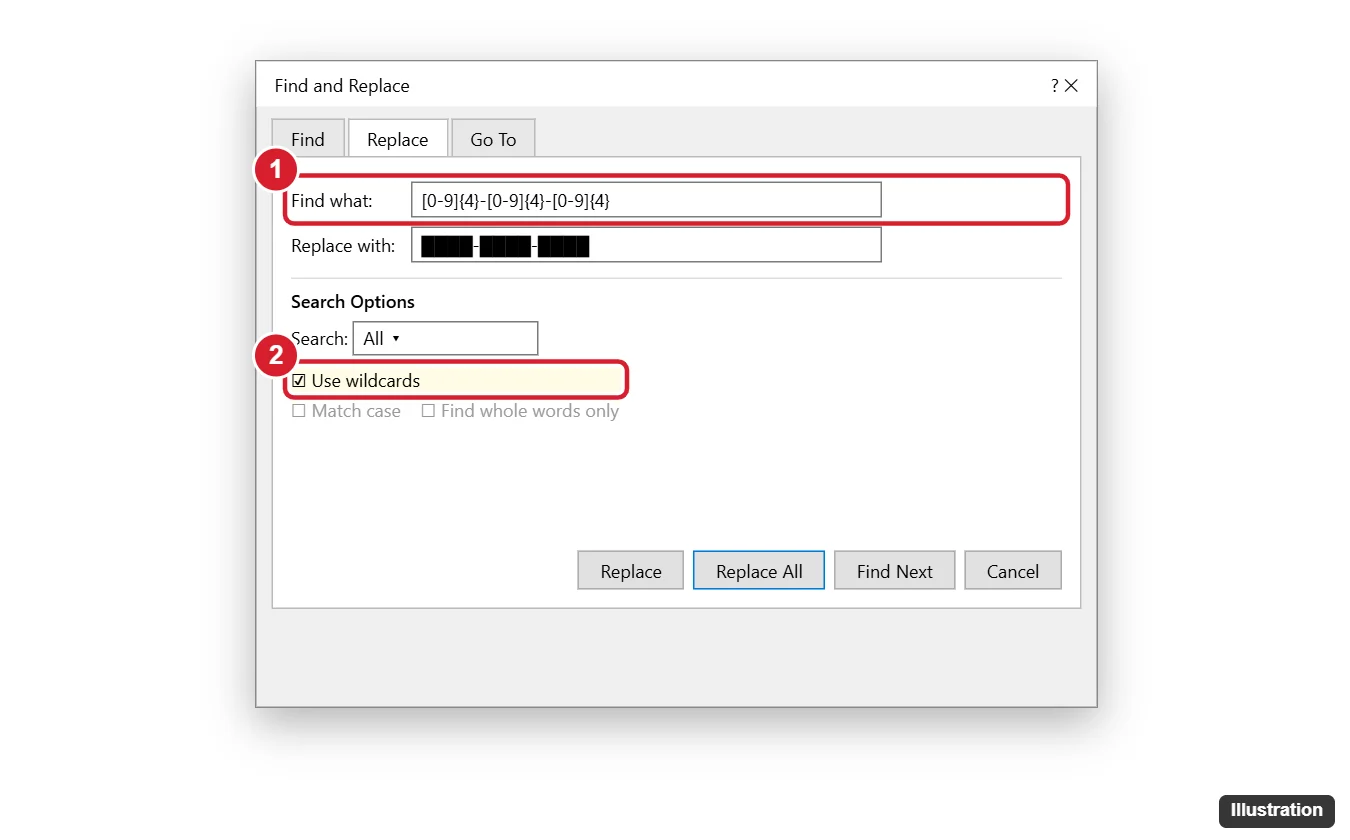
- In Find and Replace, click More >> and check Use wildcards.
- Enter a pattern, for example [0-9]{4}-[0-9]{4}-[0-9]{4} for numbers like 1234-5678-9012, or [0-9]{3}-[0-9]{3}-[0-9]{4} for US phone numbers.
- Enter the replacement and click Replace All.
Review the document afterward to catch variations the pattern missed.
Step 3: Remove Hidden Information
- Accept or reject all tracked changes: Review > Accept > Accept All Changes and Stop Tracking. Otherwise deleted text may still be in the file.
- Delete comments: Review > Delete > Delete All Comments in Document.
- Go to File > Info > Check for Issues > Inspect Document, click Inspect, and click Remove All for comments, document properties, headers/footers containing sensitive data, hidden text and invisible content.
- Check headers, footers, text boxes, images (screenshots may contain sensitive data) and the file name.
Can someone recover redacted text from a Word file?
Not if you replaced the text, accepted all changes and removed hidden data. Older versions saved in cloud version history may still contain it, so share a new copy.
Step 4: Save as PDF
Choose File > Save As (or Export) and pick PDF. Open the PDF, press Ctrl + F and search for the removed information to confirm it’s gone.
When to Use a PDF Redaction Tool
For legal, medical or financial documents, or when you need black redaction boxes (for example in court filings), use a dedicated PDF editor with a true Redact feature, such as Adobe Acrobat Pro. Real redaction tools delete the content under the box and can also remove metadata. Always apply the redactions and save, then verify with search.
Is redacting in Google Docs different?
Google Docs has no redact tool either; replace text and check Version history isn’t shared.

Kermit Matthews runs Live2Tech from just outside Philadelphia. He is an IT specialist with over 20 years of experience, from a university help desk to small-business IT, IT management and his own consulting practice, and has written tech guides full time since 2020. Steps are checked against the current software on a real device or the maker’s official documentation. More about Kermit.