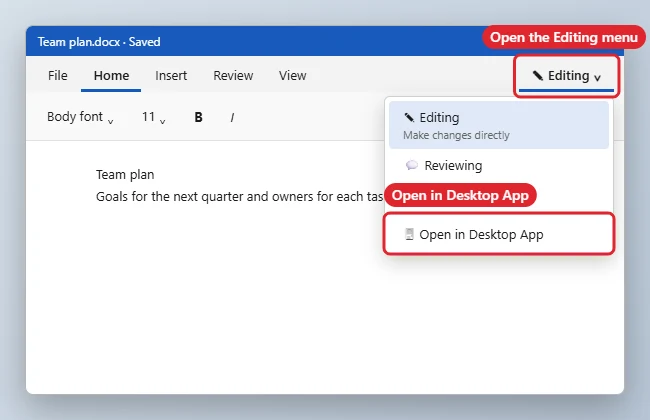
To open a shared Word document in the desktop app, open it in your browser, click the Editing button at the top right (it may say Viewing or Reviewing) and choose Open in Desktop App. You can also use File > Info > Open in Desktop App. Word on your computer needs to be installed and signed in with an account that has access to the file. Changes save back to the shared copy automatically. If you are the one sending the file, see how to make a link to a Word document with the right edit or view permissions.
Steps to Open the Document in Word
- Open the shared link in your browser.
- Click the Editing (or Viewing) button near the top right.
- Choose Open in Desktop App.
- Allow the browser to open Word if it asks.
- Sign in with the same account if Word prompts you, then edit as usual.
Other Places to Find the Option
| Where you are | How |
|---|---|
| Word for the web | Editing menu, or File > Info > Open in Desktop App |
| Cloud file list | Select the file > … > Open > Open in app |
| Team chat or channel files | … > Open in desktop app (you can set this as default in the app’s file settings) |
| Email attachment link | Open the link, then use the Editing menu |
When Open in Desktop App doesn’t work
- Option is missing: You may have view-only access. Ask the owner for edit permission.
- Word opens but says read-only: Sign in to Word with the account that has access (File > Account).
- Nothing happens: Allow the browser to open links in Word, or update Office.
- Setting up sharing: See creating a shared Word document.
Can others keep editing while I use the desktop app?
Yes. Co-authoring works in both the desktop and web versions.
Does it make a separate copy?
No. You edit the same shared file, and AutoSave keeps it in sync.
Can I open it on a Mac?
Yes. Word for Mac supports Open in Desktop App the same way.

Kermit Matthews runs Live2Tech from just outside Philadelphia. He is an IT specialist with over 20 years of experience, from a university help desk to small-business IT, IT management and his own consulting practice, and has written tech guides full time since 2020. Steps are checked against the current software on a real device or the maker’s official documentation. More about Kermit.