To install Windows 10 on a PC that runs Ubuntu, create a Windows 10 installation USB, boot the PC from it, and choose Custom: Install Windows only. At the partition screen, either delete the Ubuntu partitions to replace Linux completely, or install into free space you set aside to keep both systems. Back up everything first; deleting partitions erases Ubuntu and its files.
Windows 10 reached end of support on October 14, 2025. Consumer Extended Security Updates (ESU) now run until October 12, 2027. If your PC meets the requirements, installing Windows 11 instead is the better long-term choice; the steps are the same.
Step 1: Back Up and Create the USB
- Copy your files from Ubuntu to an external drive or cloud storage.
- Download the Windows 10 (or 11) ISO from Microsoft’s website. On Ubuntu, the site offers the ISO directly.
- Write the ISO to a USB drive of at least 8 GB. On Ubuntu, a tool that supports Windows ISOs (for example, WoeUSB or Ventoy) is needed, since the built-in Startup Disk Creator is designed for Linux images.
If you have access to a Windows PC, Microsoft’s Media Creation Tool is simpler; see how to put Windows on a USB drive.
Can I install Windows from inside Ubuntu without a USB?
Not in a supported way. Booting from installation media is the reliable method.
Step 2: Boot From the USB
- Plug in the USB drive and restart.
- Press the boot menu key (often F12, F11, F9, or Esc) and choose the USB drive. If needed, change the boot order in the firmware settings.
- Choose your language and click Install now.
Step 3: Choose Where to Install
- Select Custom: Install Windows only (advanced).
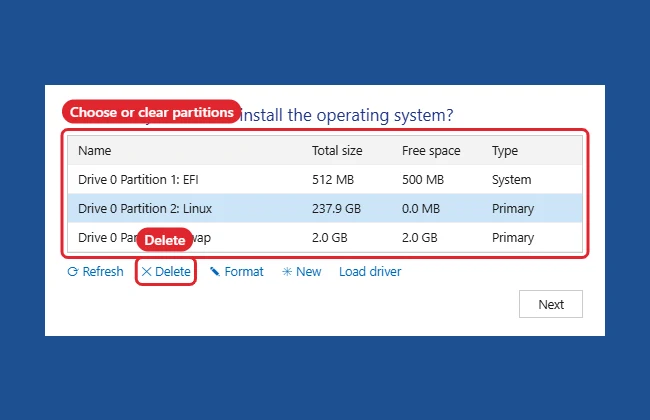
- To replace Ubuntu, select each Ubuntu partition on the target drive (ext4, swap, and the old EFI partition if you want a clean start) and click Delete.
- Select the resulting Unallocated Space and click Next. Windows creates the partitions it needs.
Replace Ubuntu or Dual-Boot?
| Option | What to do | Result |
|---|---|---|
| Replace Ubuntu | Delete all Ubuntu partitions | Windows only |
| Dual-boot | In Ubuntu, shrink its partition first to make free space; install Windows there | Both, but Windows setup replaces the Linux boot menu |
| Keep Ubuntu, run Windows too | Install Windows in a virtual machine instead | No repartitioning |
After a dual-boot install, you’ll need to restore the GRUB boot menu from an Ubuntu live USB (for example, with a boot-repair tool) to choose between systems.
After Installing
- Connect to the internet and run Windows Update for drivers.
- Windows activates automatically if the PC had a digital license; otherwise enter a product key.
- Remove the old Ubuntu entry from the firmware boot list if it remains.
If the USB or Windows Setup Fails
- “Windows cannot be installed to this disk. The selected disk is of the GPT partition style”: You booted the USB in legacy mode. Boot it in UEFI mode from the boot menu.
- The USB isn’t bootable: The ISO was copied as a file instead of written as a bootable drive. Recreate it with a Windows-capable tool.
- Want Linux inside Windows later? See how to install Linux on Windows with WSL.

Kermit Matthews runs Live2Tech from just outside Philadelphia. He is an IT specialist with over 20 years of experience, from a university help desk to small-business IT, IT management and his own consulting practice, and has written tech guides full time since 2020. Steps are checked against the current software on a real device or the maker’s official documentation. More about Kermit.