How you install Minecraft on Windows 10 depends on where you’re starting: you’ve never owned it, you already own Java or Bedrock, you have Game Pass, or you just want to try it. The core route is the same for all four. Install the free Minecraft Launcher, sign in with the Microsoft account linked to your purchase or trial, choose Java Edition or Minecraft for Windows (Bedrock), and click Install.
Find your starting point
| Your situation | What to do first | Then |
|---|---|---|
| You’ve never owned Minecraft on PC | Buy Minecraft: Java & Bedrock Edition for PC from minecraft.net or the Microsoft Store. One purchase includes both editions. | Install the launcher, sign in, install an edition |
| You already own Java or Bedrock on PC | Nothing to buy. Find the Microsoft account you used. | Install the launcher and sign in with that account |
| You have a Game Pass plan that includes Minecraft | Sign in to the Microsoft Store or Xbox app with your subscription account | Install the launcher; access lasts while the subscription is active |
| You only want to try it | Use the official free trial from minecraft.net | Follow the Minecraft free trial download steps |
| You bought Bedrock on a console or phone | Check what you own first: console and mobile purchases don’t automatically include the PC version | Buy the PC edition if it isn’t in your library |
To buy, open the Minecraft: Java & Bedrock Edition for PC page on minecraft.net or in the Microsoft Store, sign in with the Microsoft account you will use in the launcher, and complete the checkout. Ownership is tied to that account, so buying on a different one is a common reason the launcher later asks you to buy again.
Only buy or download from minecraft.net, the Microsoft Store, or the Xbox app. Sites offering a “free full version” are unofficial copies that often bundle malware, and they can’t be signed in to a real Microsoft account anyway.
Java Edition or Bedrock Edition at a glance
Because the PC purchase includes both, you don’t have to choose before buying. You choose what to install, and you can install both side by side. Minecraft’s store page describes the differences like this:
| Minecraft: Java Edition | Minecraft for Windows (Bedrock) | |
|---|---|---|
| Plays with | Other Java players on Windows, macOS and Linux | Bedrock players on consoles, phones, tablets and PC (cross-play) |
| Extras | Mods, custom skins, community servers | Marketplace content, add-ons, Xbox-connected parental controls |
| Controls | Keyboard and mouse; no controller support | Keyboard and mouse, controller and touch |
| Hardware | Needs a more powerful PC | Runs on less powerful hardware |
A quick rule: install Bedrock if you want to play with friends on Xbox, Switch, PlayStation or phones, or if your PC is older. Install Java if you want mods or a specific community server. Java and Bedrock players can’t join each other’s worlds, and their worlds are saved in different formats. If you start on one and change your mind, the steps to switch from Minecraft Java to Bedrock on Windows 10 cover converting worlds. “Minecraft for Windows” is the current name for what used to be sold as Minecraft for Windows 10; it’s the Bedrock Edition.
What your PC needs
These are the minimum requirements Minecraft lists on its official store and requirements pages. Java’s minimums were raised in 2026, so older figures you may see elsewhere (4 GB of RAM for Java, for example) are out of date.
| Minimum | Minecraft for Windows (Bedrock) | Minecraft: Java Edition |
|---|---|---|
| Windows | Windows 10 version 19041.0 or higher | Windows 10 64-bit |
| Memory (RAM) | 4 GB | 8 GB with a dedicated graphics card, 12 GB with integrated graphics |
| Processor | Intel Celeron J4105 or AMD FX-4100 | Four physical cores, such as Intel Core i3-10100 or AMD Ryzen 3 3100 |
| Graphics | Intel HD Graphics 4000 or AMD Radeon R5 220 class, Shader Model 5.0 | Vulkan 1.3 capable GPU with at least 2 GB of video memory |
| Storage | 4 GB | 2 GB |
To check your PC, open Settings > System > About. Installed RAM and System type (look for 64-bit) are listed under Device specifications, and the OS build under Windows specifications. Version 22H2, the final Windows 10 release, is well above the 19041 build Bedrock asks for.
Two more checks. The Microsoft Store listing for the Minecraft Launcher says it’s not supported on Windows 10 in S mode, and it also lists ARM devices as unsupported, even though Bedrock itself lists ARM. And Windows 10 reached end of support on October 14, 2025; Microsoft’s end-of-support page explains that PCs enrolled in consumer Extended Security Updates get security updates until October 12, 2027. The launcher still lists Windows 10 as a supported system.
Get the Minecraft Launcher
The launcher is free and is the hub for every Minecraft PC game. There are two official ways to get it, and they install the same app.
From the Microsoft Store
- Open Microsoft Store from Start.
- Search for Minecraft Launcher and open its page.
- Click Get or Install and wait for the download to finish.
If you have a Game Pass plan, the Xbox app can also install the launcher and its Gaming Services components. Progress for some downloads shows in the Xbox app’s library rather than the launcher.
From minecraft.net
- Go to the Minecraft download page and click Download Launcher (choose the Windows 10/11 version).
- Run the downloaded file and follow the prompts. On current versions the install may finish through the Microsoft Store app.
- Open the launcher from Start when the install completes.
Minecraft’s download page says the launcher updates itself when it starts; if it doesn’t, update it from the Microsoft Store’s Library section.
Install an edition from the launcher
- Open Minecraft Launcher from Start.
- Sign in with the Microsoft account that bought the game, holds the trial, or carries your Game Pass subscription. If you’re unsure which account that is, sign in at minecraft.net and check the games listed on your profile.
- In the left pane, select Minecraft: Java Edition or Minecraft for Windows.
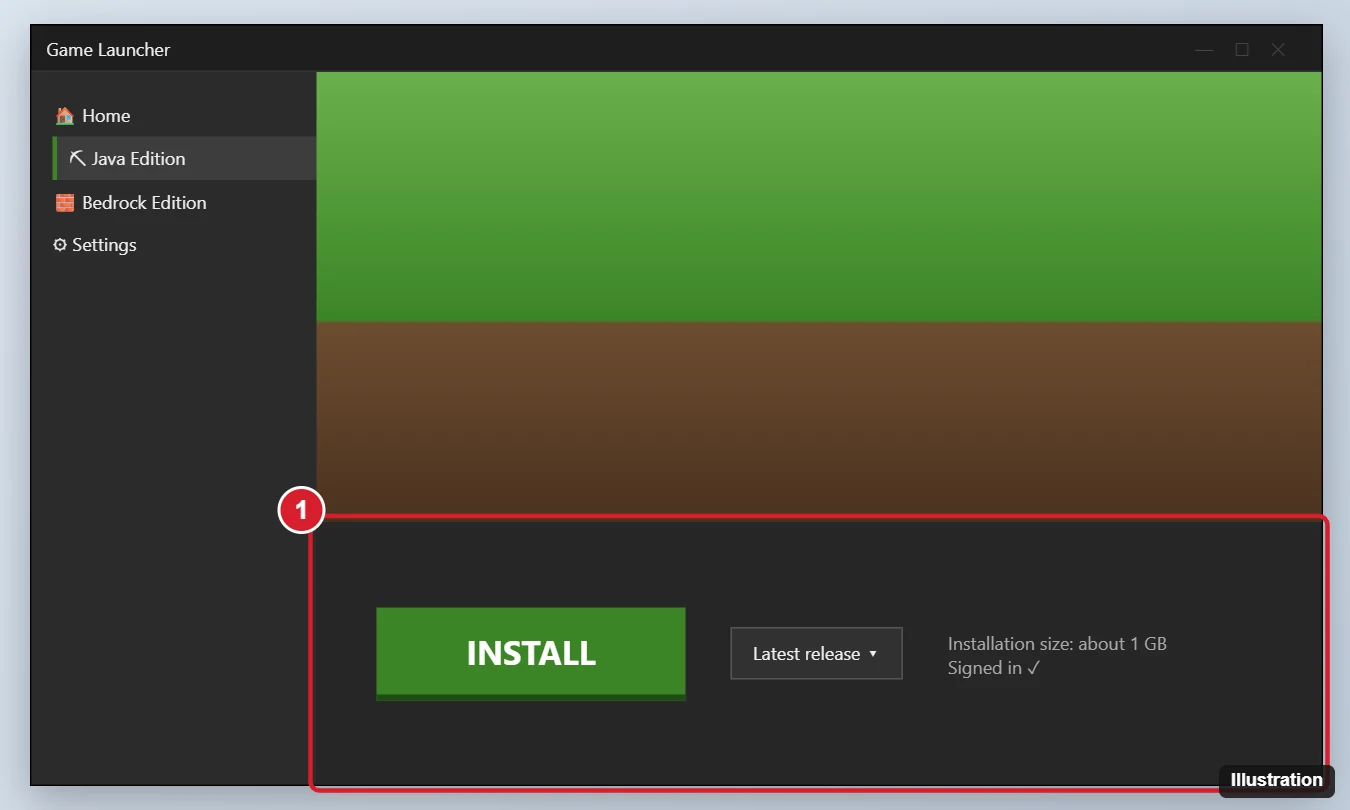
Pick an edition on the left side of the launcher, then click Install. - Click Install. Java Edition downloads inside the launcher. Bedrock may hand the download to the Microsoft Store or Xbox app, which can take longer.
- When the download finishes, the button changes to Play. Click it to start the game.
To add the other edition, select it in the left pane and click Install again. If the launcher shows a purchase button instead of Install, it doesn’t see the game on the account you used; check the account before buying anything. Java Edition doesn’t need a separate Java download from another site, since the launcher sets up what the game needs.
A worked example: a parent sets up Minecraft for a child who plays Bedrock on a Switch. On the family’s Windows 10 PC, the launcher is signed in with the child’s Microsoft account (the one used on the Switch). Minecraft for Windows is installed, so the child can join the same Bedrock friends through cross-play, and Java can wait until the child wants mods.
Install to a different drive
If your C: drive is short on space, Bedrock follows Windows’ setting for where new apps go. In Windows 10, open Settings > System > Storage, choose Change where new content is saved, and set New apps will save to to another drive before you click Install. The Xbox app can also offer a choice of drive during install. Java Edition keeps its game files in your user profile by default; changing that is done per installation in the launcher and is easier to leave alone unless space is very tight. Minecraft’s store page lists 4 to 8 GB of storage for Bedrock and 2 to 4 GB for Java, plus whatever your worlds grow to.
Moving to a new PC or reinstalling
You don’t buy Minecraft again for a new or rebuilt PC. Minecraft’s store page says to install the launcher, sign in with the same Microsoft account, and download the game from your library. Before you wipe an old PC, copy your worlds somewhere safe, because worlds are stored on the PC and Java saves aren’t automatically moved for you. The steps to find the Minecraft folder on Windows 10 show where Java and Bedrock keep their files. If you are replacing an older launcher, copy custom worlds and mods out of the game folder before you uninstall it.
When the launcher or the game won’t cooperate
| What you see | Likely cause | Try this |
|---|---|---|
| Launcher won’t install from the Store | A Store glitch, a pending restart, or an S mode PC | Restart the PC, then reset the Store (steps below); check S mode in Settings > System > About |
| Launcher asks you to buy the game | Signed in with a different Microsoft account | Sign out in the launcher and sign in with the account that owns it |
| Download stuck at 0% or fails with an error code | Store or Xbox app sign-in, network filtering, or a VPN | Sign out and back in to the Store and Xbox app; pause the VPN; retry |
| Game closes right after Play | Outdated graphics driver or a PC below the minimums | Update your graphics driver on Windows 10 and compare the requirements table |
| Can’t join friends or servers | Firewall blocking the game, or editions don’t match | Check both players use the same edition, then allow Minecraft through the Windows 10 firewall |
To reset the Microsoft Store, which Microsoft’s Store troubleshooting page recommends when an app won’t install:
- Press Windows key + R.
- Type wsreset.exe and click OK.
- A blank Command Prompt window opens. After about ten seconds it closes and the Store opens by itself. Try the install again.
The same page suggests checking that you’re signed in to the Store with your Microsoft account, that your region is set correctly, and that family settings aren’t blocking the app on a child’s account.
After the first launch
The launcher keeps Java Edition up to date, and Bedrock updates through the Microsoft Store. If a friend’s game says yours is out of date, see how to update Minecraft on Windows 10 for both editions. The steps above work the same on Windows 11 if you upgrade later.
Minecraft install questions
Can Java and Bedrock players share a world?
No. The two editions don’t cross-play with each other, and each uses its own world format. Bedrock cross-play works among Bedrock players on PC, consoles and mobile; Java multiplayer works among Java players.
What happens to my game if my Game Pass plan ends?
Access ends with the subscription. Your installed files and worlds stay on the PC, and buying the PC edition later on the same account lets you keep playing.
How long does the free trial last?
Minecraft’s trial page says about 100 minutes of in-game time (roughly five in-game days) for both Java and Bedrock on Windows 10 and 11. The length can vary slightly by device.
Ready to play? Open the launcher, confirm the edition that matches your friends’ devices, and click Play; everything else in the launcher can wait until after your first world.

Kermit Matthews runs Live2Tech from just outside Philadelphia. He is an IT specialist with over 20 years of experience, from a university help desk to small-business IT, IT management and his own consulting practice, and has written tech guides full time since 2020. Steps are checked against the current software on a real device or the maker’s official documentation. More about Kermit.