Google Docs capitalizes the first letter of every sentence, and a few other words, as you type. That’s handy most of the time, but it gets in the way when you’re writing code, usernames, poetry, lowercase brand styles or lists that shouldn’t start with a capital. You can turn the feature off in a few seconds in Preferences, fix individual words without turning it off, and stop the same thing happening on your phone.
Quick Answer
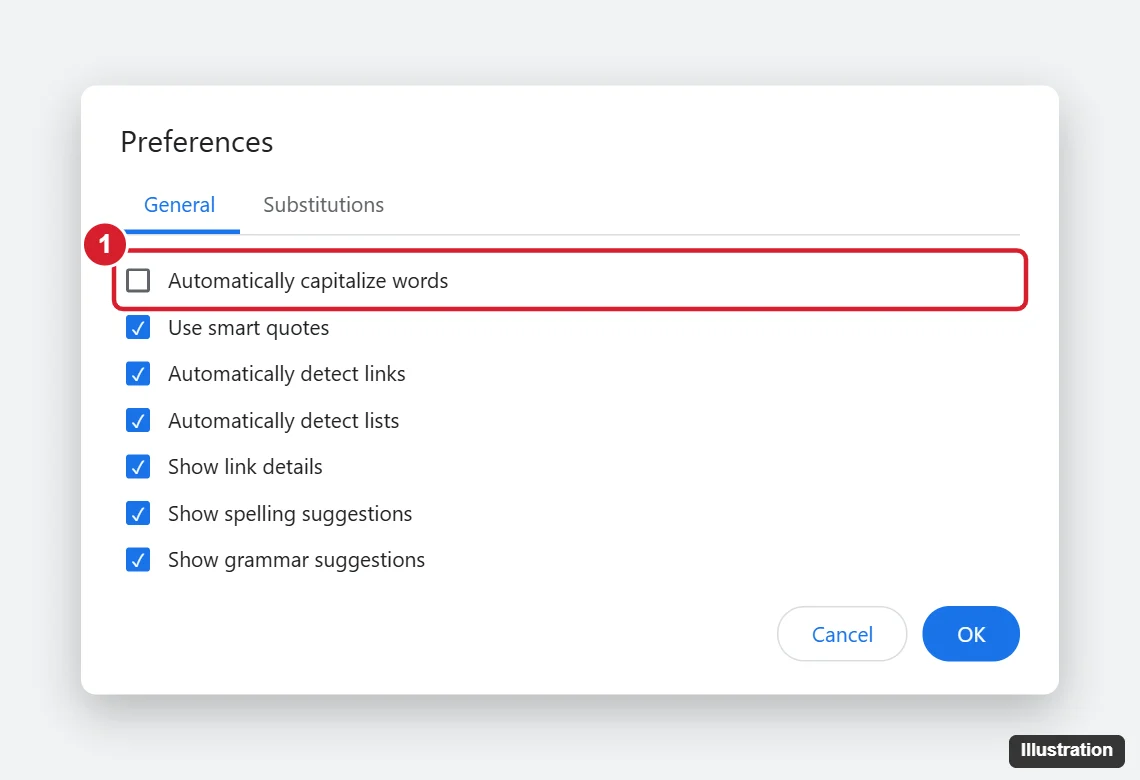
In Google Docs on a computer, click Tools > Preferences, uncheck Automatically capitalize words on the General tab, and click OK. On an iPhone or Android phone, turn off auto-capitalization in your keyboard settings instead.
Turn Off Auto-Capitalization in Google Docs (Computer)
- Open any document in Google Docs in your web browser.
- Click Tools in the menu bar.
- Click Preferences.
- On the General tab, uncheck Automatically capitalize words.
- Click OK.
The setting is tied to your Google account, so it applies to every document you open in Docs, not only the current one. It doesn’t change capital letters you’ve already typed.
Undo a Single Auto-Capitalization
If you want to keep the feature but fix one word, press Ctrl + Z (Windows or Chromebook) or Command + Z (Mac) right after Docs capitalizes it. The word goes back to how you typed it, and you can keep typing.
Check the Substitutions Tab Too
Some unwanted changes come from automatic substitutions rather than capitalization, such as “(c)” turning into a copyright symbol or straight quotes becoming curly quotes.
- Go to Tools > Preferences and open the Substitutions tab.
- Uncheck Automatic substitution to turn them all off, or delete individual entries.
- Uncheck Use smart quotes on the General tab if you need straight quotes, for example for code.
Change Text That’s Already Capitalized
To fix text that was capitalized before you turned the feature off:
- Select the text.
- Click Format > Text > Capitalization.
- Choose lowercase, UPPERCASE, or Title Case.
Stop Auto-Capitalizing on iPhone or iPad
In the Google Docs app, capitalization is handled by your keyboard, not by Docs.
- Open Settings > General > Keyboard.
- Turn off Auto-Capitalization.
This affects every app on the device. To type one capital letter, tap Shift once; double-tap it for Caps Lock.
Stop Auto-Capitalizing on Android
Steps vary by keyboard. For the Google keyboard (Gboard):
- Open Settings > System > Keyboard (or Languages & input), then choose the keyboard.
- Tap Text correction.
- Turn off Auto-capitalization.
On Samsung Keyboard, look in Settings > General management > Samsung Keyboard settings for Auto capitalize (sometimes under Smart typing or More typing options).
Why Is Docs Still Capitalizing?
- You’re on a phone or tablet. The desktop Preferences setting doesn’t control the mobile keyboard. Use the keyboard steps above.
- You’re signed in to a different account. Preferences are per account. Check the profile picture in the top right.
- A browser extension is changing text. Grammar and writing extensions can capitalize words. Try disabling them or opening Docs in an incognito window.
- Your computer is doing it. On a Mac, check System Settings > Keyboard > Text Input > Edit and turn off Capitalize words automatically.
Frequently Asked Questions
Does turning this off affect Google Sheets or Slides?
Not necessarily. Each app keeps its own preferences. Google Slides has its own Tools > Preferences menu with an automatic capitalization option, so turn it off there as well if Slides is capitalizing words.
Will other people editing my document be affected?
No. Preferences apply to your account only. Collaborators keep their own settings.
Can I stop Docs capitalizing only certain words?
Not directly. Use Ctrl + Z (Command + Z on Mac) right after a word is changed, or turn the feature off.
How do I stop Microsoft Word from doing the same thing?
Word uses AutoCorrect options instead. See our guide on how to stop Word from auto-capitalizing.
Summary
- Open a document and click Tools > Preferences.
- Uncheck Automatically capitalize words.
- Click OK.
- On phones, turn off auto-capitalization in the keyboard settings.

Kermit Matthews is a freelance writer based in Philadelphia, Pennsylvania with more than a decade of experience writing technology guides. He has a Bachelor’s and Master’s degree in Computer Science and has spent much of his professional career in IT management.
He specializes in writing content about iPhones, Android devices, Microsoft Office, and many other popular applications and devices.