You can rearrange iPhone apps by dragging them around the Home Screen, into folders or onto other pages. The same method works on an iPhone 11 and on newer models. Recent iOS versions also let you place apps anywhere on the grid and move several at once.
Quick Answer
Touch and hold an empty area of the Home Screen until the apps jiggle (or tap Edit, then Edit Home Screen). Drag an app to a new spot, then tap Done.
How to Move Apps on an iPhone
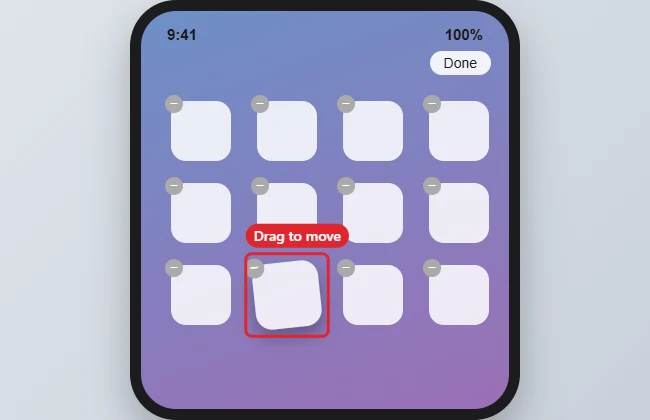
- Touch and hold an app, then choose Edit Home Screen, or long-press an empty area.
- When the apps jiggle, drag an app to where you want it.
- Drag it to the right edge of the screen to move it to the next page.
- Drop an app on another app to create a folder.
- To move several apps, start dragging one, then tap others with another finger to stack them.
- Tap Done in the top-right corner.
Ways to Organize Apps
| Goal | How |
|---|---|
| Move one app | Drag it in edit mode |
| Move several apps | Stack them with a second finger |
| Make a folder | Drop one app on another |
| Hide an app from the Home Screen | Touch and hold, Remove App, Remove from Home Screen |
| Find a hidden app | Swipe to the App Library |
Troubleshooting
- Apps will not move: turn off Settings, Accessibility, Touch, 3D and Haptic Touch changes, or press more lightly and hold longer.
- Apps snap back to the top-left: on older iOS versions, apps fill from the top. iOS 18 and later allow empty spaces.
- Missing app: check the App Library or search from the Home Screen.
- Need a new app first? See how to install an iPhone app.
Frequently Asked Questions
Can I move apps from my computer?
No. Apple removed Home Screen arranging from iTunes and Finder.
How do I reset the layout?
Settings, General, Transfer or Reset iPhone, Reset, Reset Home Screen Layout.
Can I lock an app I moved?
Yes, on iOS 18 and later. See how to lock an app on iPhone.
Does this work on iPad?
Yes, the same gestures apply.
Summary
- Enter edit mode.
- Drag apps to new spots.
- Use the screen edge for other pages.
- Make folders by stacking.
- Tap Done.

Kermit Matthews is a freelance writer based in Philadelphia, Pennsylvania with more than a decade of experience writing technology guides. He has a Bachelor’s and Master’s degree in Computer Science and has spent much of his professional career in IT management.
He specializes in writing content about iPhones, Android devices, Microsoft Office, and many other popular applications and devices.