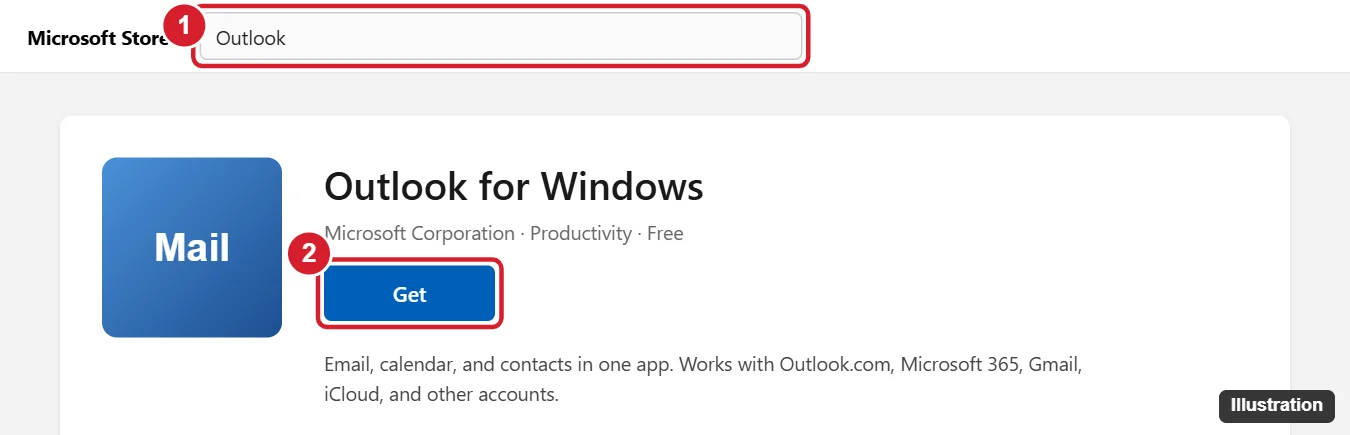
Most Windows 11 PCs already include the new Outlook for Windows. Click Start, type Outlook, and open it. If it’s missing, open the Microsoft Store, search for Outlook for Windows, and click Get. It’s free and works with Outlook.com, Microsoft 365, Gmail, and other accounts. If you need classic Outlook (the desktop app from Microsoft Office), install it from your Microsoft 365 account at office.com > Install apps.
Below are steps for both versions, how to set up your email, and how to choose between new and classic Outlook.
New Outlook vs. classic Outlook
| New Outlook for Windows | Classic Outlook | |
|---|---|---|
| Cost | Free | Requires Microsoft 365 or an Office license |
| Where to get it | Preinstalled or Microsoft Store | office.com > Install apps |
| Best for | Most home users | Businesses needing COM add-ins, PST files, or advanced features |
How to install the new Outlook for Windows
- Click Start and open the Microsoft Store.
- Search for Outlook for Windows.
- Click Get (or Open if it’s already installed).
- Open Outlook and sign in with your email address. Follow the prompts to add your account.
How to install classic Outlook
- Go to office.com (or microsoft365.com) and sign in with the account that has your Microsoft 365 subscription.
- Click Install apps (or Install and more) > Microsoft 365 apps.
- Run the downloaded installer. It installs Outlook along with Word, Excel, and the other Office apps.
- Open Outlook (classic) from the Start menu and add your account.
If you already have classic Outlook, a Try the new Outlook toggle may appear in the top-right corner. You can switch back from the new app with the same toggle, if your version offers it.
How to add your email account
- In new Outlook, click Settings (gear icon) > Accounts > Email accounts > Add account. In classic Outlook, click File > Add Account.
- Enter your email address and click Continue.
- Sign in and approve access. Gmail and other providers may open a sign-in page in your browser.
Troubleshooting
- Microsoft Store won’t install Outlook: Update Windows, sign in to the Store, and restart your PC. Run wsreset from the Start menu to reset the Store cache.
- Classic Outlook isn’t in the installer: Your plan may not include it. Microsoft 365 Personal, Family, and most business plans do.
- Work account won’t connect: Your organization may block the new Outlook or require specific settings. Contact your IT department.
Frequently asked questions
Is Outlook free on Windows 11?
The new Outlook for Windows is free. Classic Outlook requires a paid Microsoft 365 or Office license.
Can I use Gmail in Outlook?
Yes. Both versions support Gmail, iCloud, Yahoo, and other IMAP accounts.
What happened to the Mail and Calendar apps?
Microsoft replaced them with the new Outlook for Windows and ended support for Mail and Calendar at the end of 2024.

Kermit Matthews is a freelance writer based in Philadelphia, Pennsylvania with more than a decade of experience writing technology guides. He has a Bachelor’s and Master’s degree in Computer Science and has spent much of his professional career in IT management.
He specializes in writing content about iPhones, Android devices, Microsoft Office, and many other popular applications and devices.