Safari Favorites on the iPad are the website shortcuts that appear on your start page and when you tap the address bar. Over time they fill up with sites you no longer visit. You can delete a favorite in two taps from the start page, remove several at once from the Bookmarks sidebar, or reorganize them instead. This guide covers every method for current iPadOS versions, plus how favorites sync with your other Apple devices.
Quick Answer
Open Safari and a new tab so your Favorites appear. Touch and hold the favorite you want to remove, then tap Delete. To delete several, tap the sidebar button, choose Bookmarks > Favorites, tap Edit, and tap the red minus button next to each one.
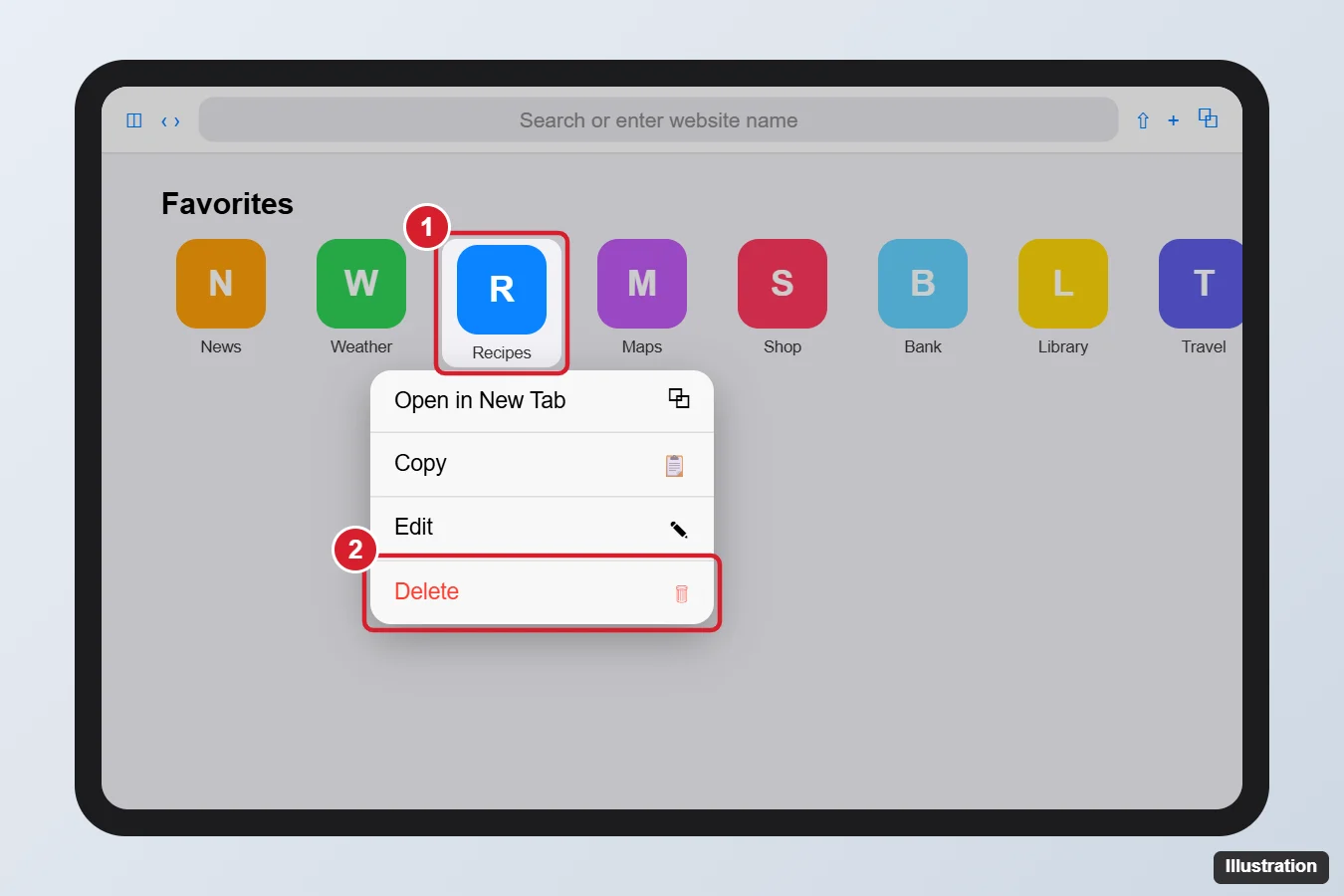
Method 1: From the Start Page
- Open Safari.
- Tap the + button to open a new tab. Your Favorites appear on the start page.
- Touch and hold the favorite you want to remove.
- Tap Delete.
If you do not see Favorites on the start page, scroll to the bottom, tap Edit, and turn on Favorites.
Method 2: From the Bookmarks Sidebar (Delete Several)
- In Safari, tap the sidebar button at the top left.
- Tap Bookmarks (the book icon), then open the Favorites folder.
- Tap Edit at the bottom of the sidebar.
- Tap the red minus (−) button next to a favorite, then tap Delete. Repeat for others.
- Tap Done.
You can also swipe left on a favorite in the list and tap Delete.
Method 3: From the Address Bar
Tap the address bar to show Favorites below it, then touch and hold a favorite and tap Delete.
Rename or Reorder Favorites Instead
- Rename or change the address: in the Favorites list, tap Edit, then tap the favorite to edit its title and URL.
- Reorder: in edit mode, drag the three-line handle next to a favorite. On the start page, you can also drag icons to rearrange them.
- Move to another folder: in edit mode, tap the favorite and choose a different location.
Favorites vs. Frequently Visited
| Favorites | Frequently Visited | |
|---|---|---|
| Source | Sites you saved | Sites Safari adds based on your browsing |
| How to remove one | Touch and hold > Delete | Touch and hold > Delete |
| How to hide the section | Start page > Edit > turn off Favorites | Start page > Edit > turn off Frequently Visited |
How Favorites Sync
If Safari is turned on in Settings > [your name] > iCloud, your favorites sync across your iPad, iPhone, and Mac. Deleting a favorite on one device removes it from the others. To keep favorites separate, turn off Safari syncing in iCloud settings, but note this affects bookmarks, tabs, and reading list too.
Troubleshooting
Deleted favorites came back
Another device may have synced them back before the deletion reached iCloud. Delete them again and give iCloud a few minutes to sync, or check your other devices.
There is no Delete option
Screen Time restrictions may limit website changes. Check Settings > Screen Time > Content & Privacy Restrictions.
Favorites are missing entirely
Turn Favorites back on from the start page Edit menu, and check that your favorites folder is set correctly in Settings > Apps > Safari > Favorites.
Frequently Asked Questions
Does deleting a favorite delete my browsing history?
No. It only removes the shortcut. Clear history separately in Safari settings.
Can I recover a deleted favorite?
You can add it again by visiting the site, tapping the Share button, and choosing Add to Favorites. iCloud.com may also let you restore recent bookmarks under Data Recovery.
Are these steps the same on iPhone?
Yes. The same touch-and-hold and Edit methods work on iPhone.
Summary
- Open a new Safari tab to see Favorites.
- Touch and hold a favorite and tap Delete.
- Use Sidebar > Bookmarks > Favorites > Edit to delete several.
- Remember that deletions sync to your other devices through iCloud.

Kermit Matthews is a freelance writer based in Philadelphia, Pennsylvania with more than a decade of experience writing technology guides. He has a Bachelor’s and Master’s degree in Computer Science and has spent much of his professional career in IT management.
He specializes in writing content about iPhones, Android devices, Microsoft Office, and many other popular applications and devices.