To check your IP address on Windows 10, open Settings, go to Network and Internet, select your connection and read IPv4 address. The quickest alternative is typing ipconfig in Command Prompt. Both show your private (local network) address; the public address the internet sees comes from your router, and you find it differently.
Windows 10 reached end of support on October 14, 2025. Consumer Extended Security Updates (ESU) now run until October 12, 2027. The steps below also work on Windows 11.
Find Your IP Address in Settings
- Right-click the network icon on the taskbar and choose Open Network and Internet settings. (Or open Start, Settings, Network and Internet.)
- Select Wi-Fi or Ethernet on the left, depending on how you are connected.
- Click the network you are connected to, or click Properties under its name.
- Scroll to the Properties section and read the number next to IPv4 address, for example 192.168.1.42.
Find Your IP Address With ipconfig
- Press the Windows key, type cmd and press Enter to open Command Prompt.
- Type ipconfig and press Enter.
- Find the section for your active adapter, such as Wireless LAN adapter Wi-Fi.
- Read the IPv4 Address line. Default Gateway is usually your router’s address.
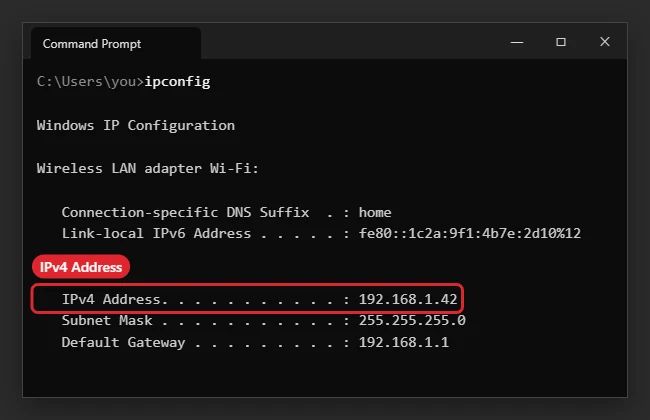
Type ipconfig /all instead if you also need the MAC address (Physical Address), DHCP status or DNS servers.
Private vs Public IP Address
| Address | What it is | How to find it |
|---|---|---|
| Private (local) IP | Your PC’s address on your home or office network, usually 192.168.x.x or 10.x.x.x | Settings or ipconfig, as above |
| Public IP | The address websites see, shared by every device behind your router | Search what is my IP in a browser, or check your router’s status page |
Troubleshooting
- IPv4 address starts with 169.254: the PC did not get an address from the router. Restart the router, then run ipconfig /release and ipconfig /renew.
- No IPv4 address shown: you may be disconnected, or the adapter is off.
- The address keeps changing: routers hand out addresses automatically. Reserve one in your router, or set a static IP only if you know your network settings.
Microsoft documents the same Settings path in Find your IP address in Windows. To change DNS rather than just view it, see how to change DNS servers in Windows 10.

Kermit Matthews is a freelance writer based in Philadelphia, Pennsylvania with more than a decade of experience writing technology guides. He has a Bachelor’s and Master’s degree in Computer Science and has spent much of his professional career in IT management.
He specializes in writing content about iPhones, Android devices, Microsoft Office, and many other popular applications and devices.