Bullet formatting in Word starts at the arrow beside the Bullets button on the Home tab, where Define New Bullet changes the symbol, picture, font and alignment of the bullets. Indents and spacing live in two other places: Adjust List Indents on the right-click menu, and the Paragraph dialog.
The steps follow Microsoft’s help for Word for Microsoft 365 and Word 2024, 2021, 2019 and 2016 on Windows, with separate notes for Word for Mac and Word for the web.
What do you want to change?
Most bullet problems come down to one of these settings. Find the row that matches, then jump to that section.
| You want to change | Where it is in Word |
|---|---|
| The bullet shape, from Word’s built-in set | Home > arrow next to Bullets > Bullet Library |
| Any symbol or a picture as the bullet | Bullets arrow > Define New Bullet > Symbol or Picture |
| Bullet color or size, leaving the text alone | Click a bullet, then the Font group on the Home tab |
| How far the bullet and text sit from the margin | Right-click a bullet > Adjust List Indents |
| Space between list items | Paragraph dialog > Indents and Spacing |
| Sub-bullets and their symbols | Multilevel List arrow > Change List Level or Define New Multilevel List |
| A bullet style you can reuse | Multilevel List arrow > Define New List Style |
No list yet? Select the lines and click Bullets on the Home tab, or press Ctrl + Shift + L, which Microsoft lists as “Add a bulleted list.” Inserting bullet points in Word covers the other ways to start one.
Pick another bullet from the Bullet Library
- Click any bullet in the list. Word selects every bullet in that list at once.
- On the Home tab, in the Paragraph group, click the arrow next to Bullets.
- Choose a bullet from the Bullet Library. The whole list changes.
If the library has nothing you like, the next section adds your own.
Use any symbol or a picture as the bullet
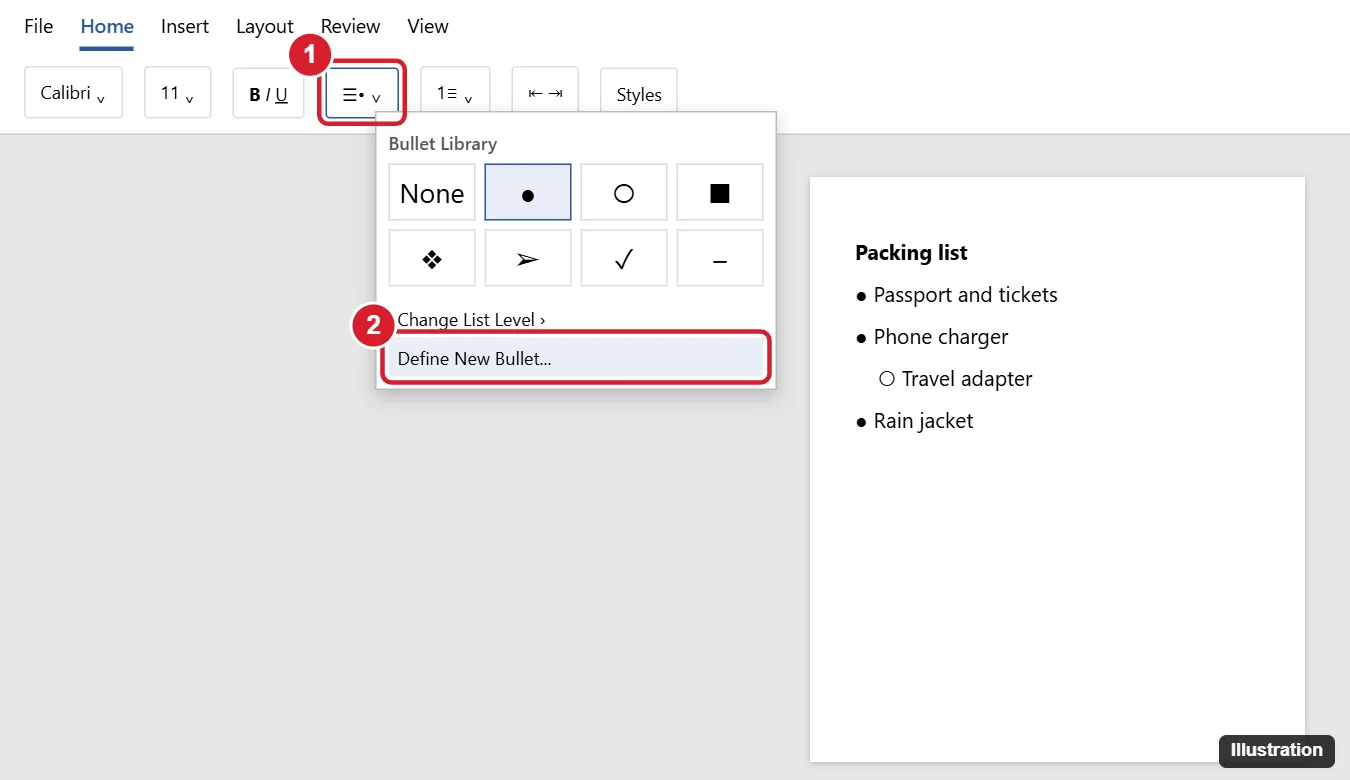
- Click a bullet to select the list’s bullets.
- Click the arrow next to Bullets, then Define New Bullet at the bottom of the panel.
- Pick one of the four buttons:
- Symbol opens a grid of characters. Pick one and click OK.
- Picture opens the Insert Pictures window, where Microsoft lists From a file, Bing Image Search and a personal OneDrive option as sources.
- Font opens the Font dialog for the bullet character: font, style, size, color and effects on the Font tab, and character spacing on the Advanced tab.
- Alignment sets the bullet to Left, Centered or Right.
- Check the Preview box at the bottom of the dialog, then click OK.
Microsoft’s define new bullets help has the full dialog reference.
Change the color or size of the bullets only
Microsoft’s rule is simple: clicking a bullet selects only the bullets, so the formatting you apply next changes the bullets and not the text. If you select the text instead, both the text and the bullets change.
- Click one bullet in the list. All bullets in that list highlight.
- On the Home tab, in the Font group, choose a font color, font size or bold.
The Font button inside Define New Bullet does the same job if you are already in that dialog. For more detail, see changing bullet color in Word and changing bullet size without changing the text.
Move the bullets and the text
- Click a bullet to select the bullets in the list.
- Right-click and choose Adjust List Indents.
- Set Bullet position (how far the bullet sits from the margin) and Text indent (where the text starts).
- In Follow number with, choose Tab character, Space or Nothing. This changes what comes between the bullet and the text.
- Click OK.
A common use: a report has bullets indented far from the margin and the text starts well after the bullet. Lowering Bullet position pulls the list left, and bringing Text indent closer to it tightens the gap. Adjusting list indents in Word goes deeper into these boxes, and moving a bullet point back handles a single item that has drifted.
Add or remove space between bullets
- Select the whole list.
- On the Home tab, click the Paragraph Settings dialog box launcher (the small arrow in the corner of the Paragraph group).
- On the Indents and Spacing tab, clear Don’t add space between paragraphs of the same style to let space appear between items, or select it to pack them together.
- Under Line spacing, choose Single, 1.5 lines or Double for the lines inside each item, then click OK.
Microsoft’s spacing between bullets page uses the same dialog. If the gap you want to close is between the bullet and its text, that is an indent setting instead; see decreasing the space between a bullet and text.
Make multilevel bullets
To move one item to a lower level, click next to its text, go to Home > Paragraph, click the arrow next to Multilevel List, choose Change List Level and pick the level. Microsoft’s color and format page shows the same command under the Bullets arrow.
To give each level its own symbol or indent:
- Click the arrow next to Multilevel List, then Define New Multilevel List.
- Click More to see every option.
- Pick a level on the left, then set its style, font and position. The dialog also has a Set for All Levels button.
- Choose whether the change applies to the Whole list, This point forward or the Current paragraph, then click OK.
Creating a multilevel list in Word builds one from scratch, and indenting bullet points covers turning a flat list into sub-bullets.
Reuse your bullet style
A bullet you define is applied to the list you are working on. To save a full list format under a name, click the arrow next to Multilevel List and choose Define New List Style. Name it, set the bullet and indent for each level (the Format button opens font and numbering options), then choose Only in this document or New documents based on this template before clicking OK. The second choice makes the style available in new documents based on the same template.
Word for Mac and Word for the web
Word for Mac: select the list, then Home > Paragraph > arrow next to Bullets > Define New Bullet. For a picture bullet, click the picture you want and click Insert. Microsoft’s Mac help puts the indent in a different dialog: click the arrow next to Numbering, choose Define New Number Format, and use the Indent at box under Text position.
Word for the web: you can apply a different bullet style from the arrow beside Bullets, but Microsoft says you need the desktop app to create custom bullets and that you can’t fine-tune bullet alignment on the web. Microsoft’s web pages differ on levels: one says to press Tab before an item to make it a sub-item and Shift + Tab to move it back, while another says multilevel lists and custom styles are only available in the desktop app. If Tab does not create a sub-item in the browser, open the document in the desktop app.
When bullets act up
- Word turns lines into bullets on its own: typing an asterisk and a space starts a bulleted list. To stop it, go to File > Options > Proofing > AutoCorrect Options, open the AutoFormat As You Type tab and clear Automatic bulleted lists. Microsoft’s automatic bullets page has the same steps.
- The bullet changed color with the text: the text was selected, not the bullet. Click the bullet itself and format again.
- A big gap after the bullet: open Adjust List Indents and check Text indent and Follow number with.
- You want the bullets gone: removing bullet points in Word shows how to keep the text.
If your document mixes bullets with numbered steps, continuing numbering in Word keeps the numbers in order after a bulleted section.
Word bullet formatting questions
Why does formatting one bullet change all of them?
Clicking a bullet selects every bullet in that list, so the change applies to the whole list. To give one level a different look, use Define New Multilevel List and change only that level.
Can I use my own logo as a bullet?
Yes. In Define New Bullet, choose Picture and then From a file to use an image saved on your computer.
Why does Word start a list when I type an asterisk?
That is the Automatic bulleted lists option in AutoFormat As You Type. Clear it if you want to type asterisks without starting a list.
Can I make custom bullets in Word for the web?
Not according to Microsoft: custom bullets need the Word desktop app. Choose a style from the Bullets arrow on the web, or open the document in the desktop app.
Related guides
- Show the Navigation Pane in Word to move around long documents with many lists.

Kermit Matthews runs Live2Tech from just outside Philadelphia. He is an IT specialist with over 20 years of experience, from a university help desk to small-business IT, IT management and his own consulting practice, and has written tech guides full time since 2020. Steps are checked against the current software on a real device or the maker’s official documentation. More about Kermit.