Word doesn’t have an “Export comments” button, but there are several good ways to get every comment out of a document: as a printable list, a PDF, a table in a new Word file, or rows in Excel. Which one you choose depends on whether you need to read them, share them or work through them as a to-do list. This guide covers all the methods in Word for Microsoft 365, Word 2021, 2019 and 2016, including a short macro that builds a comments table automatically.
Quick Answer
For a quick list, go to File > Print, choose List of Markup in the first drop-down under Settings, and print to Microsoft Print to PDF. For a table you can edit or paste into Excel, run the macro in Method 4 below.
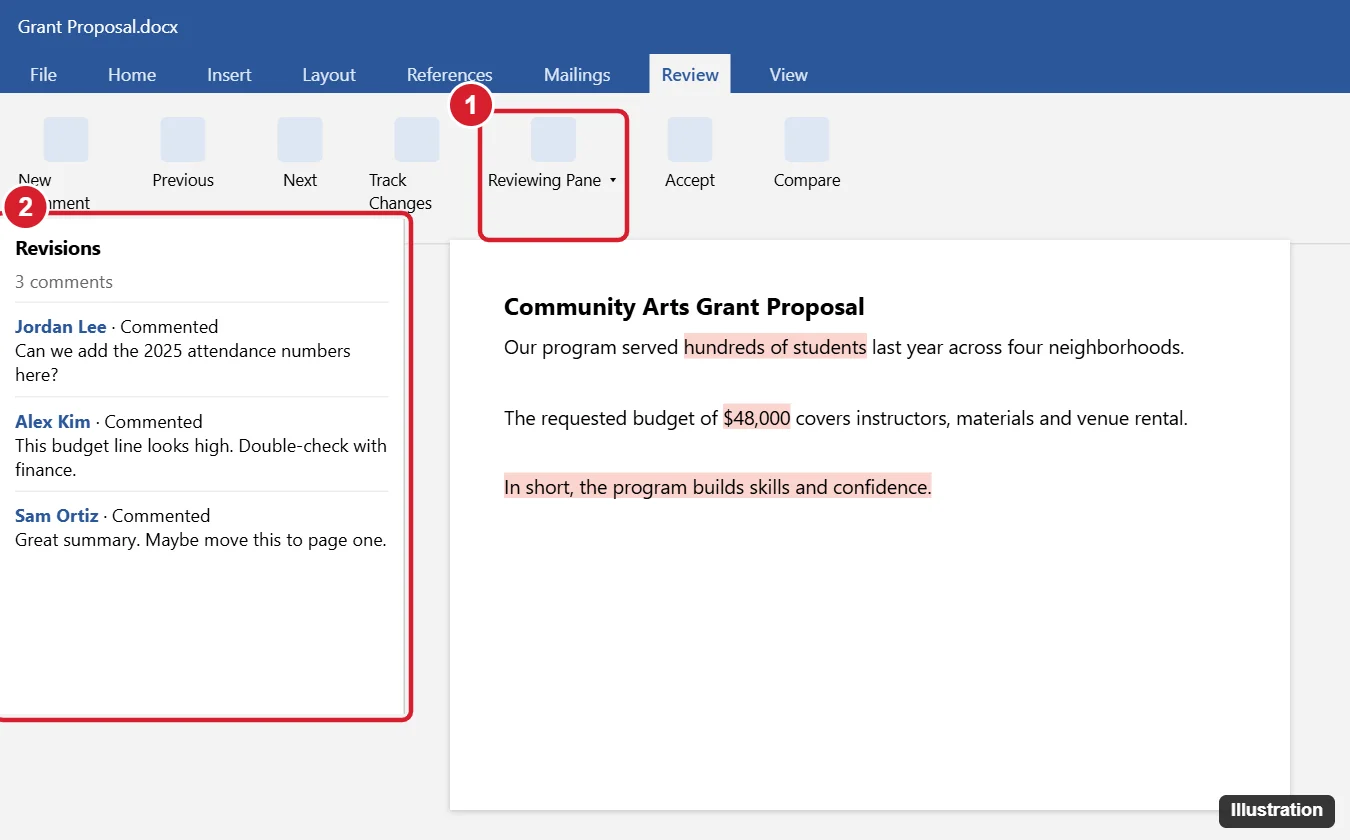
Method 1: Print or Save a List of Comments as PDF
- On the Review tab, click Show Markup and uncheck everything except Comments, so the list includes only comments.
- Click File > Print.
- Click the first drop-down under Settings and choose List of Markup.
- Choose Microsoft Print to PDF as the printer (or a real printer) and click Print.
The result lists each comment with the page number, reviewer, date and comment text, but not the text it’s attached to.
Method 2: Save the Document as a PDF With Comments
- Set the Review tab to All Markup so comment balloons show in the margin.
- Click File > Save As (or Export > Create PDF/XPS) and choose PDF.
- Click Options and make sure Document showing markup is selected.
- Save. Recipients see each comment next to the text it refers to.
Method 3: Copy From the Reviewing Pane
- Click Review > Reviewing Pane > Reviewing Pane Vertical.
- Click in the pane, press Ctrl + A to select all its contents, and press Ctrl + C.
- Paste into a new Word document or email.
In some versions with modern comments, the pane can’t be selected this way; use Method 1 or 4 instead.
Method 4: Export Comments to a Table With a Macro
This macro creates a new document with a table listing the page, author, date, commented text and comment for every comment. You can then copy the table into Excel.
- Open the document with comments and press Alt + F11 to open the Visual Basic editor.
- Click Insert > Module and paste this code:
Sub ExportComments() Dim src As Document, out As Document, c As Comment, t As Table, i As Long Set src = ActiveDocument If src.Comments.Count = 0 Then MsgBox "No comments found.": Exit Sub Set out = Documents.Add Set t = out.Tables.Add(out.Range, src.Comments.Count + 1, 5) t.Cell(1, 1).Range.Text = "Page" t.Cell(1, 2).Range.Text = "Author" t.Cell(1, 3).Range.Text = "Date" t.Cell(1, 4).Range.Text = "Commented text" t.Cell(1, 5).Range.Text = "Comment" i = 2 For Each c In src.Comments t.Cell(i, 1).Range.Text = c.Scope.Information(wdActiveEndPageNumber) t.Cell(i, 2).Range.Text = c.Author t.Cell(i, 3).Range.Text = Format(c.Date, "yyyy-mm-dd") t.Cell(i, 4).Range.Text = c.Scope.Text t.Cell(i, 5).Range.Text = c.Range.Text i = i + 1 Next c t.Style = "Table Grid" End Sub - Press F5 to run it (or close the editor and run ExportComments from View > Macros).
- Save the new document, or select the table and paste it into Excel.
You don’t need to save the original document as a macro-enabled file; the macro only has to run once.
Method 5: Word for the Web and Mac
- Word for the web: open the Comments pane, then use Print (List of Markup isn’t available), or open the document in the desktop app for Methods 1–4.
- Word for Mac: use File > Print, choose the Microsoft Word section, and set Print What to List of Markup, then save as PDF. The macro also works in Word for Mac.
Frequently Asked Questions
Can I export replies to comments?
Methods 1 and 2 include replies. The macro lists replies as separate rows in most versions.
Does exporting remove comments from the document?
No. All methods leave the original comments in place.
Can I export comments from a Google Doc the same way?
Download the Google Doc as a Word file (comments are included), then use these methods.
Summary
- Print List of Markup to PDF for a quick comments list.
- Save as PDF with markup to keep comments beside the text.
- Copy from the Reviewing Pane for simple lists.
- Use the macro for a table you can paste into Excel.

Kermit Matthews runs Live2Tech from just outside Philadelphia. He is an IT specialist with over 20 years of experience, from a university help desk to small-business IT, IT management and his own consulting practice, and has written tech guides full time since 2020. Steps are checked against the current software on a real device or the maker’s official documentation. More about Kermit.