Windows 11 lets you change the mouse cursor’s style, color and size, and you can pick a full pointer scheme or your own cursor files. Most options are in Accessibility settings, with classic schemes in Mouse Properties.
Quick Answer
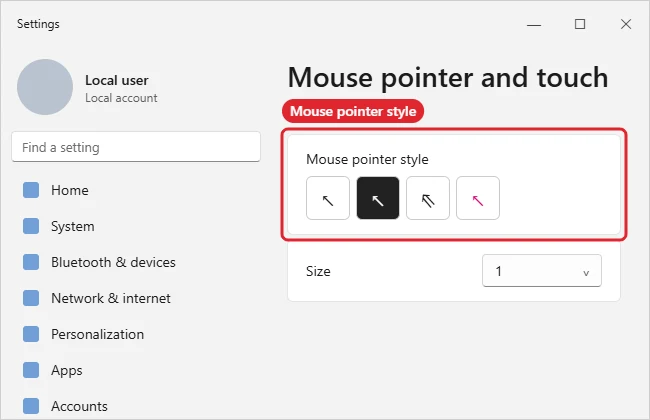
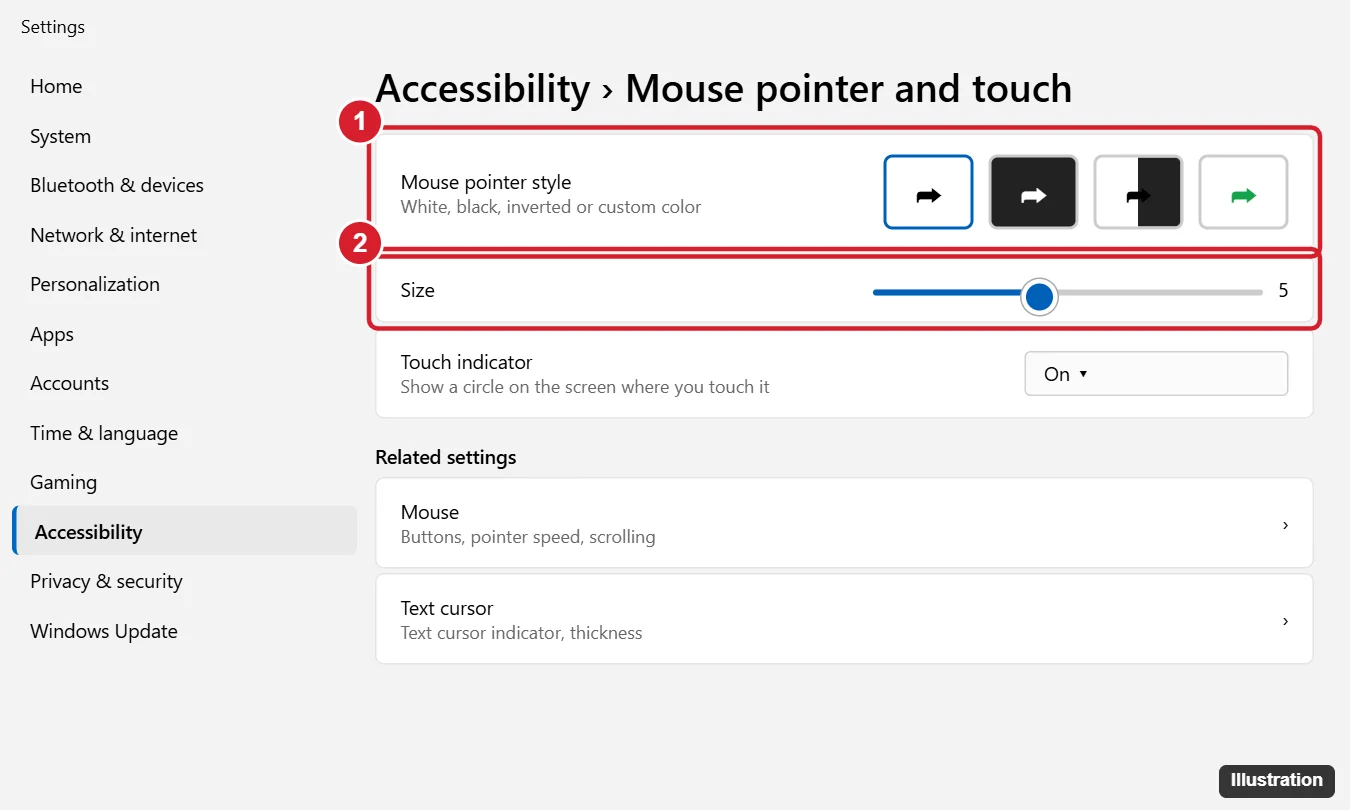
Open Settings, Accessibility, Mouse pointer and touch. Choose a Mouse pointer style (white, black, inverted or custom color) and drag the Size slider.
How to Change the Cursor in Windows 11
- Press Windows key + I to open Settings.
- Click Accessibility, then Mouse pointer and touch.
- Under Mouse pointer style, choose White, Black, Inverted or Custom.
- For Custom, pick a recommended color or choose another color.
- Drag the Size slider to make the pointer bigger.
- For a different shape, go to Settings, Bluetooth and devices, Mouse, Additional mouse settings, open the Pointers tab and choose a Scheme, or Browse for a cursor file, then click Apply.
Where Each Option Lives
| Change | Location |
|---|---|
| Color (white, black, inverted, custom) | Accessibility, Mouse pointer and touch |
| Size | Accessibility, Mouse pointer and touch |
| Scheme or custom cursor files | Mouse Properties, Pointers tab |
| Pointer shadow | Mouse Properties, Pointers tab |
| Text cursor thickness and indicator | Accessibility, Text cursor |
Change the Cursor Size
- Open Settings > Accessibility > Mouse pointer and touch. You can also get there from Settings > Bluetooth & devices > Mouse > Mouse pointer.
- Drag the Size slider. 1 is the default, and higher numbers make the pointer larger, up to 15.
- The change applies immediately, so move the mouse to check it and adjust until it’s comfortable.
A larger pointer is especially helpful on 4K screens, TVs used as monitors, and for anyone who loses track of the cursor. If the pointer looks tiny only in certain apps, check Settings > System > Display > Scale as well.
Change the Cursor Color
- On the same Mouse pointer and touch page, look at Mouse pointer style.
- Choose White, Black, Inverted (which flips to contrast with whatever is behind it), or Custom.
- With Custom selected, pick one of the recommended colors or click Choose another color to set any shade.
Bright colors such as lime green or yellow are the easiest to spot. In older guides you may see this option under “Ease of Access”; in Windows 11 it lives under Accessibility.
Use a Pointer Scheme or Your Own Cursor Files
- Press Windows + R, type
main.cpl, and press Enter to open Mouse Properties. - Open the Pointers tab.
- Pick a Scheme, such as Windows Default (extra large) or Windows Black, to change every pointer at once.
- To change a single pointer, select it in the list, click Browse, and choose a .cur or .ani file.
- Click Save As to keep your mix as a named scheme, then click Apply. Use Default restores the selected pointer.
Only download cursor packs from sources you trust, and never run an installer that comes with them unless you know what it does.
More Ways to Find the Pointer
- Show location of pointer: in Mouse Properties, open Pointer Options and check Show location of pointer when I press the CTRL key. Tap Ctrl and a circle highlights the cursor.
- Pointer trails: on the same tab, Display pointer trails leaves a short trail as the mouse moves.
- Text cursor: open Settings > Accessibility > Text cursor to turn on the colored Text cursor indicator and make the blinking line thicker.
To change how fast the pointer moves rather than how it looks, see how to adjust mouse speed on Windows 11. On Windows 10, see how to change the mouse pointer in Windows 10.
Troubleshooting
- Custom cursor reverts: choosing a new style in Settings can overwrite a Pointers scheme. Set the style first, then the scheme.
- Cursor too small on a high-resolution screen: increase Size, or adjust display scaling.
- Downloaded cursor files: only use .cur or .ani files from sources you trust.
- Related: changing cursor size in Windows 10.
Frequently Asked Questions
Can I go back to the default cursor?
Yes. Choose White in Mouse pointer style, set Size to 1, and choose Windows Default in the Pointers tab.
Can I save my own scheme?
Yes. After changing pointers in the Pointers tab, click Save As.
Does the cursor change apply to all users?
No. It applies to your account only.
Can I change the text cursor too?
Yes, in Accessibility, Text cursor.
Summary
- Open Settings, Accessibility.
- Open Mouse pointer and touch.
- Choose a style and color.
- Adjust size.
- Use Pointers schemes for new shapes.

Kermit Matthews runs Live2Tech from just outside Philadelphia. He is an IT specialist with over 20 years of experience, from a university help desk to small-business IT, IT management and his own consulting practice, and has written tech guides full time since 2020. Steps are checked against the current software on a real device or the maker’s official documentation. More about Kermit.