To stop your iPhone’s text messages from showing up on your iPad, change two settings. On the iPhone, open Settings > Apps > Messages > Text Message Forwarding and turn off your iPad; that stops regular SMS texts. On the iPad, open Settings > Apps > Messages > Send & Receive and uncheck your phone number; that stops iMessages sent to your number. On older iOS versions, Messages is directly in Settings rather than under Apps.
Quick Answer
iPhone: Messages settings > Text Message Forwarding > turn off the iPad. iPad: Messages settings > Send & Receive > uncheck your phone number.
Step 1: Stop Forwarding Texts on the iPhone
- On the iPhone, open Settings > Apps > Messages.
- Tap Text Message Forwarding.
- Turn off the switch for your iPad.
Step 2: Change What the iPad Receives
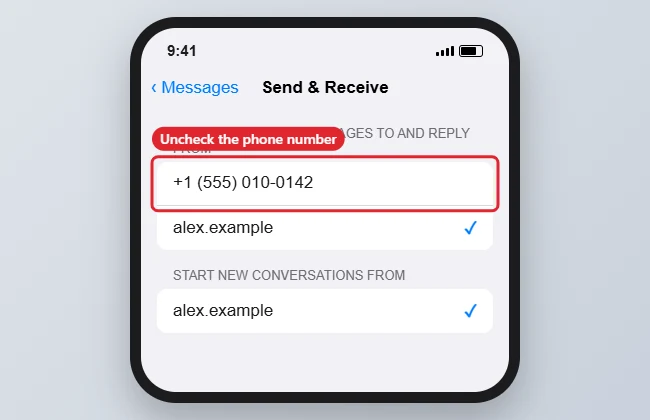
- On the iPad, open Settings > Apps > Messages > Send & Receive.
- Tap your phone number to uncheck it. Keep your Apple Account email checked if you still want iMessages sent to it.
- To stop all messages on the iPad, turn off iMessage in Messages settings.
Step 3 (Optional): Stop Syncing Message History
Messages in iCloud keeps conversation history the same on every device. To keep the iPad’s history separate, on the iPad go to Settings > your name > iCloud, find Messages (you may need to tap See All), and turn it off for this iPad.
What Each Setting Controls
| Setting | Controls |
|---|---|
| Text Message Forwarding (iPhone) | Green-bubble SMS and MMS texts on other devices |
| Send & Receive (iPad) | Blue-bubble iMessages sent to your number or email |
| Messages in iCloud | Whether conversation history syncs |
| iMessage switch (iPad) | All iMessages on the iPad |
To make chats easier to scan, show contact photos in Messages.
To understand which service is used, see why messages are blue or green.
To stop using it entirely, see turning off iMessage.
Troubleshooting
- Phone number is grayed out on the iPad: It’s controlled by the iPhone. Sign out of iMessage on the iPad, or on the iPhone go to Messages > Send & Receive.
- Messages still appear: Restart both devices after changing the settings.
- Different Apple Accounts: If family members share one Apple Account, give each person their own to stop crossed messages.
- Calls ringing on the iPad too? Turn off Calls on Other Devices in the iPhone’s Phone settings.
Frequently Asked Questions
Will this delete messages on the iPad?
No. Existing messages stay unless you delete them.
Can I keep iMessage on the iPad but stop texts?
Yes. Turn off Text Message Forwarding on the iPhone and keep iMessage on with just your email.
Summary
- iPhone: turn off Text Message Forwarding for the iPad.
- iPad: uncheck your phone number in Send & Receive.
- Turn off Messages in iCloud on the iPad to separate history.
- Restart both devices.

Kermit Matthews is a freelance writer based in Philadelphia, Pennsylvania with more than a decade of experience writing technology guides. He has a Bachelor’s and Master’s degree in Computer Science and has spent much of his professional career in IT management.
He specializes in writing content about iPhones, Android devices, Microsoft Office, and many other popular applications and devices.