If you back up your Android phone to Google, your text messages are included, and you may expect to open Google Drive and read them. Unfortunately, Google does not let you browse SMS backups in Drive. You can confirm that a backup exists and see when it last ran, but the messages can only be restored to a phone during setup. This guide explains exactly what you can see, how to check that your texts are backed up, how to restore them, and how to create a backup you can actually read.
Quick Answer
You cannot open or read SMS messages from a Google backup in Google Drive. To confirm they are backed up, open the Google Drive app, tap Menu > Backups (or go to drive.google.com > Storage > Backups), and select your phone to see that SMS messages are included. To view old texts, restore the backup to a phone, or use an app that saves messages to Drive as a readable file.
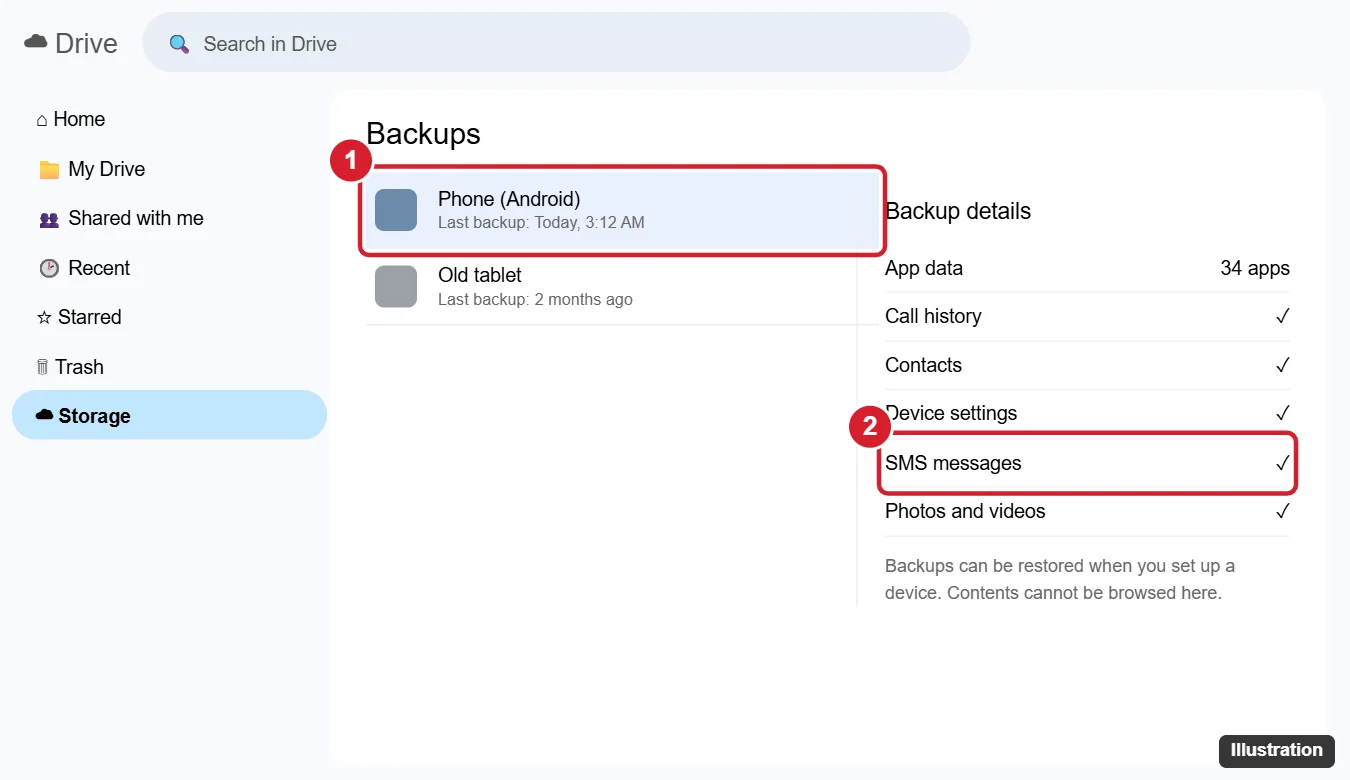
What Google Backs Up
Android's built-in Google backup (called Google One backup on many phones) can include app data, call history, contacts, device settings, photos and videos, and SMS and MMS messages. These backups are encrypted and tied to your Google Account and device, which is why Drive shows them only as a summary.
Check That Your Texts Are Backed Up
On your phone
- Open Settings.
- Go to Google > Backup, or System > Backup, depending on your phone.
- Look for SMS & MMS messages (sometimes under Backup details).
- Tap Back up now to run a fresh backup.
In Google Drive
- On a computer, go to Google Drive, click Storage in the left menu, then click Backups at the top right. In the Drive app, tap the menu and choose Backups.
- Select your phone to see the last backup time and what is included.
How to Restore SMS From a Google Backup
SMS backups are restored when you set up a phone:
- On a new phone or one that has been factory reset, start setup.
- Sign in with the same Google Account.
- When asked, choose to restore from a backup and select the backup that includes your messages.
- Complete setup. Your texts appear in the default messaging app, which may take a little while.
Important: factory resetting your current phone just to restore old texts erases everything on it, so back up first and only do this if you are sure.
Option: View Texts on a Computer With Google Messages
If you use the Google Messages app, you can read your current conversations on a computer at messages.google.com/web. Tap your profile picture in Messages, choose Device pairing, and scan the QR code. This shows messages that are on your phone now, not old backups.
Option: Create a Readable SMS Backup in Drive
If you want a copy of your texts that you can open and search, use a trusted backup app that saves messages to Google Drive as a file (commonly XML or HTML), such as SMS Backup & Restore.
- Install the app from the Google Play Store and grant the permissions it requests.
- Choose Google Drive as the backup location and sign in.
- Run a backup and optionally schedule automatic backups.
- Open Drive to find the backup file. Some apps include a viewer or let you view messages in a browser.
Only use well-reviewed apps from the Play Store, and remember that anyone with access to that Drive file can read your messages.
Other Places Your Texts Might Be
- Samsung phones: Samsung Cloud or Samsung Smart Switch backups may include messages.
- RCS chats in Google Messages: newer versions may back up chats with the Google backup.
- Your carrier: some carriers offer message backup services.
Troubleshooting
SMS messages are missing from the backup
Make sure Google is set as your backup service and that the messaging app is the phone's default. Run Back up now while on Wi-Fi.
The backup is gone
Google may delete backups of devices that have not been used for a long time. Back up regularly to keep a current copy.
Texts did not restore
Wait a while after setup, make sure the same messaging app is set as default, and confirm you chose the right backup.
Related: use Google Backup on Android.
Related: How to back up Google Messages.
Frequently Asked Questions
Can I read my text messages on Google Drive?
Not from Google's built-in backup. You can only see that they are backed up. A third-party backup app can save a readable copy.
Are my SMS backups secure?
Google's device backups are encrypted, and newer Android versions encrypt them with your screen lock.
How long does Google keep phone backups?
Backups stay while you use the device. Google says backups may expire if a device is not used for an extended period.
Summary
- Google Drive shows that SMS messages are backed up, but not the messages themselves.
- Check backups in Drive > Storage > Backups or your phone's backup settings.
- Restore texts by selecting the backup during phone setup.
- Use a trusted SMS backup app if you need a readable copy in Drive.

Kermit Matthews is a freelance writer based in Philadelphia, Pennsylvania with more than a decade of experience writing technology guides. He has a Bachelor’s and Master’s degree in Computer Science and has spent much of his professional career in IT management.
He specializes in writing content about iPhones, Android devices, Microsoft Office, and many other popular applications and devices.