To stop pop-ups on Windows 11, start in Settings > System > Notifications: turn off notifications for apps that nag you, and under Additional settings turn off tips and suggestions. Then turn off recommendations and tips in Start and on the lock screen, and check your browser’s pop-up and site-notification settings. If ads appear on the desktop from nowhere, run a scan in Windows Security and uninstall unfamiliar apps, because adware is a common cause.
Quick Answer
Settings > System > Notifications: switch off noisy apps and tips. Then check Start, the lock screen, your browser’s site permissions and Windows Security.
Steps to Stop Pop-Ups
- Open Settings > System > Notifications and turn off apps you don’t want to hear from.
- Expand Additional settings and clear the welcome experience, setup suggestions and tips options.
- Go to Personalization > Start and turn off recommendations for tips and new apps.
- Go to Personalization > Lock screen and turn off fun facts and tips.
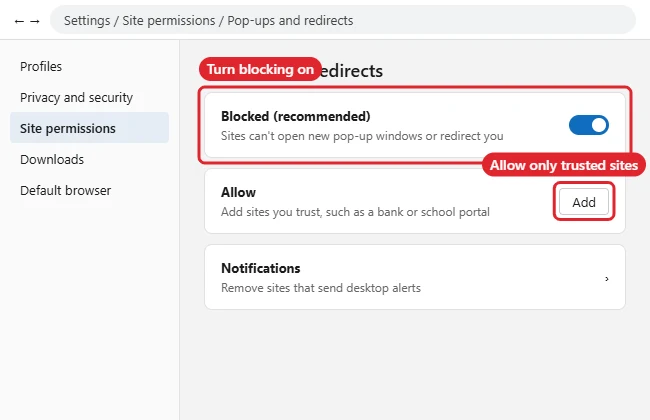
- In your browser, open site permissions and block pop-ups and notifications for sites you don’t trust.
- Open Windows Security > Virus & threat protection and run a Quick scan, or a full or offline scan if pop-ups continue.
Sources of Pop-Ups
| Type | Where to turn it off |
|---|---|
| App notifications | Settings > System > Notifications |
| Windows tips and setup nudges | Notifications > Additional settings |
| Start recommendations | Personalization > Start |
| File Explorer promotions | File Explorer > Options > View > Show sync provider notifications |
| Website notifications and pop-ups | Browser settings > Site permissions |
| Adware or trial software | Windows Security scan; Settings > Apps > Installed apps |
Troubleshooting
- Pop-ups from a pre-installed antivirus trial: Uninstall it or turn off its notifications; see stopping antivirus trial pop-ups.
- “Add a device” prompts: See turning off add-a-device notifications.
- Fake virus warnings in the browser: Close the tab, don’t call any number shown, and clear that site’s notification permission.
- Still on Windows 10: See stopping pop-ups on Windows 10.
Frequently Asked Questions
Can I silence everything temporarily?
Yes. Turn on Do not disturb from the notification centre or Settings > System > Notifications.
Are pop-ups a sign of a virus?
Not always. Most come from apps, Windows tips or websites. Frequent ads outside the browser are worth a Windows Security scan.
Will turning off notifications hide important alerts?
Keep notifications on for security, calendar and messaging apps you rely on, and switch off the rest.
Summary
- Turn off noisy app notifications.
- Disable Windows tips in Notifications, Start and lock screen.
- Block site pop-ups in your browser.
- Scan with Windows Security if ads persist.

Kermit Matthews is a freelance writer based in Philadelphia, Pennsylvania with more than a decade of experience writing technology guides. He has a Bachelor’s and Master’s degree in Computer Science and has spent much of his professional career in IT management.
He specializes in writing content about iPhones, Android devices, Microsoft Office, and many other popular applications and devices.