Windows 10 includes a full antivirus, Microsoft Defender Antivirus, inside the Windows Security app. You don’t need to install anything to scan your PC for viruses and malware. This guide covers the four scan types (quick, full, custom, and offline), how to scan a single file or USB drive, how to run a scan from the command line, what to do if something is found, and how to get a second opinion.
Quick Answer
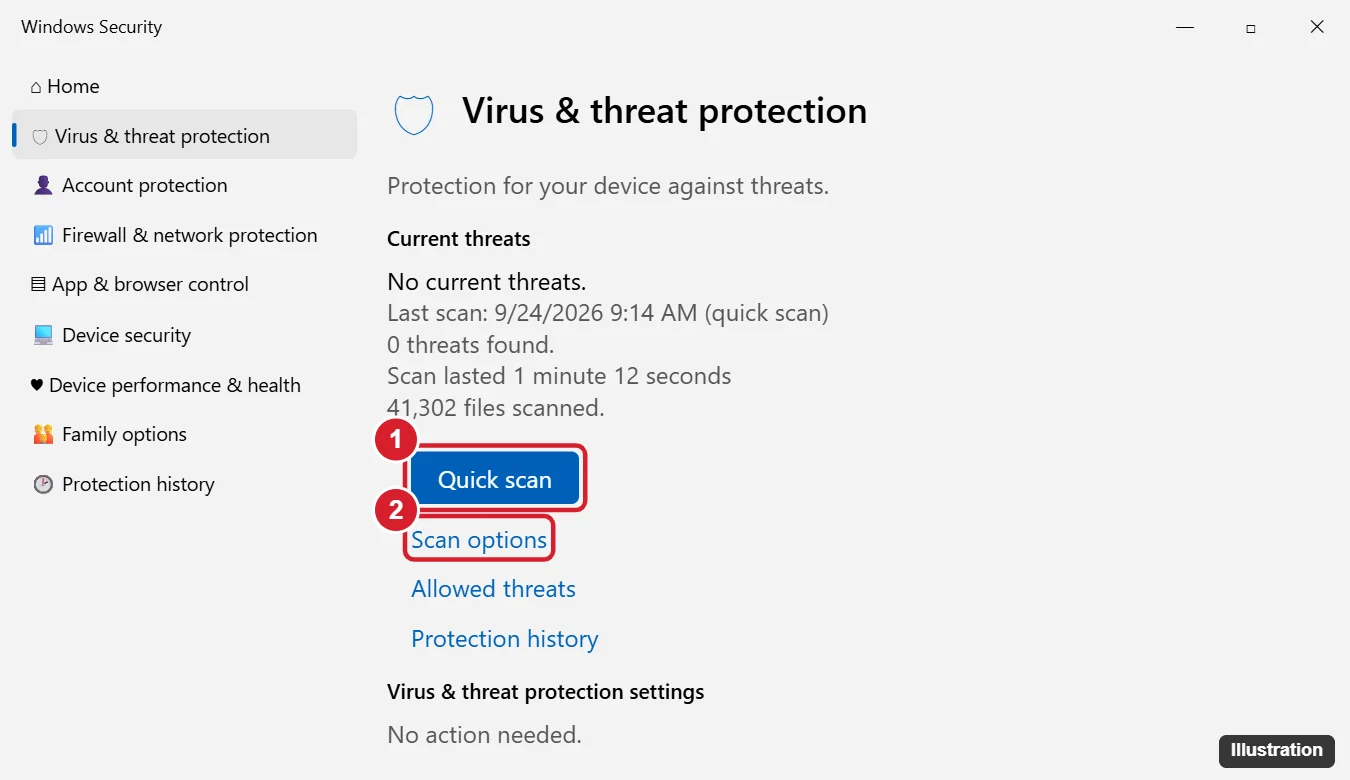
Open Start, type Windows Security, and open it. Click Virus & threat protection, then Quick scan. For a deeper check, click Scan options, select Full scan (or Microsoft Defender Offline scan for stubborn malware), and click Scan now.
Which Scan Should You Run?
| Scan type | What it checks | Typical time | When to use |
|---|---|---|---|
| Quick scan | Places malware usually hides: startup items, system folders, memory | A few minutes | Routine checks, or when something seems off |
| Full scan | Every file and running program on all fixed drives | 30 minutes to several hours | After a suspected infection, or monthly |
| Custom scan | Only the folders or drives you choose | Depends on size | USB drives, downloads, a specific folder |
| Microsoft Defender Offline scan | Restarts and scans before Windows loads | About 15 minutes | Rootkits or malware that hides from normal scans |
How to Run a Quick Scan
- Open Windows Security from Start, or click the shield icon in the system tray.
- Click Virus & threat protection.
- Click Quick scan.
You can also get there through Settings > Update & Security > Windows Security > Virus & threat protection.
How to Run a Full, Custom, or Offline Scan
- In Virus & threat protection, click Scan options.
- Select Full scan, Custom scan, or Microsoft Defender Offline scan.
- Click Scan now. For a custom scan, choose the folder or drive and click Select Folder.
Before an offline scan, save your work. Your PC restarts and the scan runs in a special environment, then Windows starts normally. Results appear under Protection history.
Scan a Single File, Folder, or USB Drive
In File Explorer, right-click the file, folder, or drive and choose Scan with Microsoft Defender. On Windows 11, choose Show more options first. Results open in Windows Security.
Run a Scan from the Command Line
| Task | Command (admin PowerShell) |
|---|---|
| Update virus definitions | Update-MpSignature |
| Quick scan | Start-MpScan -ScanType QuickScan |
| Full scan | Start-MpScan -ScanType FullScan |
| Scan a folder | Start-MpScan -ScanType CustomScan -ScanPath "D:\Downloads" |
| Offline scan | Start-MpWDOScan |
In Command Prompt, you can use "%ProgramFiles%\Windows Defender\MpCmdRun.exe" -Scan -ScanType 2 for a full scan (1 = quick).
What to Do If a Threat Is Found
- Windows Security usually removes or quarantines threats automatically.
- If it asks, click Start actions to apply the recommended action.
- Open Protection history to see what was found and what was done.
- If an item was quarantined by mistake and you trust it, choose Actions > Restore. Only do this if you’re sure the file is safe.
- Restart the PC and run a full scan again.
- Change passwords for important accounts from a clean device if the malware could have stolen them (keyloggers, info-stealers).
Keep Protection Up to Date
- Check that Real-time protection is on under Virus & threat protection settings > Manage settings.
- Click Protection updates > Check for updates to get the latest definitions before a scan.
- Windows 10 reached end of support in October 2025. Microsoft has said Defender security intelligence updates continue for a while after that, but Windows itself no longer gets regular security fixes unless you’re enrolled in Extended Security Updates. Upgrading to Windows 11, where possible, keeps you protected.
Get a Second Opinion
- Microsoft Safety Scanner: a free, portable scanner from Microsoft. Download a fresh copy each time, because it expires after 10 days.
- Reputable on-demand scanners such as Malwarebytes Free can run alongside Defender without conflicts.
- Avoid “scanner” pop-ups on websites that claim your PC is infected. Those are scams.
Troubleshooting
Windows Security says another antivirus is active
A third-party antivirus turns Defender’s real-time protection off. Use that product to scan, or uninstall it to go back to Defender.
The scan is stuck or very slow
Full scans of large drives take a long time. Leave it running, and don’t run other heavy tasks at the same time. If it truly freezes, restart and try a quick scan first.
Windows Security won’t open
Run sfc /scannow in an admin Command Prompt. Also try Settings > Apps > Windows Security > Advanced options > Reset. Malware sometimes blocks security tools, so an offline scan or the Microsoft Safety Scanner can help.
Frequently Asked Questions
Is Windows Defender good enough?
For most home users, yes. Microsoft Defender scores well in independent tests. Combine it with updates, cautious downloads, and backups.
How often should I run a full scan?
Real-time protection and automatic quick scans cover daily use. A monthly full scan, or one whenever something seems wrong, is plenty.
Is this the same on Windows 11?
Yes. Windows Security and the scan options are the same on Windows 11.
Summary
- Open Windows Security > Virus & threat protection.
- Click Quick scan, or use Scan options for a full, custom, or offline scan.
- Right-click files or drives to scan them individually.
- Check Protection history and follow the recommended actions.
- Keep definitions updated, and use the Microsoft Safety Scanner for a second opinion.

Kermit Matthews is a freelance writer based in Philadelphia, Pennsylvania with more than a decade of experience writing technology guides. He has a Bachelor’s and Master’s degree in Computer Science and has spent much of his professional career in IT management.
He specializes in writing content about iPhones, Android devices, Microsoft Office, and many other popular applications and devices.