A trojan is malware disguised as a legitimate file or app. Windows 11 includes Windows Security, which can find and remove most trojans, and its offline scan runs before Windows starts so it can catch threats that hide while the system is running. If you think your PC is infected, work through the steps below in order and do not type passwords on the PC until it is clean.
Quick Answer
Update Windows Security, run a Full scan, then run the Microsoft Defender Antivirus (offline scan) from Windows Security, Virus and threat protection, Scan options. Quarantine or remove anything it finds, then change your passwords from a different, clean device.
How to Remove a Trojan From Windows 11
- Disconnect from the internet if the PC is behaving strangely, to limit data being sent out. Reconnect briefly when you need to download updates.
- Open Windows Security from the Start menu and select Virus and threat protection.
- Under Virus and threat protection updates, click Protection updates, then Check for updates.
- Click Scan options, choose Full scan, and click Scan now. Remove or quarantine anything it detects.
- Return to Scan options, choose Microsoft Defender Antivirus (offline scan), and click Scan now. The PC restarts and scans for about 15 minutes.
- After the scans, check Protection history for results, uninstall any apps you do not recognize, and change important passwords from another device.
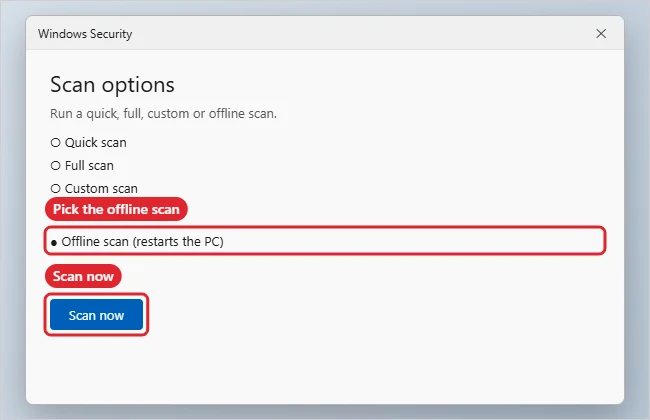
Windows Security Scan Types
| Scan | When to use it |
|---|---|
| Quick scan | Fast check of common locations |
| Full scan | Checks every file and running program |
| Custom scan | Checks a specific folder or drive |
| Offline scan | Catches malware that hides while Windows runs |
Troubleshooting
- Windows Security will not open or scans are blocked: that can be a sign of malware. Try the offline scan, or start in Safe Mode and scan from there.
- Threats come back after removal: the source may be a browser extension, a startup app, or a file you keep reopening. Remove those, then scan again.
- As a last resort, back up your personal files and use Settings, System, Recovery, Reset this PC.
- On a Windows 10 PC, see how to get rid of a trojan on Windows 10.
- If problems continue after cleaning, read the Windows 11 troubleshooting guide.
Frequently Asked Questions
Is Windows Security enough to remove a trojan?
For most common threats, yes. If you want a second opinion, use a reputable on-demand scanner from the vendor’s official site, but avoid running two real-time antivirus programs at once.
Will the offline scan delete my files?
No. It only removes or quarantines files it flags as malicious, and you can review them in Protection history.
How do I know the trojan is gone?
Scans come back clean, the odd behavior stops, and no unknown apps or extensions return. If you are unsure, a reset is the most thorough fix.
Summary
- Update Windows Security.
- Run a Full scan.
- Run the offline scan.
- Remove unknown apps and change passwords from a clean device.
- Reset the PC if the problem persists.

Kermit Matthews is a freelance writer based in Philadelphia, Pennsylvania with more than a decade of experience writing technology guides. He has a Bachelor’s and Master’s degree in Computer Science and has spent much of his professional career in IT management.
He specializes in writing content about iPhones, Android devices, Microsoft Office, and many other popular applications and devices.