Browsers block pop-up windows by default because many are ads or scams. Some legitimate sites, such as banking, payment, and school portals, need pop-ups for sign-in or documents. The best approach is to allow pop-ups only for the sites that need them rather than turning the blocker off everywhere.
Quick Answer
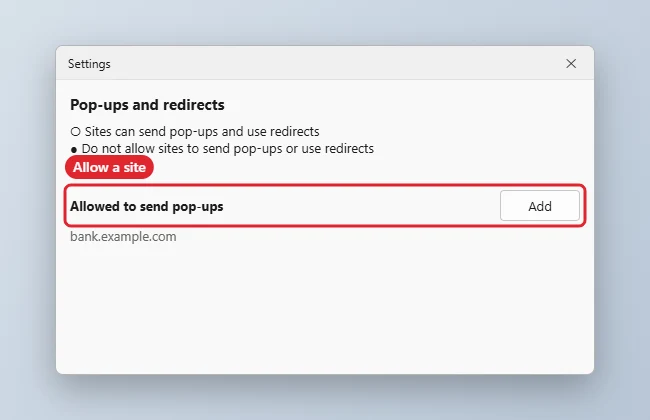
In Chrome or Edge, click the blocked pop-up icon in the address bar and choose Always allow pop-ups from this site. Or open Settings, Site settings (or Cookies and site permissions), Pop-ups and redirects, and add the site under Allowed.
How to Enable Pop-Up Windows
- Visit the site that needs pop-ups. When the browser blocks one, look for the pop-up icon at the right end of the address bar.
- Click it, choose Always allow pop-ups and redirects from this site, and click Done.
- Reload the page.
- To manage the list, open Settings, Privacy and security, Site settings, Pop-ups and redirects in Chrome, or Cookies and site permissions, Pop-ups and redirects in Edge, and use Add under Allowed.
- Remove sites from the Allowed list when you no longer need them.
Pop-Up Settings by Browser
| Browser | Where to find it |
|---|---|
| Chrome | Settings, Privacy and security, Site settings, Pop-ups and redirects |
| Edge | Settings, Cookies and site permissions, Pop-ups and redirects |
| Firefox | Settings, Privacy and Security, Permissions, Block pop-up windows |
| Safari | Settings, Websites, Pop-up Windows |
Troubleshooting
- The pop-up still does not open: an extension such as an ad blocker may block it. Pause it for that site.
- Pop-ups appear on every site: check for unwanted extensions and run a security scan.
- On iPhone Safari, see how to enable pop-ups in Safari.
- To stop unwanted pop-ups, read how to stop pop-ups on Windows 10.
Frequently Asked Questions
Is it safe to allow all pop-ups?
No. Allow only trusted sites to avoid scam windows.
What is the difference between a pop-up and a notification?
Pop-ups are new windows; notifications are site alerts you allow separately.
Do pop-up settings sync?
If browser sync is on, site settings may sync to your other devices.
Summary
- Click the blocked pop-up icon.
- Choose Always allow for the site.
- Or add the site in Pop-ups and redirects.
- Keep the blocker on for other sites.

Kermit Matthews is a freelance writer based in Philadelphia, Pennsylvania with more than a decade of experience writing technology guides. He has a Bachelor’s and Master’s degree in Computer Science and has spent much of his professional career in IT management.
He specializes in writing content about iPhones, Android devices, Microsoft Office, and many other popular applications and devices.