To stop GCash payments to Google, cancel the subscription that’s charging you in the Google Play Store, then remove GCash as a payment method from your Google account. Open the Play Store, tap your profile picture > Payments & subscriptions > Subscriptions, pick the subscription, and tap Cancel subscription. Then go to Payment methods > More payment settings (or pay.google.com) and remove GCash. You can also unlink Google from inside the GCash app in the Subscription Center.
Step 1: Find out what Google is charging you for
- Open the Google Play Store app.
- Tap your profile picture > Payments & subscriptions > Budget & history to see recent purchases.
- Check Subscriptions for anything that renews automatically.
Charges can also come from YouTube Premium, Google One storage, or in-app purchases in games. If you have more than one Google account, check each one.
Step 2: Cancel Google Play subscriptions paid with GCash
- In the Play Store, tap your profile picture > Payments & subscriptions > Subscriptions.
- Tap the subscription. The Payment method line shows whether it uses GCash.
- Tap Cancel subscription and follow the prompts.
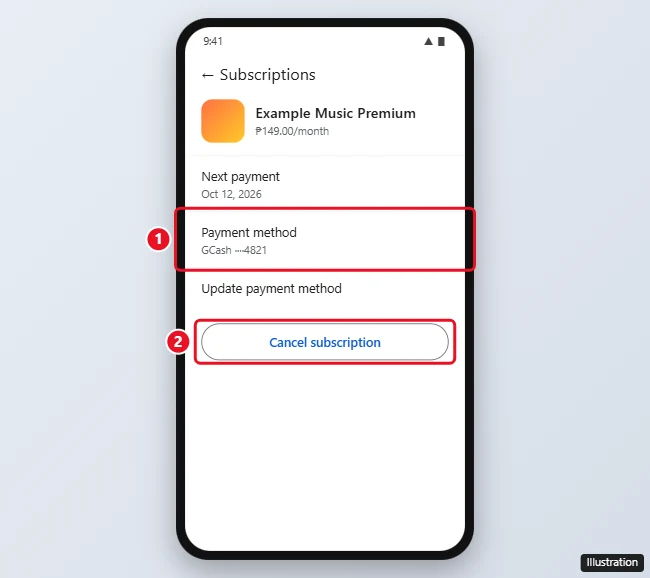
You keep access until the end of the current billing period, and GCash won’t be charged again for that subscription.
Step 3: Remove GCash from your Google payment methods
- In the Play Store, go to Payments & subscriptions > Payment methods > More payment settings. This opens Google Pay’s payment settings. You can also go straight to pay.google.com on a computer.
- Find GCash under Payment methods.
- Tap or click Remove, then confirm.
If Google won’t let you remove it, it’s still being used by an active subscription or a family payment method. Cancel or switch those first.
Step 4: Unlink Google in the GCash app
To make sure no merchant can charge your GCash wallet automatically:
- Open the GCash app and log in.
- Go to the Subscription Center or your linked accounts. You can search for “Subscription” in the app if you don’t see it.
- Select Google (or the merchant charging you) and choose to unsubscribe or unlink.
GCash’s menus change from time to time. If you can’t find the option, tap Help in the app and ask GCash support.
Getting a refund for a Google charge
GCash says refunds are handled by the merchant, so request them from Google:
- Go to play.google.com, click your profile picture > Payments & subscriptions > Budget & order history.
- Find the charge and choose Report a problem or Request a refund.
- Explain what happened and submit.
Google reviews each request. Charges within the last 48 hours are the easiest to refund.
If you don’t recognize the charge
- Check whether a family member used your phone or your Google account’s family payment method.
- Change your Google password and turn on 2-Step Verification if you think someone else accessed your account.
- Report unrecognized transactions to GCash through Help in the app.
- Turn on Require authentication for purchases in Play Store Settings > Authentication so every purchase needs your password or fingerprint.
Frequently asked questions
Why is Google still charging my GCash after I deleted the app?
Uninstalling an app doesn’t cancel its subscription. Cancel it in the Play Store’s Subscriptions page.
Can I use GCash again for Google Play later?
Yes. Add it back from Payment methods in the Play Store whenever you want.
Will removing GCash cancel my subscriptions?
No. Cancel subscriptions separately. If a subscription’s payment fails, Google may pause or cancel it after a grace period.

Kermit Matthews is a freelance writer based in Philadelphia, Pennsylvania with more than a decade of experience writing technology guides. He has a Bachelor’s and Master’s degree in Computer Science and has spent much of his professional career in IT management.
He specializes in writing content about iPhones, Android devices, Microsoft Office, and many other popular applications and devices.