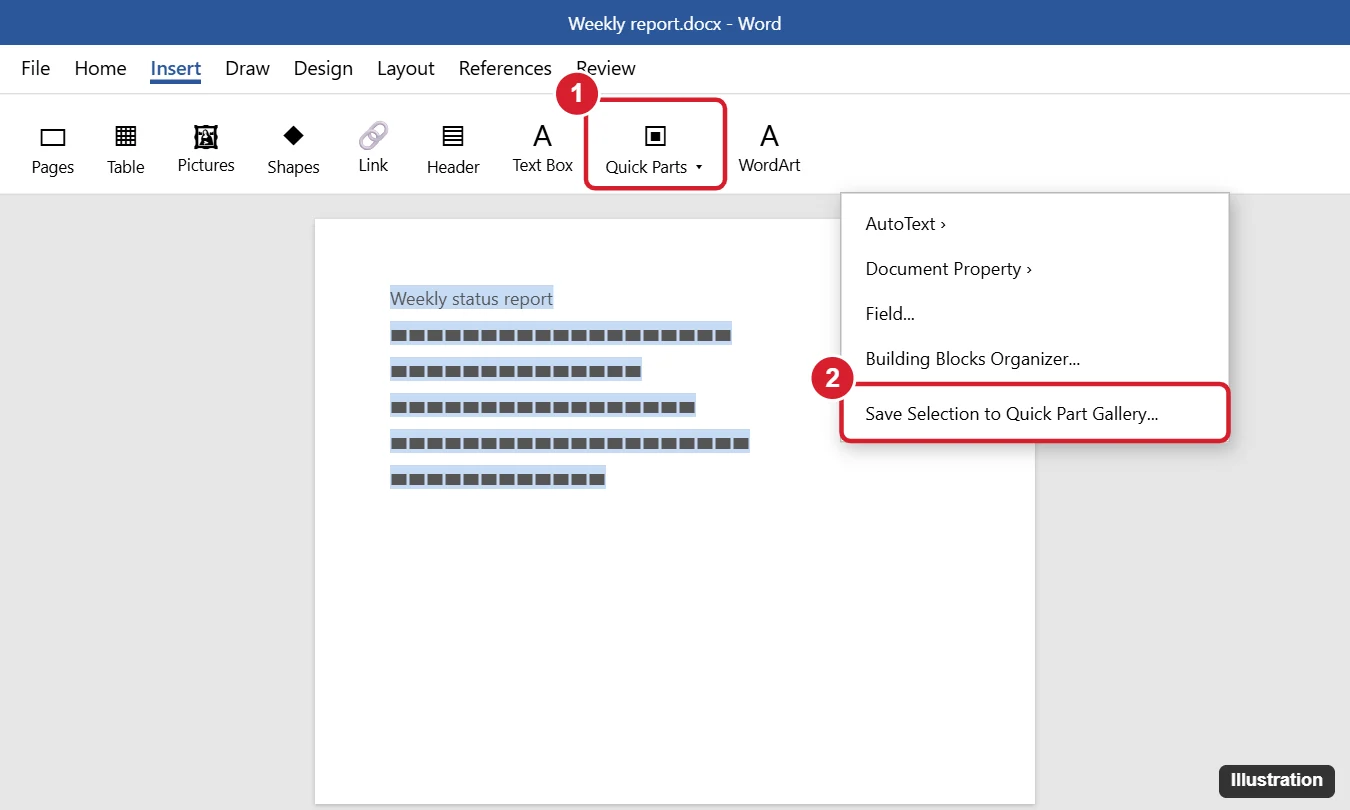
Word doesn’t have a “Duplicate page” button, but there are good ways to reuse a page without manually copying and pasting it each time. For a page you’ll use again and again, select it and save it as a Quick Part (Insert > Quick Parts > Save Selection to Quick Part Gallery), then insert it with one click whenever you need another copy. To bring in an entire page or document from another file, use Insert > Object > Text from File. And if the document is a single page, just make a copy of the whole file.
If a quick copy and paste is fine after all, there’s also a trick to select exactly one page instantly, covered below.
Which method should you use?
| Situation | Best method |
|---|---|
| You need the same page many times, such as a form or template page | Quick Parts |
| The page is in another document | Insert > Text from File |
| The whole document is one page | Duplicate the file |
| You just need one more copy right now | Select the page with \page, then copy |
Method 1: Save the page as a Quick Part
- Select everything on the page (see the \page trick below for an exact selection).
- Click Insert > Quick Parts > Save Selection to Quick Part Gallery.
- Give it a name, like “Status page,” and click OK.
- Whenever you need another copy, click where it should go, then Insert > Quick Parts and click your saved page.
To start the copy on a new page, insert a page break first with Ctrl + Enter. Quick Parts are saved in your Normal template, so they’re available in other documents too. When you close Word, click Save if it asks about saving building blocks.
Method 2: Insert a page from another file
- Click where you want the page to appear, and press Ctrl + Enter for a new page if needed.
- Click Insert > Object (the arrow next to it) > Text from File.
- Choose the document and click Insert.
To insert only part of that file, first add a bookmark around the page in the source document. Then, in the Insert File dialog, click Range and type the bookmark name.
Method 3: Duplicate the whole file
For a one-page document like a flyer or certificate, right-click the file in File Explorer and choose Copy, then Paste in the same folder, or open it and use File > Save As with a new name. In Word for Microsoft 365, File > Save a Copy does the same.
The fastest way to select one page
- Click anywhere on the page you want to duplicate.
- Press Ctrl + G to open Find and Replace on the Go To tab.
- Type \page in the Enter page number box and press Enter, then click Close.
Word selects exactly that page’s content. From there, you can save it as a Quick Part, or press Ctrl + C, move to where you want it, press Ctrl + Enter for a new page, and Ctrl + V to paste.
Tips for a clean duplicate
- Turn on Home > Show/Hide ¶ to see page breaks and avoid extra blank pages.
- If the page has its own header, orientation, or margins, include the section break at the end of the page in your selection.
- Delete an unwanted blank page afterward. See how to delete a page in Word.
Related: Insert text in Word.
Frequently asked questions
Does Word for Mac have a duplicate page option?
No, but Quick Parts (Insert > Quick Parts on newer versions, or AutoText on older ones) and the \page trick work on Mac too.
How do I duplicate a page in Google Docs?
Google Docs doesn’t have a duplicate page option either. Select the content and copy it, or make a copy of the document with File > Make a copy.
Can I duplicate a page in a PDF instead?
Yes, most PDF editors have a duplicate or insert page option. See how to edit a PDF on Windows.

Kermit Matthews is a freelance writer based in Philadelphia, Pennsylvania with more than a decade of experience writing technology guides. He has a Bachelor’s and Master’s degree in Computer Science and has spent much of his professional career in IT management.
He specializes in writing content about iPhones, Android devices, Microsoft Office, and many other popular applications and devices.