Windows 11 doesn’t have a font size setting just for File Explorer, but you can make its text bigger with the system-wide text size setting: open Settings > Accessibility > Text size, drag the slider to the size you want (up to 225%), and click Apply. This enlarges text in File Explorer, menus, title bars, and most apps without making everything else bigger. To make icons and file names larger in File Explorer itself, hold Ctrl and scroll the mouse wheel, or choose a larger layout from the View menu.
This guide covers every way to change how big text looks in File Explorer, including Text size, display scaling, File Explorer view options, Compact view, and the Magnifier, plus how to undo changes.
Method 1: Increase text size (recommended)
- Press Windows + I to open Settings.
- Click Accessibility > Text size.
- Drag the Text size slider to the right. The preview shows how text will look.
- Click Apply. Windows shows “Please wait” for a moment while it updates.
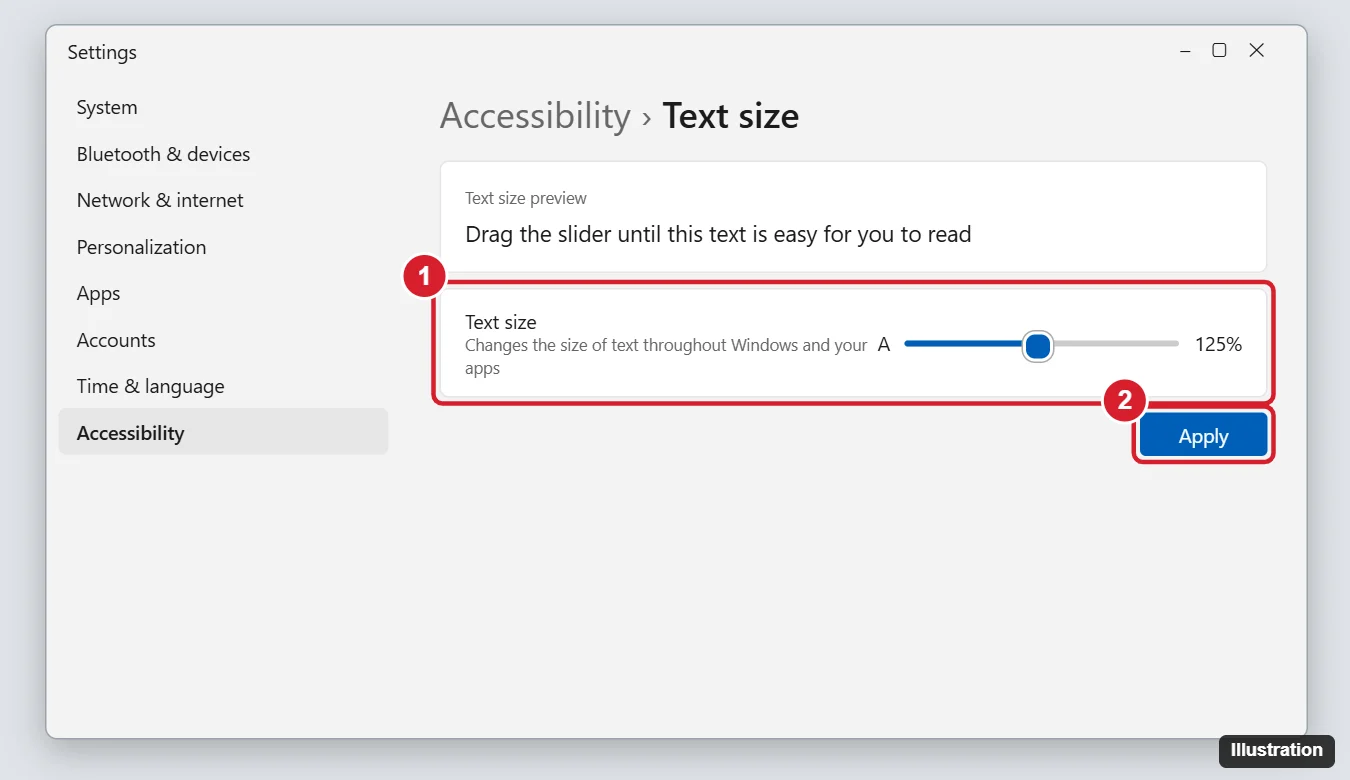
To make text smaller again, drag the slider back to 100% and click Apply. Some apps may need to be restarted to pick up the change.
Method 2: Change icon and file name size in File Explorer
- Ctrl + mouse wheel – in a File Explorer window, hold Ctrl and scroll up to make icons larger or down to make them smaller.
- View menu – click View in the command bar and choose Extra large icons, Large icons, Medium icons, Small icons, List, Details, Tiles, or Content.
- Keyboard shortcuts – press Ctrl + Shift + 1 through Ctrl + Shift + 8 to switch between these layouts.
These options change icon size and layout. The file name text grows with larger icon views, but for bigger text in Details view, use Method 1.
Method 3: Turn off Compact view
Compact view reduces the space between items. Turning it off adds padding, making items easier to read and tap. In File Explorer, click View > Show and uncheck Compact view.
Method 4: Change display scaling
Scaling makes everything bigger, including text, icons, and windows.
- Go to Settings > System > Display.
- Under Scale, choose a higher value, such as 125% or 150%.
- For a precise value, click Scale and enter a Custom scaling size between 100% and 500%, then sign out and back in.
Scaling is best if your screen is high resolution and everything looks tiny. Use Text size if only the text is too small.
Method 5: Use Magnifier for occasional zoom
Press Windows + Plus (+) to turn on Magnifier and zoom in, and Windows + Minus (-) to zoom out. Press Windows + Esc to turn it off. This is handy for a quick look without changing settings.
What about changing the font itself?
Windows 11 doesn’t include a setting to change the system font or font style used by File Explorer. Older Windows versions had advanced appearance settings for this, but they were removed. Registry tweaks and third-party tools that change the system font exist, but they can cause display problems and aren’t recommended.
More File Explorer tips: organizing files on Windows 11.
Troubleshooting
- Text looks blurry after changing scaling – sign out and back in. For a specific app, right-click its shortcut, choose Properties > Compatibility > Change high DPI settings, and try Override high DPI scaling behavior.
- Text is cut off – lower the text size a step or use scaling instead, since some older dialogs don’t resize well.
- Icon size keeps resetting – File Explorer remembers views per folder type. Set the view you want, then click See more (…) > Options > View > Apply to Folders.
Frequently asked questions
Does Text size affect websites?
It affects browser menus and interface text. Web page text is controlled by the browser’s zoom (Ctrl + Plus or Ctrl + Minus).
Can I make only File Explorer’s text bigger?
Not with a built-in setting. Text size applies across Windows, and larger icon views are the closest File Explorer-only option.
Does this work in Windows 10?
Yes. In Windows 10, go to Settings > Ease of Access > Display > Make text bigger.

Kermit Matthews is a freelance writer based in Philadelphia, Pennsylvania with more than a decade of experience writing technology guides. He has a Bachelor’s and Master’s degree in Computer Science and has spent much of his professional career in IT management.
He specializes in writing content about iPhones, Android devices, Microsoft Office, and many other popular applications and devices.