Small caps turns lowercase letters into smaller capital letters while capitals stay full height. It gives headings, names, acronyms, and legal or academic documents a refined look without the shouting effect of ALL CAPS. Word applies it with one shortcut or a checkbox. This guide covers Windows, Mac, and the web, how to apply small caps to a style, how small caps differ from All caps, and a few formatting tips.
Quick Answer
Select the text and press Ctrl + Shift + K (Windows) or Cmd + Shift + K (Mac). Or open the Font dialog (Ctrl + D or Cmd + D), check Small caps, and click OK. Press the shortcut again to remove small caps.
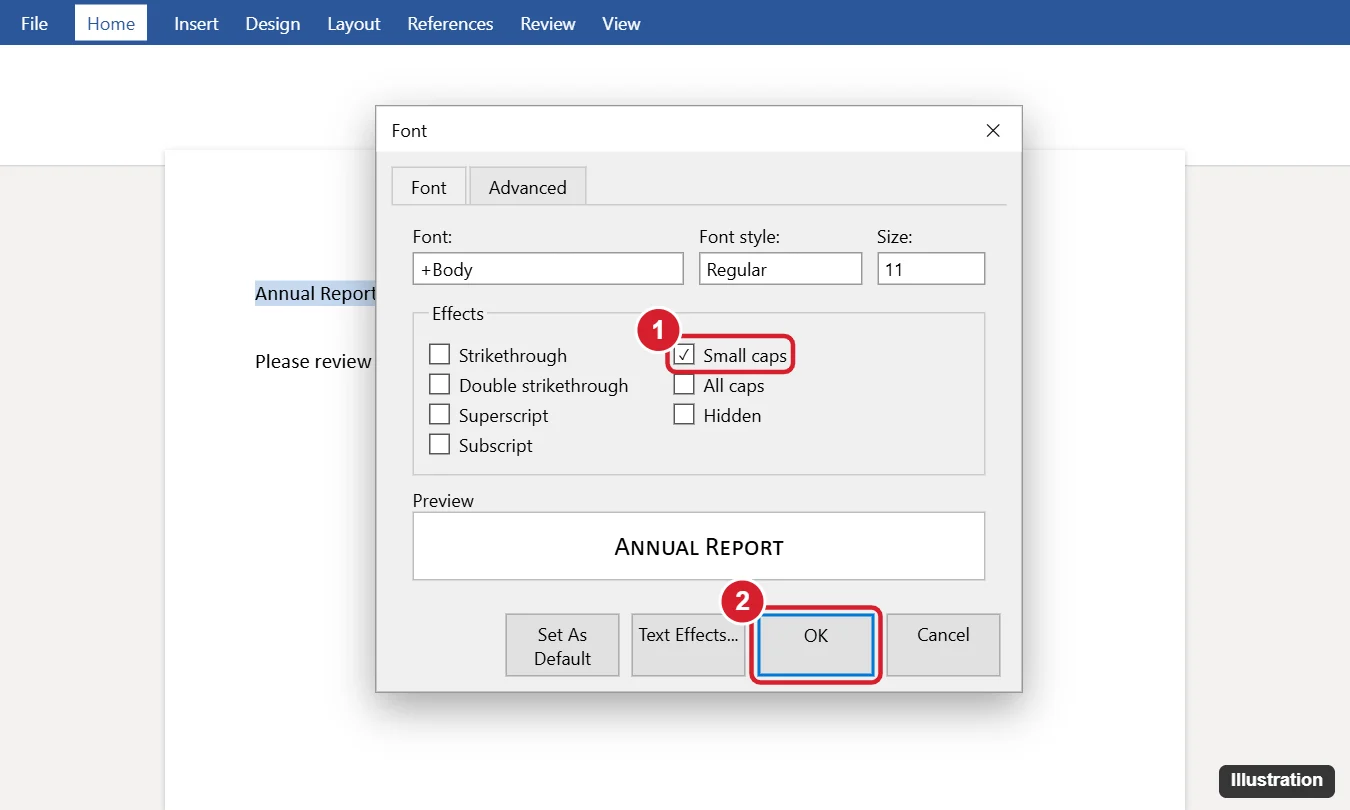
How to Apply Small Caps in Word for Windows
- Select the text. Type it in normal lowercase or sentence case, not ALL CAPS.
- On the Home tab, click the small arrow in the lower-right corner of the Font group, or press Ctrl + D.
- Under Effects, check Small caps.
- Click OK.
Shortcut: select the text and press Ctrl + Shift + K.
How to Apply Small Caps in Word for Mac
- Select the text.
- Go to Format > Font, or press Cmd + D.
- Check Small caps and click OK.
Shortcut: Cmd + Shift + K.
Word for the Web
Word for the web has fewer font effects than the desktop app. If you don’t see a Small caps option in its Font settings, open the document in the desktop app with Editing > Open in Desktop App. Small caps applied in the desktop app display correctly on the web.
Small Caps vs. All Caps
| Effect | Typed text | Result | Shortcut (Windows) |
|---|---|---|---|
| Small caps | Annual Report | Annual Report | Ctrl + Shift + K |
| All caps | Annual Report | ANNUAL REPORT | Ctrl + Shift + A |
| Change Case (actually retypes letters) | annual report | ANNUAL REPORT or Annual Report | Shift + F3 |
Small caps and All caps are formatting only. The letters underneath don’t change, so removing the effect brings back the original text. Shift + F3 changes the actual letters.
Apply Small Caps to a Style (Headings, Names)
- On the Home tab, right-click a style such as Heading 2 and choose Modify.
- Click Format > Font, check Small caps, and click OK.
- Choose Only in this document or New documents based on this template, and click OK.
Every paragraph using that style updates automatically, which keeps formatting consistent in long documents.
Tips for Better-Looking Small Caps
- Type in lowercase for words that should be fully small caps, such as acronyms (nasa, pdf). Typed capitals stay full height.
- Add a little letter spacing: in Font > Advanced, set Spacing to Expanded by 0.5 pt for easier reading.
- Choose a suitable font: Word creates small caps by shrinking capitals, which can look thin. Serif fonts like Garamond, Cambria, or Georgia usually look better.
- Legal and academic citations: some citation styles use small caps for case names or author names. Check the style guide.
How to Remove Small Caps
Select the text and press Ctrl + Shift + K (Cmd + Shift + K on Mac) again. Or uncheck Small caps in the Font dialog. To remove all formatting at once, press Ctrl + Spacebar.
Troubleshooting
Nothing changed after applying small caps
The text was typed in ALL CAPS, and capitals stay full size. Select it, press Shift + F3 until it’s lowercase or sentence case, then apply small caps.
Ctrl + Shift + K doesn’t work
Another app may be using the shortcut. Use the Font dialog, or reassign it in File > Options > Customize Ribbon > Keyboard shortcuts: Customize (command: SmallCaps).
Small caps disappear in Google Docs
Google Docs doesn’t support small caps formatting, so it shows the text normally. Export to PDF from Word if you need to share it with the formatting intact.
Related: Capitalize all letters in Word.
Frequently Asked Questions
What is the small caps shortcut in Word?
Ctrl + Shift + K on Windows and Cmd + Shift + K on Mac.
Can I add a Small Caps button to the ribbon?
Yes. In File > Options > Quick Access Toolbar, choose All Commands, find Small Caps, and click Add.
Does small caps affect spell check or search?
No. Word still sees the original letters.
Summary
- Select text typed in normal case.
- Press Ctrl + Shift + K or Cmd + Shift + K, or check Small caps in the Font dialog.
- Add it to a style for consistent headings.
- Press the shortcut again to remove it.

Kermit Matthews runs Live2Tech from just outside Philadelphia. He started on a university help desk, spent years as the IT person for small businesses, and has been writing tech guides full time since 2020. Each guide is checked on a device he owns, and re-checked when a menu moves. More about Kermit.