Bulleted lists make Google Docs easier to scan. You can start one from the toolbar, the Format menu, a keyboard shortcut, or just by typing an asterisk and a space. You can also change the bullet style and create nested levels.
Quick Answer
Click the bulleted list button on the toolbar, press Ctrl, Shift and 8 (Command, Shift and 8 on a Mac), or type an asterisk and a space at the start of a line.
How to Add Bullet Points in Google Docs
- Place the cursor where the list should start, or select existing lines.
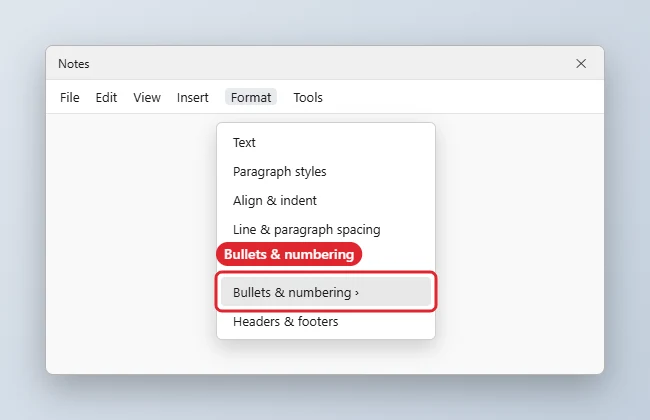
- Click the Bulleted list button on the toolbar, or go to Format, Bullets and numbering, Bulleted list.
- Or press Ctrl, Shift and 8 (Command, Shift and 8 on a Mac).
- Type each item and press Enter for the next bullet.
- Press Tab to indent a sub-bullet and Shift and Tab to move back out.
- Press Enter twice to end the list.
List Options
| Option | How |
|---|---|
| Bulleted list | Toolbar button or Ctrl + Shift + 8 |
| Numbered list | Ctrl + Shift + 7 |
| Checklist | Ctrl + Shift + 9 |
| Change bullet style | Right-click a bullet, More bullets |
| Nested level | Tab and Shift + Tab |
To indent a list on a phone or tablet, see how to indent on Google Docs mobile.
Troubleshooting
- Bullets will not start from an asterisk: turn on Tools, Preferences, Automatically detect lists.
- Bullet the wrong color or size: select only the bullet by clicking it, then change the font or color.
- Uneven indents: see how to indent in Google Docs.
- Working with long documents? Read how to use tabs in Google Docs.
Frequently Asked Questions
Can I use custom symbols as bullets?
Yes. Right-click a bullet, choose More bullets and pick any symbol.
How do I restart numbering?
Right-click a number and choose Restart numbering.
Does the mobile app support bullets?
Yes. Tap the formatting button and choose the list icon.
Can I copy list formatting?
Yes, with the Paint format tool.
Summary
- Place the cursor.
- Click Bulleted list or press Ctrl + Shift + 8.
- Press Enter for each item.
- Tab to nest.
- Enter twice to finish.

Kermit Matthews is a freelance writer based in Philadelphia, Pennsylvania with more than a decade of experience writing technology guides. He has a Bachelor’s and Master’s degree in Computer Science and has spent much of his professional career in IT management.
He specializes in writing content about iPhones, Android devices, Microsoft Office, and many other popular applications and devices.