To see version history in Microsoft Word, click the file name at the top of the window and choose Version History, or go to File > Info > Version History. A pane opens on the right listing earlier saved versions with dates and authors. Click Open version to view one, then click Restore to make it the current version. Version history works when the document is saved to OneDrive or SharePoint. For files saved only on your computer, you’ll need AutoRecover or Windows File History instead.
Below are the steps for Word on Windows, Mac, and the web, plus how to compare versions and recover work from local files.
Where version history works
| Where the file is saved | Version history? | What to use |
|---|---|---|
| OneDrive (personal or work) | Yes | Version History pane |
| SharePoint or Teams | Yes | Version History pane |
| Your computer only | No | Manage Document > Recover Unsaved Documents, or Windows File History |
| Dropbox or Google Drive | Not in Word | That service’s own version history on its website |
How to see version history in Word for Windows
- Open the document from OneDrive or SharePoint.
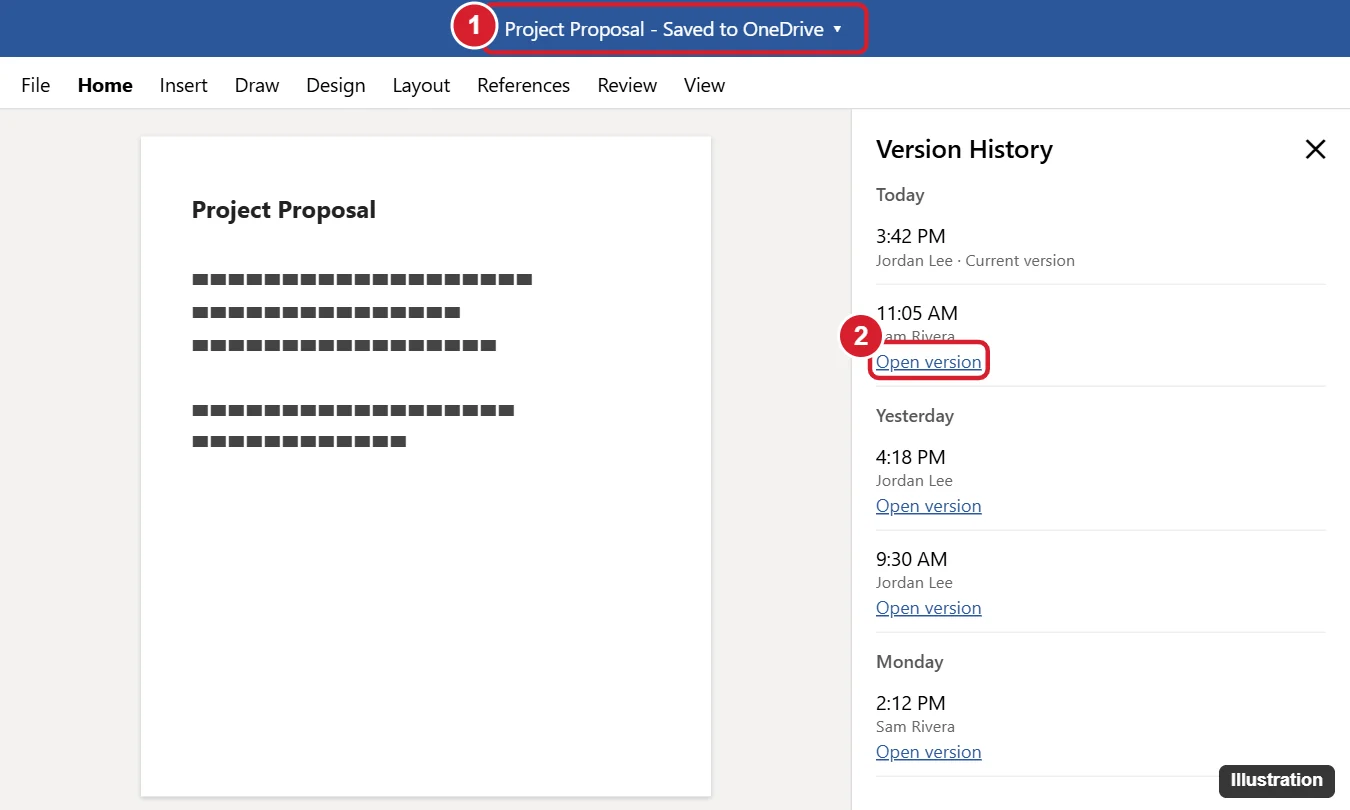
- Click the file name in the title bar at the top, then click Version History. Or go to File > Info > Version History.
- In the Version History pane, click Open version under the version you want. It opens in a separate, read-only window.
- To bring it back, click Restore in the yellow bar at the top. To copy just some text, select it and paste it into your current document instead.
Restoring doesn’t delete newer versions. The version you replaced stays in the list, so you can switch back.
How to see version history in Word for Mac
- Open the document from OneDrive or SharePoint.
- Click File > Browse Version History, or click the file name in the title bar.
- Click Open Version next to the one you want, then click Restore if needed.
How to see version history in Word for the web
- Open the document at office.com or in OneDrive.
- Click File > Info > Version history.
- Select a version to preview it in the document area, then click Restore to make it current or Download to save a copy.
How to compare two versions
- Open an older version from the Version History pane and save it as a separate file with File > Save a Copy.
- In your current document, go to Review > Compare > Compare.
- Choose the older copy as the Original document and the current file as the Revised document, then click OK.
Word shows the differences as tracked changes. To track changes going forward, turn on Review > Track Changes.
Recover earlier work from a file saved on your computer
- Unsaved versions: Go to File > Info > Manage Document > Recover Unsaved Documents. Word keeps AutoRecover copies for a limited time.
- Windows File History: If it’s turned on, right-click the file in File Explorer, choose Properties > Previous Versions (Windows 10) or open Control Panel > File History > Restore personal files.
- Move the file to OneDrive and turn on AutoSave (top-left toggle) so every change is saved and versioned from now on.
Why don’t I see Version History?
- The file is saved locally. Save it to OneDrive with File > Save As > OneDrive.
- You’re using an older, non-subscription version of Word, like Word 2016 or 2019. Version history for cloud files is best in Microsoft 365.
- The file is open in Protected View or as read-only. Click Enable Editing.
- Your organization turned off versioning in SharePoint. Ask your IT admin.
Related: How to Save a Copy of a Word Document.
Related: How to recover deleted text in Word.
Frequently asked questions
How long does Word keep old versions?
OneDrive keeps many previous versions for personal accounts, and SharePoint keeps them based on your organization’s settings, often 500 versions by default. Very old versions may be removed over time.
Can I see who made each change?
Version History shows who saved each version. To see individual edits, use Track Changes or Review > Show Changes in shared documents.
Can I delete a version?
Not from Word. In OneDrive on the web, right-click the file, choose Version history, and you can delete older versions there.
Does restoring a version notify collaborators?
No, but they’ll see the restored content the next time they open or refresh the document. For sharing tips, see how to share a Word document that everyone can edit.

Kermit Matthews is a freelance writer based in Philadelphia, Pennsylvania with more than a decade of experience writing technology guides. He has a Bachelor’s and Master’s degree in Computer Science and has spent much of his professional career in IT management.
He specializes in writing content about iPhones, Android devices, Microsoft Office, and many other popular applications and devices.